1. Бүтээгдэхүүн дууссанview
The Keychron K5 QMK Version 2 is a low-profile wireless mechanical keyboard designed for both gaming and office use. It features a 100% full-size layout with 104 keys, QMK firmware for extensive customization, and enhanced acoustic foams for an improved typing experience. The keyboard supports both Bluetooth 5.2 wireless and wired USB-C connections, making it compatible with Mac, Windows, iOS, and Android devices.

Image: Keychron K5 QMK keyboard with brown switches and additional keycaps.
2. Тохируулах заавар
2.1 Хайрцагнаас задлах, анхны үзлэг
Carefully remove the keyboard and all accessories from the packaging. Verify that all components are present, including the keyboard, USB-C cable, keycap puller, and switch puller (if applicable).
2.2 Гарыг цэнэглэх
Connect the provided USB-C cable to the keyboard's USB-C port and the other end to a power source (e.g., computer USB port or USB wall adapter). The charging indicator light will show the charging status. A full charge typically takes a few hours.
2.3 Bluetooth-ээр холбогдож байна
- Locate the Bluetooth/Off/Cable switch on the side of the keyboard.
- Slide the switch to the 'Bluetooth' position.
- Press and hold the 'Fn' + '1' (or '2', '3') key combination for 4 seconds until the '1' (or '2', '3') key starts flashing rapidly. This indicates the keyboard is in pairing mode.
- On your device (computer, phone, tablet), enable Bluetooth and search for 'Keychron K5'.
- Select the keyboard from the list of available devices to complete the pairing process. The corresponding key ('1', '2', or '3') will stop flashing and remain lit to indicate a successful connection.
- You can pair up to three devices and switch between them using 'Fn' + '1', 'Fn' + '2', or 'Fn' + '3'.
2.4 Connecting via Wired (USB-C)
To use the keyboard in wired mode, slide the Bluetooth/Off/Cable switch to the 'Cable' position. Connect the USB-C cable from the keyboard to your device. The keyboard will automatically switch to wired mode.
2.5 Switching Between Mac/Windows Modes
The keyboard has a dedicated switch to toggle between Mac and Windows/Android layouts. Locate the 'Win/Android Mac/iOS' switch on the side of the keyboard and slide it to the appropriate operating system. This ensures correct key mapping for your system.

Image: Close-up of the Keychron K5 keyboard showing the Bluetooth/Off/Cable switch and the Mac/Windows/iOS/Android mode switch.
2.6 Гарын өнцгийг тохируулах
The Keychron K5 features adjustable feet that allow you to set the keyboard at a 3-degree or 7-degree angle for ergonomic comfort. Extend or retract the feet as desired.
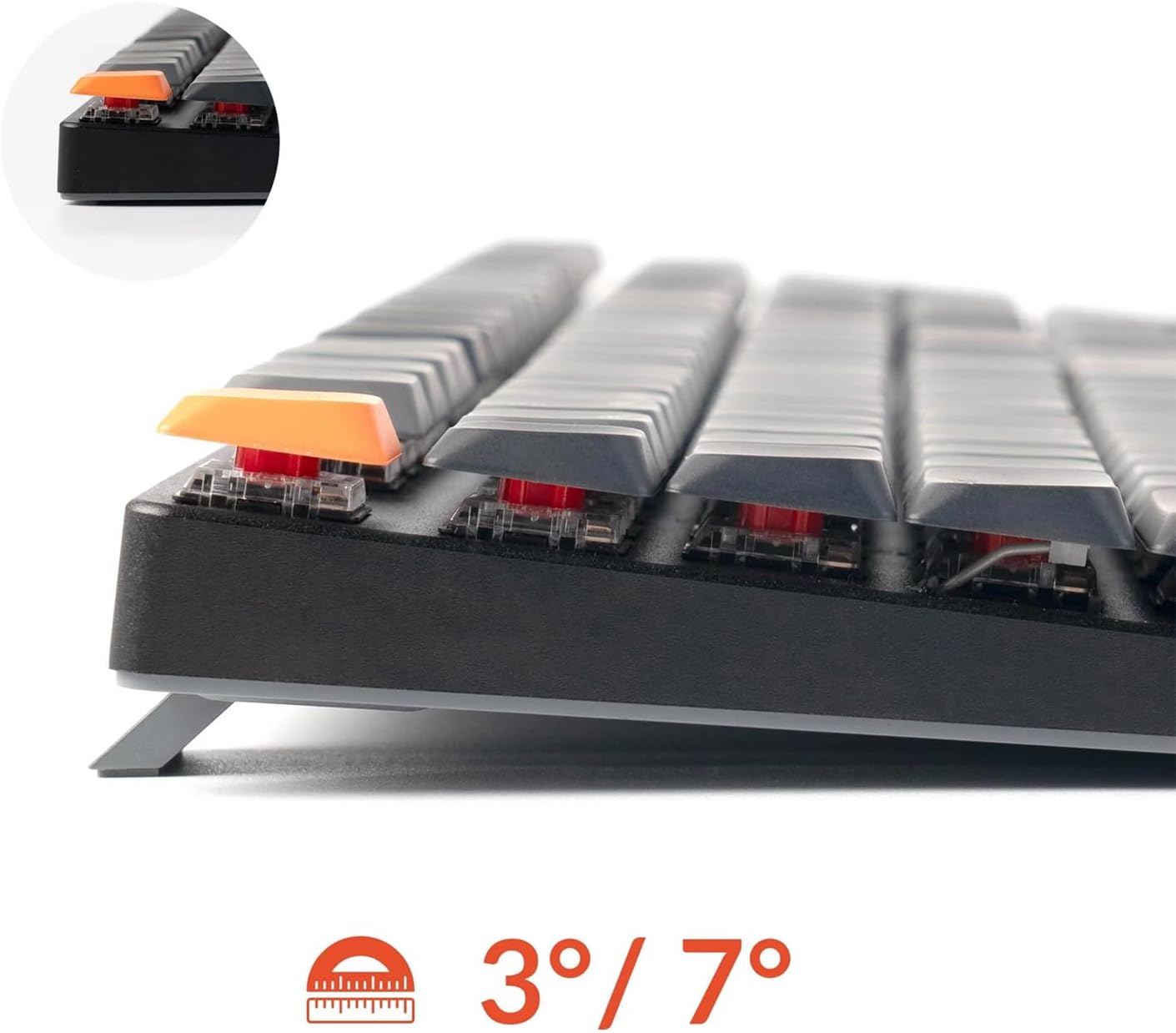
Зураг: хажуу тал view of the Keychron K5 keyboard illustrating the adjustable feet for 3-degree and 7-degree typing angles.
3. Ашиглалтын заавар
3.1 Үндсэн түлхүүр функцууд
The Keychron K5 operates as a standard 104-key full-size keyboard. Function keys (F1-F12) can be accessed directly or by holding the 'Fn' key, depending on your operating system settings. Multimedia keys are typically integrated with the function row.
3.2 арын гэрэлтүүлгийн удирдлага
The keyboard features a white LED backlight. Use the dedicated backlight key (often indicated by a light bulb icon) or 'Fn' key combinations to cycle through different lighting effects and adjust brightness levels.
3.3 QMK Customization with Keychron Launcher
The Keychron K5 QMK Version 2 supports open-source QMK firmware, allowing for extensive customization of key remapping, macros, and shortcuts. This can be managed through the Keychron Launcher web програм.
- Access the Keychron Launcher web app through your web хөтөч.
- Connect your keyboard to your computer via the USB-C cable.
- Within the application, you can remap individual keys, create complex macros, and configure various settings.
- Save your custom layouts to the keyboard's firmware.

Image: Screenshot of the Keychron Launcher web application interface, demonstrating key remapping and macro creation options for the K5 keyboard.
3.4 Polling Rate Information
The keyboard operates with a polling rate of 1000 Hz in wired mode, providing minimal latency. In wireless (Bluetooth) mode, the polling rate is 125 Hz.
3.5 Redesigned Stabilizers
The Keychron K5 QMK Version 2 features redesigned stabilizers to ensure consistent keypresses, particularly for larger keys like the spacebar, shift, and enter keys. This design maintains the stab and switch at the same level for improved stability.

Image: Diagram illustrating the redesigned stabilizers for the Keychron K5 keyboard, showing how the stab and switch remain level for enhanced key stability.
4. Засвар үйлчилгээ
4.1 Гарыг цэвэрлэх
To clean the keyboard, first disconnect it from all power sources (unplug the USB-C cable and turn off Bluetooth). Use a can of compressed air to remove dust and debris from between the keycaps. For surface cleaning, gently wipe the keycaps and frame with a soft, slightly damp даавуу. Хүчтэй химийн бодис, хэт их чийгийг хэрэглэхээс зайлсхий.
4.2 Батерейны арчилгаа
The keyboard is equipped with a rechargeable Lithium Ion battery. To prolong battery life:
- Байнга зайгаа бүрэн цэнэглэхээс зайлсхий.
- Хэрэв удаан хугацаагаар ашиглахгүй бол гарыг сэрүүн, хуурай газар хадгална уу.
- Гарыг хэт өндөр температурт бүү гарга.
5. Алдаа засах
5.1 Холболтын асуудал
- Bluetooth холбогдоогүй байна: Ensure the keyboard is in Bluetooth mode and in pairing mode (Fn + 1/2/3 flashing). Check your device's Bluetooth settings. Try forgetting the device on your computer and re-pairing.
- Утастай холболт ажиллахгүй байна: Ensure the keyboard is in 'Cable' mode. Try a different USB-C cable or a different USB port on your computer.
5.2 Key Responsiveness
- Key Not Registering: Clean around the affected key with compressed air to remove any obstructions.
- Key Chatter (Double Input): This can sometimes be resolved by updating the keyboard firmware. Refer to the Keychron webхамгийн сүүлийн үеийн програм хангамж болон шинэчлэх зааврыг авах сайт.
5.3 Програм хангамжийн шинэчлэлтүүд
Periodically check the official Keychron website for firmware updates. Firmware updates can improve performance, add features, and resolve known issues. Follow the instructions provided on the Keychron webШинэчлэлт хийхдээ сайтыг болгоомжтой суулгаарай.
5.4 Үйлдвэрийн тохиргоонд дахин оруулах
If you encounter persistent issues or wish to revert all settings to default, you can perform a factory reset. Consult the Keychron website or support documentation for the specific key combination to perform a factory reset for the K5 QMK Version 2.
6. Техникийн үзүүлэлтүүд
The following table details the technical specifications of the Keychron K5 QMK Ultra-Slim Full Size Wireless Mechanical Gaming Keyboard (Model: K5X-A3).
| Онцлог | Дэлгэрэнгүй |
|---|---|
| Загварын нэр | K5X-A3 |
| Брэнд | Түлхүүр товч |
| Гарын тайлбар | Gaming Mechanical |
| Холболтын технологи | USB-C, Bluetooth 5.2 |
| Тохиромжтой төхөөрөмжүүд | Laptop, PC, Phone, Tablet (Mac, Windows, iOS, Android) |
| Онцлог шинж чанар | QMK Firmware, Enhanced Acoustic Foams |
| Өнгө | Хүрэн шилжүүлэгч |
| Материал | Хуванцар, металл |
| Эрчим хүчний эх үүсвэр | Батерейгаар ажилладаг (1 лити ион батерей багтсан) |
| Зүйлийн жин | 2.57 фунт |
| Багцын хэмжээ | 17.56 x 7.83 x 6.46 инч |

Зураг: Тэсэрсэн view diagram showing the internal layers of the Keychron K5 keyboard, including keycaps, switches, aluminum plate, foam layers, PCB, battery, and bottom case.
7. Баталгаат хугацаа ба дэмжлэг
Keychron products are typically covered by a limited warranty. For detailed warranty information, including terms, conditions, and duration, please refer to the official Keychron webсайт эсвэл таны бүтээгдэхүүнд багтсан баталгаат карт.
If you encounter any issues that cannot be resolved using the troubleshooting steps provided in this manual, or if you require further assistance, please contact Keychron customer support through their official website. When contacting support, please have your product model (K5X-A3) and purchase details readily available.


