1. Танилцуулга
This manual provides essential instructions for the setup, operation, and maintenance of your Bemi Cognita Tab 5 E-Reader. The Cognita Tab 5 is a lightweight e-reader designed for comfortable reading, featuring a 5.76-inch e-paper display, Android 8.1 operating system, and Wi-Fi connectivity. Please read this manual thoroughly to ensure proper use and to maximize your device's potential.
2. Багцын агуулга
Upon unpacking your Bemi Cognita Tab 5, please verify that all the following items are included:
- Bemi Cognita Tab 5 E-Reader
- USB цэнэглэгч кабель
- Түргэн эхлүүлэх гарын авлага
- Хэрэглэгчийн гарын авлага (энэ баримт бичиг)
- Баталгаат карт

Image: Contents of the Bemi Cognita Tab 5 E-Reader package, including the device, charging cable, and documentation.
3. Төхөөрөмж дууссанview
Familiarize yourself with the physical components of your Bemi Cognita Tab 5.
3.1 Урд хэсэг View
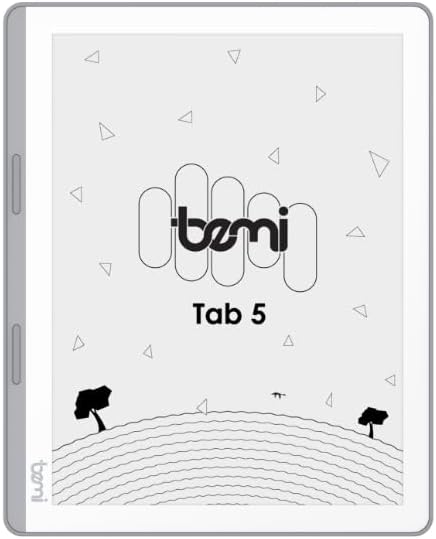
Зураг: Урд view of the Bemi Cognita Tab 5 E-Reader, showing the e-paper display and side buttons.
- E-Paper Display: 5.76-inch screen with 920x680 resolution (198 ppi) and anti-glare coating.
- Хуудас эргүүлэх товчлуурууд: Located on the side for convenient navigation through content.
3.2 Буцах View

Зураг: Буцах view of the Bemi Cognita Tab 5 E-Reader, highlighting its textured surface and branding.
- Резинэн Casing: Provides a secure grip and durability.
3.3 Портууд ба товчлуурууд
- Цахилгаан товч: Төхөөрөмжийг асаах/унтраах болон унтах горимд оруулахад ашигладаг.
- USB порт: Цэнэглэх, өгөгдөл дамжуулах зориулалттай.
- MicroSD картны үүр: Хадгалах багтаамжийг 64 ГБ хүртэл өргөжүүлэх зориулалттай.
- Чихэвчний Жак: Аудио гаралтын хувьд.
4. Тохиргоо
4.1 Анхны цэнэглэлт
Before first use, fully charge your Bemi Cognita Tab 5. Connect the provided USB cable to the device's USB port and plug the other end into a compatible USB power adapter (not included) or a computer's USB port. The charging indicator will show the charging status.
4.2 Асаах/унтраах
- Асаахын тулд: Дэлгэц идэвхжих хүртэл Power товчийг дараад барина уу.
- Унтраахын тулд: Асаах товчийг удаан дараад, дэлгэцэн дээр гарч ирэх сонголтуудаас 'Унтраах'-ыг сонгоно уу.
- Унтах/сэрэхийн тулд: Төхөөрөмжийг унтах горимд оруулах эсвэл сэрээхийн тулд Асаах товчийг товч дарна уу.
4.3 Үндсэн навигаци
The Cognita Tab 5 features a responsive touchscreen for navigation. Tap to select items, swipe to scroll, and use pinch-to-zoom where applicable. The dedicated page-turn buttons on the side can also be used for navigating through e-books.
4.4 Wi-Fi холболт
To access online content, transfer files wirelessly, or update software, connect your device to a Wi-Fi network:
- руу оч Тохиргоо үндсэн цэснээс.
- Сонго Wi-Fi.
- Wi-Fi-г асаах/унтраах On.
- Жагсаалтаас хүссэн сүлжээгээ сонгоод нууц үгээ оруулна уу.
5. Ашиглалтын заавар
5.1 Цахим ном унших
The Bemi Cognita Tab 5 supports various e-book formats including PDF, EPUB, and MOBI. To start reading:
- руу шилжих Номууд section on your device.
- Tap on the cover of the e-book you wish to read.
- Use the touchscreen or the physical page-turn buttons to navigate through pages.

Image: A person holding the Bemi Cognita Tab 5 E-Reader, demonstrating the reading experience on its e-paper display.
5.2 Арын гэрэлтүүлгийг тохируулах
The adjustable screen backlight allows for comfortable reading in various lighting conditions. Access backlight settings through the quick settings panel or the main Settings menu to adjust brightness levels.
5.3 File Дамжуулах
Та шилжүүлж болно files to your Cognita Tab 5 via USB or Wi-Fi.
- USB дамжуулалт: Connect the device to your computer using the USB cable. The device will appear as a removable storage drive, allowing you to drag and drop files.
- Wi-Fi дамжуулалт: Ensure both your device and the transmission device are on the same local area network (LAN). On your Cognita Tab 5, navigate to the Wi-Fi Transfer option (often found in the 'Storage' or 'Settings' menu). An IP address will be displayed (e.g., http://172.20.10.8:12580). Enter this address into a web browser on your computer or phone to access the device's storage and transfer files. Do not close this page during transmission.

Image: Screenshots showing the Wi-Fi transfer interface with an IP address and a file management screen on the Bemi Cognita Tab 5 E-Reader.
5.4 Installing Additional Applications
Running on Android 8.1, the Cognita Tab 5 allows for the installation of additional reading applications. You can typically install apps by transferring their APK files to the device and installing them through a file manager, or by using a pre-installed app store if available.
5.5 Аудио функцууд
Төхөөрөмж нь дууг дэмждэг files and features text-to-speech functionality. Connect headphones to the headphone jack to listen to audiobooks or have your e-books read aloud.
5.6 Special Reading Features
The Cognita Tab 5 includes features to enhance your reading experience:
- PDF Reflow: Optimizes PDF documents for better readability on the smaller screen.
- Толь бичиг: Look up definitions of words directly from your e-book.
- Орчуулагч: Translate words or phrases within your reading material.
6. Засвар үйлчилгээ
6.1 Цэвэрлэгээ
Дэлгэцийг цэвэрлэхийн тулд хөвөнгүй зөөлөн даавууг ашиглана уу. Зөрүүд толбоны хувьд бага зэрэг dampen the cloth with water or a screen cleaner specifically designed for electronics. Avoid harsh chemicals or abrasive materials. For the device body, use a dry, soft cloth.
6.2 Батерейны арчилгаа
To prolong battery life, avoid exposing the device to extreme temperatures. Charge the device regularly, but avoid leaving it fully discharged for extended periods. If storing the device for a long time, ensure it has a partial charge (around 50%).
6.3 Хадгалалт
Store your Bemi Cognita Tab 5 in a cool, dry place away from direct sunlight and moisture. Protect the screen from scratches by using a protective cover or case when not in use.
7. Алдаа засах
If you encounter issues with your Bemi Cognita Tab 5, refer to the following common solutions:
- Төхөөрөмж асахгүй байна: Ensure the battery is charged. Connect the device to a power source and try again. If unresponsive, perform a hard reset by holding the power button for 10-15 seconds.
- Дэлгэц хариу өгөхгүй байна: Төхөөрөмжийг дахин асаана уу. Хэрэв асуудал арилахгүй бол дэлгэц нь цэвэрхэн, хог хаягдалгүй байгаа эсэхийг шалгаарай.
- Wi-Fi холболтын асуудал: Verify your Wi-Fi password. Restart your router and the Cognita Tab 5. Ensure the device is within range of the Wi-Fi signal.
- Удаан гүйцэтгэл: Close unused applications. Clear cache if available in settings. Consider performing a factory reset (this will erase all data).
- Батерейг хурдан шавхдаг: Reduce screen brightness. Turn off Wi-Fi when not in use. Close background applications.
Энд тусгагдаагүй байнгын асуудлуудын талаар хэрэглэгчийн дэмжлэгтэй холбогдоно уу.
8. Техникийн үзүүлэлтүүд
| Онцлог | Тодорхойлолт |
|---|---|
| Загварын нэр | Cognita Tab 5 (BRCT5) |
| Дэлгэц | 5.76-inch E-Paper, 920x680 resolution (198 ppi), Anti-glare |
| Процессор | Cortex-A7 Quad-Core |
| RAM | 1 ГБ |
| Дотоод санах ой | 16 ГБ |
| Өргөтгөх боломжтой хадгалах сан | 64 ГБ хүртэл MicroSD карт |
| Үйлдлийн систем | Android 8.1 |
| Холболт | Wi-Fi, USB |
| Онцлог шинж чанарууд | Text-to-speech, Smart Reading, Headphone Jack, Scratch Resistant, Card Support |
| Дэмжигдсэн цахим номын формат | PDF, EPUB, MOBI, and others |
| Зайны ашиглалт | 2 долоо хоног хүртэл (ердийн хэрэглээ) |
| Жин | 135 гр |
| Зузаан | 8 мм |
9. Баталгаат хугацаа ба дэмжлэг
9.1 Баталгаат хугацааны мэдээлэл
Your Bemi Cognita Tab 5 E-Reader comes with a warranty. Please refer to the included Warranty Card for specific terms, conditions, and duration of the warranty. Keep your proof of purchase for warranty claims.
9.2 Хэрэглэгчийн дэмжлэг
For technical assistance, troubleshooting beyond this manual, or warranty inquiries, please contact the seller or manufacturer directly. Contact information may be available on the product packaging or the official Bemi webсайт.


