1. Бүтээгдэхүүн дууссанview
The Makeid L1-C Smart Label Maker is a compact, portable, and rechargeable device designed for creating custom labels. It connects wirelessly to your iOS or Android device via Bluetooth, allowing you to design and print labels using a dedicated mobile application. The device features thermal printing technology, eliminating the need for ink, and includes a built-in precision cutter for clean label separation. It supports various label tape widths (9mm, 12mm, 16mm) and offers enhanced print quality (203 or 300 DPI) for waterproof and fade-resistant labels.

Зураг 1: Илүүview of the MakeID L1-C Bluetooth Label Maker and its core features including Bluetooth connectivity, ease of use, built-in cutter, no ink needed, rechargeable battery, and clear printing.
2. Багцын агуулга
Эхлэхээсээ өмнө бүх зүйл таны багцад байгаа эсэхийг шалгана уу:
- 1 x MakeID L1-C Label Maker
- 1 х хэрэглэгчийн гарын авлага
- 1 x USB Type-C кабель
- 1 x Roll Label Tape (16mm*4m, pre-installed in the label maker)

Зураг 2: Нарийвчилсан view of the MakeID L1-C Label Maker's packing list, showing the label maker, USB-C charging cable, user manual, and a pre-installed roll of 16mm label tape.
3. Тохируулах гарын авлага
3.1 Төхөөрөмжийг цэнэглэх
The Makeid L1-C Label Maker is rechargeable. Use the provided USB Type-C cable to charge the device. Connect one end of the cable to the label maker's charging port and the other end to a compatible USB power adapter (not included).
3.2 Шошгоны скоч ачаалах
The device comes with one roll of 16mm label tape pre-installed. If you need to replace or install a new roll:
- Open the label maker's cover by pressing the side button.
- Load the new label roll into the designated slot.
- Pull the transparent label lead all the way to the paper exit.
- Бүрхүүлийг сайтар хаа.

Figure 3: Visual guide for correctly installing label tape: load the roll in and pull the transparent label lead to the paper exit.
3.3 Апп татаж авах болон Bluetooth холболт
To operate the label maker, you need to download the MakeID Life app and connect via Bluetooth:
- Download the "MakeID Life" app from the App Store (iOS) or Google Play (Android).
- Turn on the label maker by pressing the power button. The indicator light will turn green.
- Open the MakeID Life app on your smartphone or tablet.
- Within the app, search for and connect to your L1-C printer via Bluetooth. The app will indicate when the printer is connected.

Figure 4: Step-by-step guide on how to connect the MakeID L1-C label maker to your mobile device using the MakeID Life app.
4. Ашиглалтын заавар
4.1 Creating and Customizing Labels
The MakeID Life app offers extensive customization options:
- Текст оруулах: Enter your desired text for the label.
- Фонтын сонголт: Choose from a variety of fonts available in the app.
- Дүрс ба тэмдэг: Add icons, emojis, and symbols to personalize your labels.
- Загварууд: Utilize pre-designed templates for quick and easy label creation.
- Layout & Sizing: Adjust the layout and size of your text and elements to fit the label tape. The device features auto-detection for label size.

Figure 5: The MakeID Life app interface, showcasing various creative templates, options for frames, QR codes, barcodes, stickers, pictures, time, and text input for label design.

Figure 6: The MakeID L1-C label maker's auto-detect label size feature, simplifying the printing process by automatically recognizing the label dimensions.
4.2 Шошго хэвлэх
Once your label design is complete in the app:
- Аппликейшн дээрх "Хэвлэх" товчийг дарна уу.
- Confirm the print preview and select the number of copies if needed.
- The label maker will print your custom label.
4.3 Шошгыг огтлох
The L1-C features a built-in precision cutter:
- After printing, wait for the label to emerge from the printer.
- Press the circular button on the top of the device once to cleanly cut the label.
- Peel off the backing from the label and apply it to your desired surface.
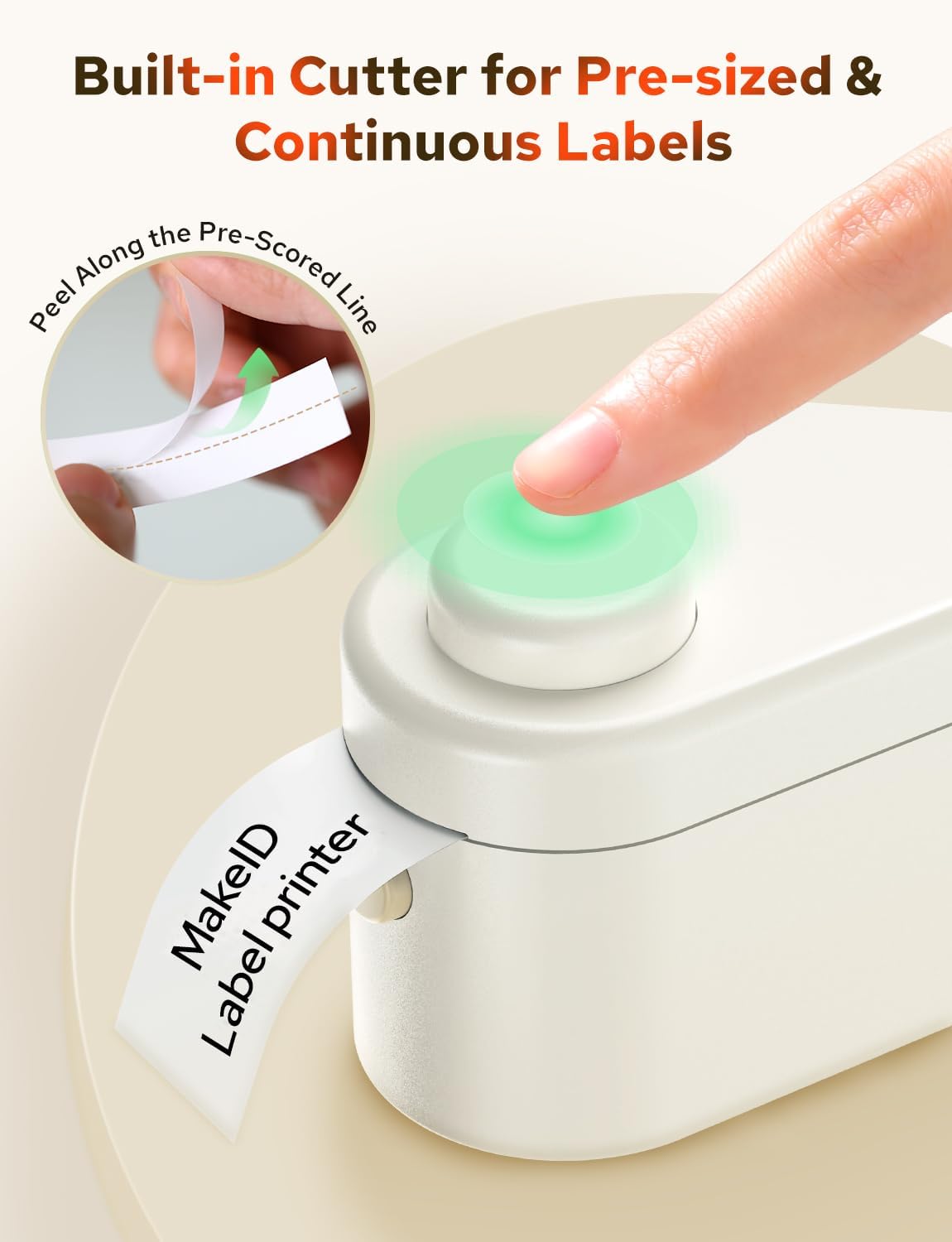
Figure 7: The one-touch precision cutter in action, demonstrating how to cleanly trim labels after printing.
5. Засвар үйлчилгээ
5.1 Хэвлэх толгойг цэвэрлэх
To ensure optimal print quality, periodically clean the print head:
- Шошго үйлдвэрлэгчийг унтраа.
- Шошгоны тасалгааг нээнэ үү.
- Gently wipe the print head with a soft, lint-free cloth dampсогтууруулах ундаагаар үрэх.
- Allow it to dry completely before closing the cover and turning the device back on.
5.2 Шошго хадгалах
Store label tapes in a cool, dry place away from direct sunlight to maintain their quality and adhesive properties.
6. Алдаа засах
If you encounter issues with your Makeid L1-C Label Maker, refer to the following common problems and solutions:
- Төхөөрөмж асахгүй байна: Төхөөрөмж бүрэн цэнэглэгдсэн эсэхийг шалгаарай.
- Bluetooth-ээр холбогдох боломжгүй: Make sure Bluetooth is enabled on your mobile device and the label maker is within range. Restart both devices and try connecting again.
- Хэвлэлийн чанар муу: Check if the label tape is loaded correctly. Clean the print head as described in the Maintenance section. Ensure the label tape is not old or damaged.
- Label not cutting cleanly: Ensure the label tape is properly aligned and the cutter mechanism is free of debris.
- App not recognizing label size: Ensure the label tape is correctly installed and the device cover is fully closed.
7. Техникийн үзүүлэлтүүд
| Онцлог | Тодорхойлолт |
|---|---|
| Брэнд | Makeid |
| Загварын нэр | L1-C |
| Холболтын технологи | Bluetooth |
| Хэвлэлийн технологи | Дулааны |
| Онцлог шинж чанар | Зөөврийн |
| Принтерийн гаралт | Монохром |
| Бүтээгдэхүүний хэмжээс | 3.84 x 2.18 x 1.57 инч |
| Зүйлийн жин | 9.6 унц |
| UPC | 717121195217 |
8. Баталгаат хугацаа ба дэмжлэг
8.1 Баталгаат хугацааны мэдээлэл
Warranty details for the Makeid L1-C Smart Label Maker are typically provided with your product packaging or can be found on the official Makeid webсайт. Баталгаат заргад зориулж худалдан авалтаа нотлох баримтаа үлдээнэ үү.
8.2 Хэрэглэгчийн дэмжлэг
For further assistance, technical support, or inquiries regarding your Makeid L1-C Label Maker, please visit the official Makeid store or contact their customer service:
- Makeid Store: Visit the Makeid Store on Amazon
- Refer to the contact information provided in your product's user manual or on the official Makeid webшууд дэмжлэгийн сувгуудын сайт.


