1. Танилцуулга
This manual provides comprehensive instructions for the WiMiUS K13 4K Google TV Projector. Designed for a superior visual experience, this projector integrates advanced features for both entertainment and professional use. Key functionalities include native 1080p resolution with 4K support, 1500 ANSI lumens brightness, automatic focus and keystone correction, and an integrated Google TV system for seamless access to a wide range of applications.
Төхөөрөмжийг зөв ашиглах, гүйцэтгэл болон ашиглалтын хугацааг хамгийн их байлгахын тулд ажиллуулахаасаа өмнө энэхүү гарын авлагыг сайтар уншина уу.
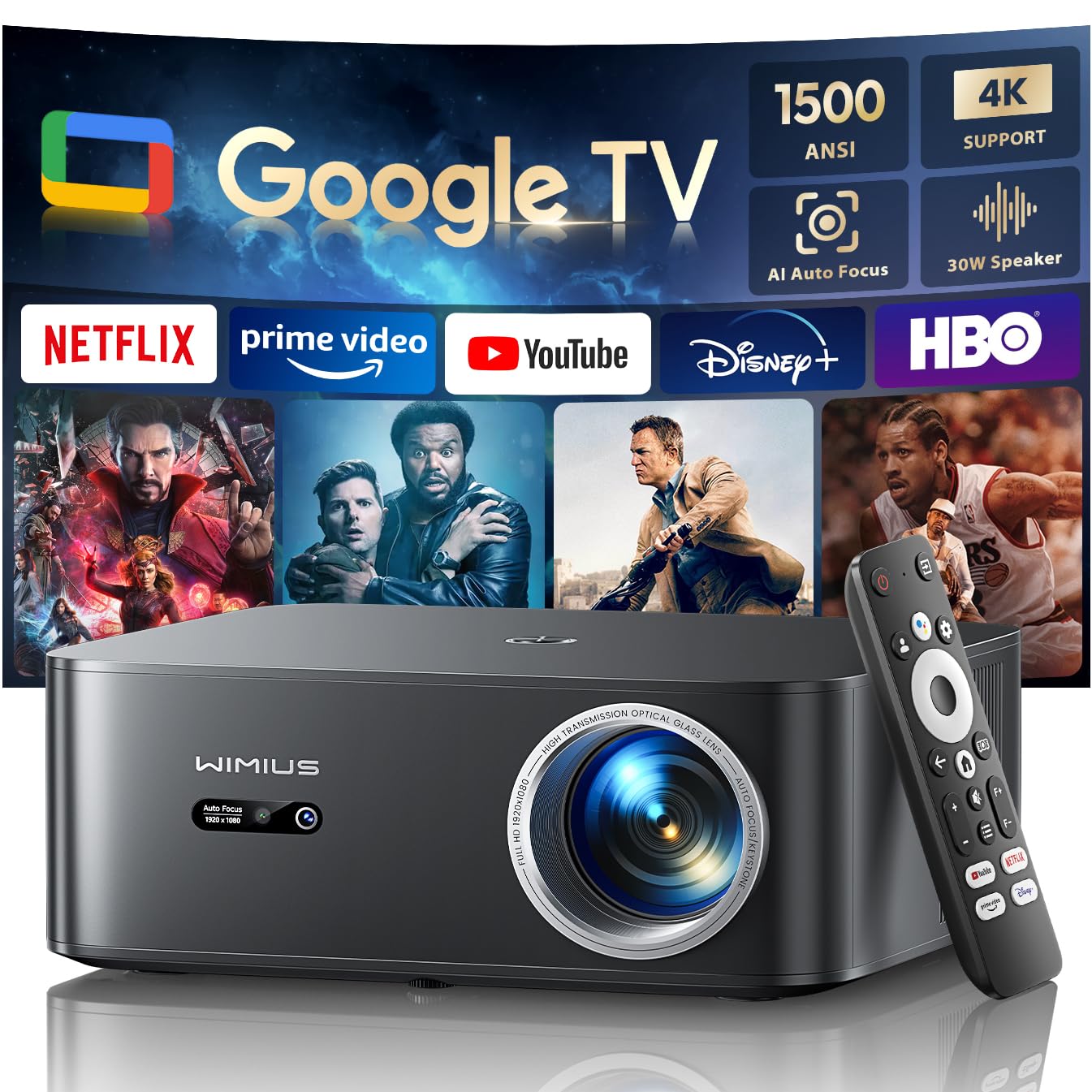
Figure 1: WiMiUS K13 4K Google TV Projector
2. Тохируулах гарын авлага
2.1 Савлагааг задлах болон савлагааны агуулга
Сав баглаа боодолоос бүх бүрэлдэхүүн хэсгүүдийг болгоомжтой арилгана. Бүх зүйл байгаа эсэхийг шалгана уу:
- WiMiUS K13 Projector
- Алсын удирдлага (AAA батерей ороогүй болно)
- Цахилгаан кабель
- HDMI кабель
- Хэрэглэгчийн гарын авлага
2.2 Байршил
Position the projector on a stable, flat surface. For optimal image quality, ensure the projector lens is perpendicular to the projection surface. Recommended projection distance is 2.5 to 3 meters for a large screen size.
- Ширээний угсралт: Проекторыг ширээн дээр эсвэл тавиур дээр байрлуул.
- Тааз/хананд суурилуулах: The projector features M5 screw holes for compatible ceiling or wall mounts. Ensure the mount is securely installed and can support the projector's weight.
- Tripod суурилуулах: The K13 projector does not have dedicated tripod mounting holes. Use a tripod equipped with a tray to support the projector.
2.3 Эрчим хүчний холболт
Connect the power cable to the projector's power input port, then plug the other end into a power outlet. The power indicator light will illuminate.
2.4 Initial Power-On and Basic Setup
Press the power button on the projector or remote control to turn on the device. Upon first use, follow the on-screen prompts to:
- Өөрийн дуртай хэлээ сонгоно уу.
- Connect to a Wi-Fi network (2.4G or 5G) for internet access.
- Log in with your Google account to access Google TV features and applications.
2.5 Автомат фокус ба голын залруулга
The WiMiUS K13 projector is equipped with automatic focus and keystone correction. After powering on or moving the projector, it will automatically adjust the image to achieve a clear, rectangular display. Manual adjustments are also available in the settings menu if needed.
3. Ашиглалтын заавар
3.1 Remote Control and Google Voice Assistant
Use the provided remote control to navigate the Google TV interface. The remote includes dedicated buttons for popular streaming services like Netflix, Prime Video, YouTube, and Disney+. Utilize the integrated Google Voice Assistant by pressing the microphone button on the remote and speaking commands to search for content, adjust volume, or launch applications.
3.2 Google TV and Application Usage
The projector runs on an officially certified Android 11.0 Google TV system, providing access to over 10,000 applications from the Google Play Store. Navigate through the home screen to find installed apps or download new ones. Ensure a stable internet connection for optimal streaming performance.
3.3 Дэлгэц толин тусгал
Проектор нь янз бүрийн төхөөрөмжөөс утасгүй дэлгэцийн толь үүсгэхийг дэмждэг:
- AirPlay (iOS devices): Connect your iOS device and the projector to the same Wi-Fi network. Select the AirPlay option on your iOS device and choose the projector from the list of available devices.
- Miracast (Android/Windows devices): Enable Miracast or Screen Mirroring on your Android or Windows device. Select the projector from the detected devices.
3.4 Гадаад төхөөрөмжүүдийг холбох
The WiMiUS K13 offers multiple connectivity options:
- HDMI портууд: Connect gaming consoles, laptops, Blu-ray players, or other HDMI-enabled devices. Select the corresponding HDMI input from the projector's source menu.
- USB портууд: Insert USB drives to play media files (videos, photos, documents like PPT, Excel, Word).
- 3.5 мм аудио гаралт: Connect external headphones or speakers via the audio jack.
3.5 Аудио гаралт
The projector features integrated 20W speakers for clear audio. For enhanced sound, you can connect external audio systems:
- Bluetooth 5.2: Утасгүй аудио авахын тулд Bluetooth чанга яригч эсвэл чихэвчтэй хослуул.
- HDMI ARC: Connect to a soundbar or AV receiver that supports HDMI ARC for simplified audio setup and control.
3.6 Томруулах функц
Adjust the screen size from 50% to 100% using the digital zoom function in the settings menu. This allows you to resize the image without physically moving the projector.

Figure 2: Outdoor movie experience with the WiMiUS K13 Projector

Figure 3: Outdoor sports viewing with the WiMiUS K13 Projector
4. Засвар үйлчилгээ
4.1 Линз цэвэрлэх
Gently clean the projector lens with a soft, lint-free cloth or a lens cleaning brush. Avoid using abrasive materials or harsh chemicals, which can damage the lens coating.
4.2 Агааржуулалтын арчилгаа
Ensure the projector's ventilation openings are clear and unobstructed to prevent overheating. Regularly check for dust accumulation and clean as necessary using a soft brush or compressed air.
4.3 Хадгалалт
Проекторыг удаан хугацаагаар ашиглаагүй үед сэрүүн, хуурай, тоосгүй орчинд хадгална уу. Гэмтлээс урьдчилан сэргийлэхийн тулд анхны сав баглаа боодол эсвэл хамгаалалтын гэрийг ашиглаарай.
5. Алдаа засах
If you encounter issues with your WiMiUS K13 projector, refer to the following common problems and solutions:
| Асуудал | Боломжит шалтгаан | Шийдэл |
|---|---|---|
| Зураг харагдахгүй байна | Power cable disconnected, incorrect input source, device not powered on. | Check power connection, ensure projector is on, select correct HDMI/USB input. |
| Зураг бүдэг байна | Out of focus, lens dirty, projector moved. | Allow auto-focus to adjust, clean the lens, manually adjust focus if needed. |
| Зураг гажсан (трапец хэлбэртэй) | Проектор дэлгэцтэй перпендикуляр биш. | Allow auto-keystone correction to adjust, manually adjust keystone in settings. |
| Дуу алга | Volume too low, incorrect audio output selected, external device audio issue. | Increase volume, check audio output settings (internal, Bluetooth, HDMI ARC), verify external device audio. |
| Wi-Fi/Bluetooth-д холбогдох боломжгүй | Буруу нууц үг, хамрах хүрээнээс гарсан, сүлжээний асуудал. | Verify password, move closer to router/device, restart projector and router/device. |
| Алсын удирдлага хариу өгөхгүй байна | Батарей багатай, саад тотгор, алсын удирдлагатай хослуулаагүй. | Replace batteries, remove obstructions, re-pair remote if necessary. |
6. Техникийн үзүүлэлтүүд
Detailed technical specifications for the WiMiUS K13 Projector:
| Онцлог | Дэлгэрэнгүй |
|---|---|
| Брэнд | WiMiUS |
| Загварын дугаар | K13 |
| Өнгө | Хар |
| Бүтээгдэхүүний төрөл | Зөөврийн проектор |
| Дэлгэцийн нягтрал | 1920 x 1080 (Уугуул бүрэн HD) |
| Дэлгэцийн хамгийн дээд нарийвчлал | 4096 x 2160 пиксел (4K дэмжлэгтэй) |
| Дэлгэцийн төрөл | LCD |
| Гэрэлтүүлэг | 1500 ANSI люмен |
| Холболтын технологи | HDMI, USB, 3.5mm Audio, Wi-Fi (6), Bluetooth (5.2) |
| Онцлог шинж чанарууд | Digital Keystone Correction, Built-in Speaker, Auto Focus, Built-in Wi-Fi, Google TV |
| Тохиромжтой төхөөрөмжүүд | Tablet, Laptop, Game Console, Speaker, Smartphone, Television |
| Зөвлөмж болгож буй бүтээгдэхүүний хэрэглээ | Гэрийн кино театр, Видео тоглоом, Мэргэжлийн, Боловсрол |
| Бүтээгдэхүүний хэмжээс | 28L x 24.2W x 10.8H сантиметр |
| Form Factor | Зөөврийн |
| Суурилуулах төрөл | Table Mount (M5 screw holes for ceiling/wall mount) |
7. Баталгаат хугацаа ба дэмжлэг
WiMiUS is committed to providing excellent customer service and support for your K13 projector:
- Харилцагчийн үйлчилгээ: 24/7 support is available for any inquiries or assistance you may need.
- Буцаан олголтын бодлого: Enjoy a 1-year refund policy from the date of purchase.
- Засварын хамрах хүрээ: The projector is covered by a 3-year repair warranty.
- Техникийн дэмжлэг: Таны бүтээгдэхүүнд насан туршийн техникийн дэмжлэг үзүүлдэг.
For any questions or support requests regarding your WiMiUS K13 projector, please contact our customer service team via email. We are dedicated to providing a prompt and satisfactory solution.


