Танилцуулга
This manual provides essential information for setting up, operating, maintaining, and troubleshooting your suevery Gaming PC. Designed for high-performance gaming, streaming, content creation, and general productivity, this system combines powerful components with a thoughtful design for an optimal user experience.
Your suevery Gaming PC features an AMD Ryzen 7 8700F Processor with 8 cores and 16 threads, capable of speeds up to 5.0 GHz, ensuring seamless and responsive performance. It is equipped with an RTX 5070 12G Graphics Card, ideal for challenging the latest games with ray tracing and DLSS 3, and enhancing creative workflows. The system boasts 32GB of high-bandwidth DDR5 5600MHz RAM for extreme multitasking and a combination of 1TB high-speed PCIe NVMe M.2 SSD and 4TB Hard Disk for fast boot-up, snappy responsiveness, and ampхадгалах газар.

Image: The suevery Gaming PC tower, showcasing its white chassis and vibrant internal RGB lighting through a clear side panel.
Тохируулах гарын авлага
Follow these steps to set up your new suevery Gaming PC:
- Савлах: Carefully remove the PC from its packaging. Retain all packaging materials for future transport or service needs.
- Байршил: Place the PC on a stable, flat surface with adequate ventilation around all sides. Ensure no vents are obstructed.
- Дагалдах төхөөрөмжүүдийг холбох:
- Connect your monitor(s) to the graphics card ports (DisplayPort 1.4 x 3, HDMI 2.0b x 1). The system supports up to 4 displays.
- Connect your keyboard and mouse to the available USB ports on the rear or top of the PC.
- Чанга яригч, чихэвч эсвэл гадаад хөтчүүд гэх мэт бусад нэмэлт хэрэгслийг холбоно уу.
- Эрчим хүчний холболт: Цахилгааны кабелийг компьютерийн тэжээлийн нэгжид (PSU), дараа нь газардуулсан цахилгааны залгуурт холбоно.
- Анхны ачаалах: Press the power button located on the top of the PC. The system will begin its boot sequence.

Зураг: Ойрын зураг view of the PC's top interface, highlighting the USB 3.0, USB 2.0, audio interface, color switch, and power on/off button.

Image: A multi-angle display of the suevery Gaming PC, showing its front, side, and rear panels, including the various ports and ventilation.
Ашиглалтын заавар
Your suevery Gaming PC comes with DOS pre-installed. For a full graphical user interface and access to modern applications, an operating system such as Windows or Linux will need to be installed.
- Үйлдлийн системийн суурилуулалт: If you plan to install a new operating system, ensure you have a valid license and installation media (USB drive or DVD). Follow the on-screen prompts during installation.
- Драйвер суурилуулах: After OS installation, it is crucial to install the latest drivers for your components, especially the graphics card (NVIDIA RTX 5070) and motherboard chipset. Visit the respective manufacturers' websites for the most up-to-date drivers.
- Тоглоом ба програмууд: This PC is optimized for demanding tasks.
- Тоглоом: Enjoy high frame rates and immersive experiences with the RTX 5070. Adjust in-game settings for optimal performance.
- Стриминг ба контент бүтээх: The AMD Ryzen 7 8700F processor and 32GB DDR5 RAM provide ample power for live streaming, video editing, 3D rendering, and graphic design.
- Олон үйлдэл: The high-speed RAM and SSD ensure smooth transitions between multiple applications.
- RGB гэрэлтүүлгийн удирдлага: Use the dedicated color switch button on the top panel to cycle through various RGB lighting modes for the internal fans.

Image: Visual representation of the PC's versatility, illustrating its suitability for gaming, live streaming, design, and home office use.
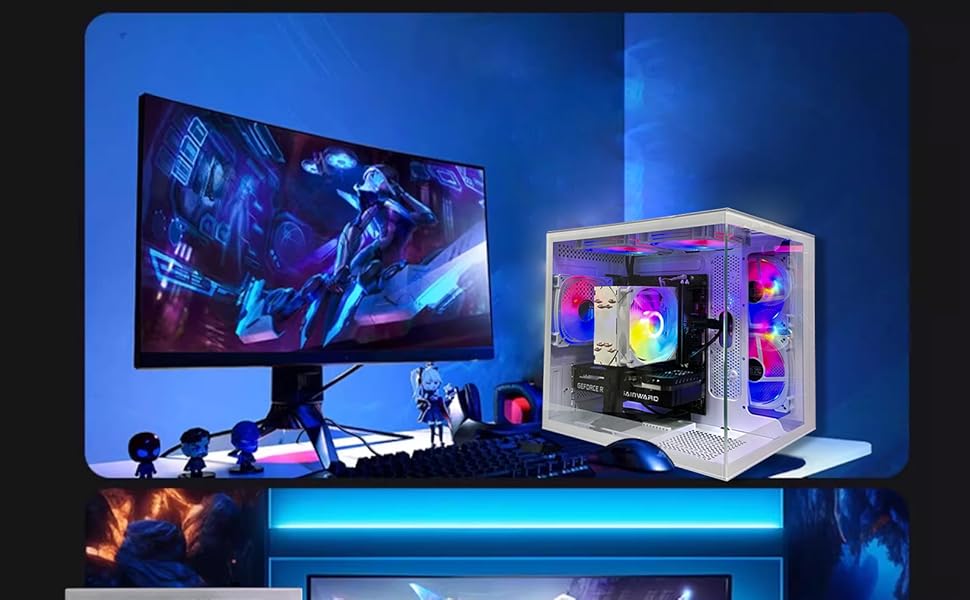
Image: A gaming setup featuring the suevery PC tower next to a large, curved gaming monitor, demonstrating its intended use.
Үзүүлэлтүүд
Detailed technical specifications for your suevery Gaming PC:
| Бүрэлдэхүүн хэсэг | Тодорхойлолт |
|---|---|
| Брэнд | гомдолтой |
| Загварын дугаар | SUV9W1-SUV9W9 |
| Процессор | AMD Ryzen 7 8700F (8 Cores, 16 Threads, up to 5.0 GHz) |
| График процессор | NVIDIA RTX 5070 12G GDDR6 |
| RAM | 32 ГБ DDR5 5600 МГц |
| Хадгалах | 1TB PCIe NVMe M.2 SSD + 4TB HDD |
| Үйлдлийн систем | DOS (Disk Operating System) |
| Өнгө | Цагаан |
| Холболт | WiFi 6, 4x USB 2.0, 2x USB 3.0, DisplayPort 1.4 x 3, HDMI 2.0b x 1 |
| Хэмжээ (L x W x H) | 16 x 14.9 x 12.9 инч (ойролцоогоор 40.6 x 37.8 x 32.8 см) |
| Зүйлийн жин | 23 фунт (ойролцоогоор 10.4 кг) |
| Chassis Fans | Built-in 3 x 120cm fans (RGB) |

Image: A detailed diagram illustrating the physical dimensions of the PC tower and outlining the signal interface (HDMI, VGA), USB ports (front and rear), and chassis fan configuration.
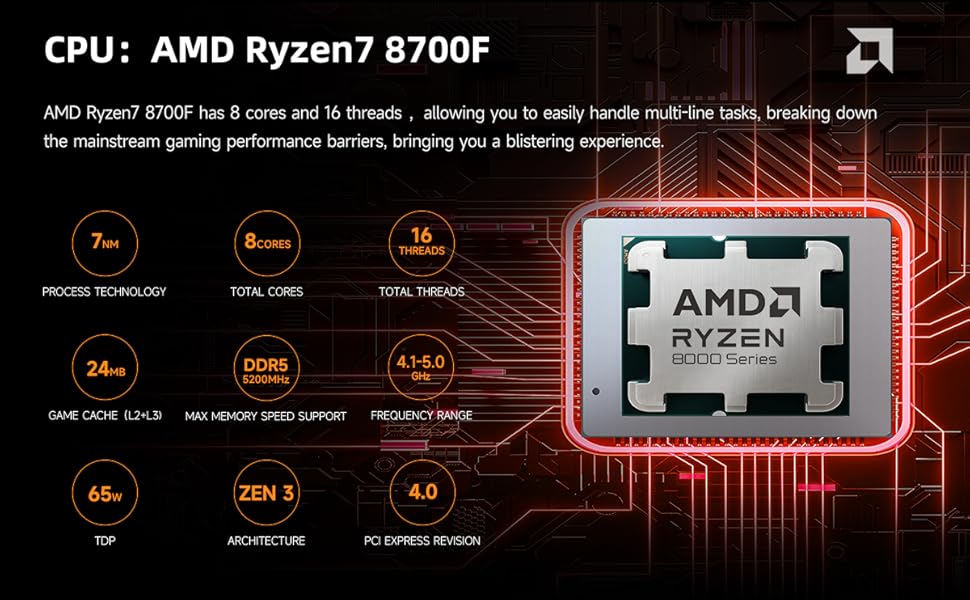
Image: An infographic detailing the specifications of the AMD Ryzen 7 8700F processor, including process technology, core/thread count, cache, memory support, and frequency range.

Image: A visual representation of the NVIDIA RTX 5070 12G graphics card, highlighting its sleek design.
Засвар үйлчилгээ
Proper maintenance ensures the longevity and optimal performance of your PC:
- Тоос арилгах: Regularly clean dust from the internal components, especially fans and heatsinks, using compressed air. Ensure the PC is powered off and unplugged before cleaning.
- Агааржуулалт: Keep the PC in a well-ventilated area. Avoid placing it in enclosed spaces or directly against walls that could block airflow.
- Програм хангамжийн шинэчлэлтүүд: Keep your operating system, drivers (especially graphics drivers), and applications updated to ensure stability, security, and performance.
- Кабелийн менежмент: Ensure internal and external cables are neatly organized to prevent airflow obstruction and accidental disconnections.
Алдааг олж засварлах
Энэ хэсэгт танд тулгарч болох нийтлэг асуудлуудыг авч үзэх болно:
- Компьютер асахгүй байна:
- Ensure the power cable is securely connected to both the PC and the electrical outlet. Verify the power switch on the PSU (if present) is in the 'on' position. Try a different power outlet.
- Монитор дээр дэлгэц байхгүй байна:
- Check that the monitor is powered on and correctly connected to the graphics card ports. Ensure the correct input source is selected on your monitor. Re-seat the graphics card if you are comfortable doing so (power off and unplug PC first).
- Missing drivers or audio issues after OS installation:
- This is a common occurrence when installing a new operating system. Visit the official websites of AMD (for CPU/chipset drivers) and NVIDIA (for GPU drivers) to download and install the latest drivers specific to your hardware and operating system version. For audio, check your motherboard manufacturer's webсайт.
- Системийн гацалт эсвэл Үхлийн цэнхэр дэлгэц (BSOD):
- Ensure all drivers are up-to-date. Check for overheating by monitoring component temperatures (CPU, GPU) using software. Verify RAM modules are properly seated. If issues persist, consider running memory diagnostics or checking disk health.
- RGB fans not lighting up or stuck on one color:
- Ensure the RGB cables are properly connected to the motherboard or RGB controller. Use the color switch button on the top panel to cycle through modes. If a fan has fallen off during shipping, carefully re-attach it ensuring connections are secure.
Баталгаат болон дэмжлэг
Your suevery Gaming PC comes with a manufacturer's warranty covering defects in materials and workmanship. For specific warranty terms and duration, please refer to the documentation included with your purchase or contact suevery customer support.
For technical assistance, troubleshooting beyond this manual, or warranty claims, please contact suevery customer support through their official website or the retailer where the product was purchased. Keep your proof of purchase handy when contacting support.
Optional protection plans may be available for extended coverage. Please check with your retailer for details on available plans, such as the 3-Year Protection Plan or Complete Protect options.

