1. Танилцуулга
This manual provides instructions for the setup, operation, maintenance, and troubleshooting of your CRUA 27-inch 240Hz QHD IPS Gaming Monitor. This monitor features a 2560x1440 QHD resolution, a 240Hz refresh rate, an IPS panel for wide viewing angles, AMD FreeSync support, a blue light filter for eye protection, and built-in speakers. Please read this manual thoroughly before using the product.
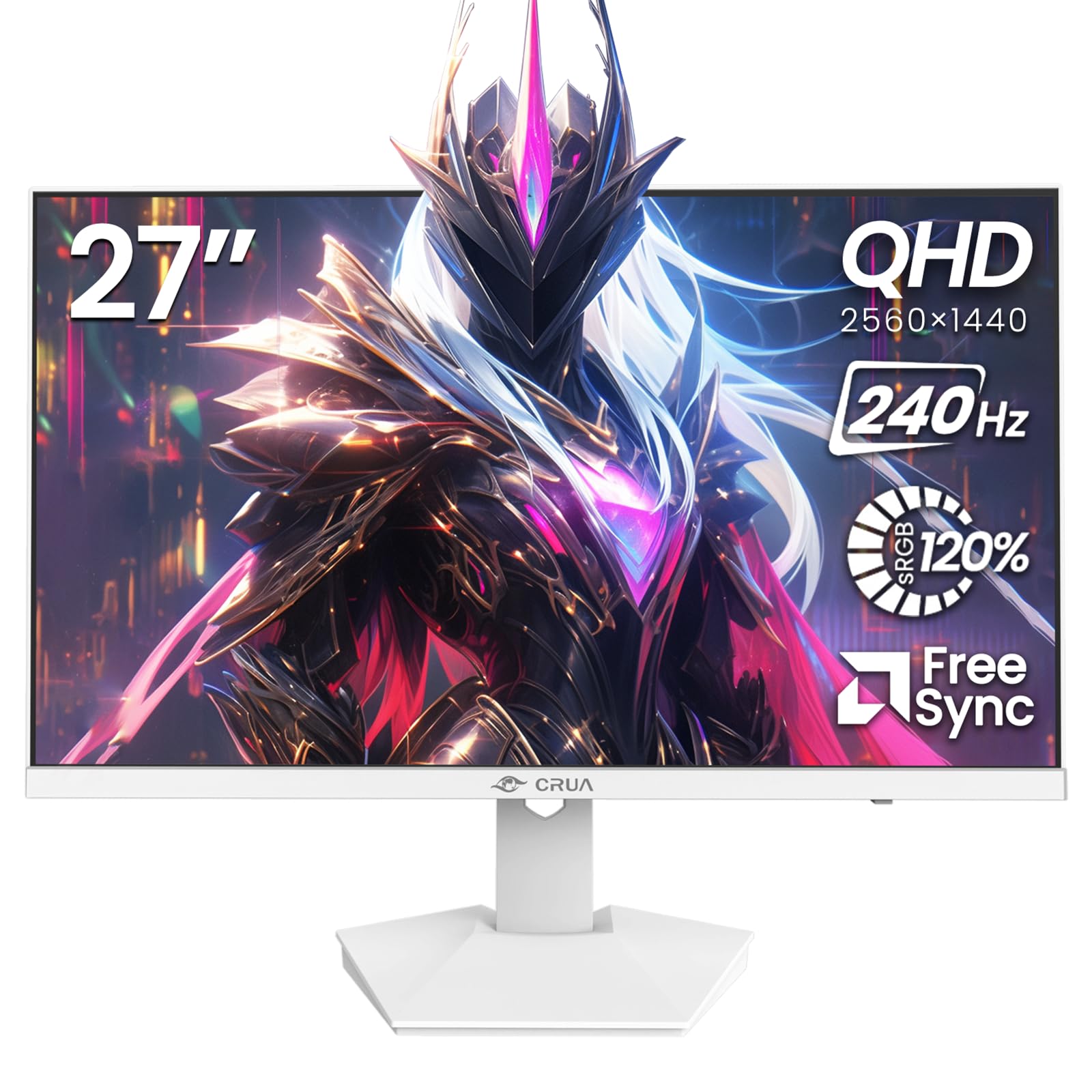
Зураг: Урд view of the CRUA 27-inch 240Hz QHD IPS Gaming Monitor.
2. Багцын агуулга
Бүх зүйл багцад байгаа эсэхийг шалгана уу:
- CRUA 27-inch 240Hz QHD IPS Gaming Monitor
- Мониторын тавиур (суурь ба хүзүү)
- Цахилгаан адаптер ба кабель
- HDMI кабель
- DisplayPort (DP) кабель
- Хэрэглэгчийн гарын авлага (энэ баримт бичиг)
3. Тохиргоо
3.1 Сэндүүдийн чуулган
- Зурагдахаас сэргийлж дэлгэцийг савлагаанаас нь болгоомжтой гаргаж, зөөлөн, цэвэр гадаргуу дээр доош харуулан байрлуулна уу.
- Дэлгүүрийн хүзүүг мониторын самбарт холбоно. Энэ нь байрандаа аюулгүй товшиж байгаа эсэхийг шалгаарай.
- Attach the stand base to the stand neck. Tighten any screws if provided.
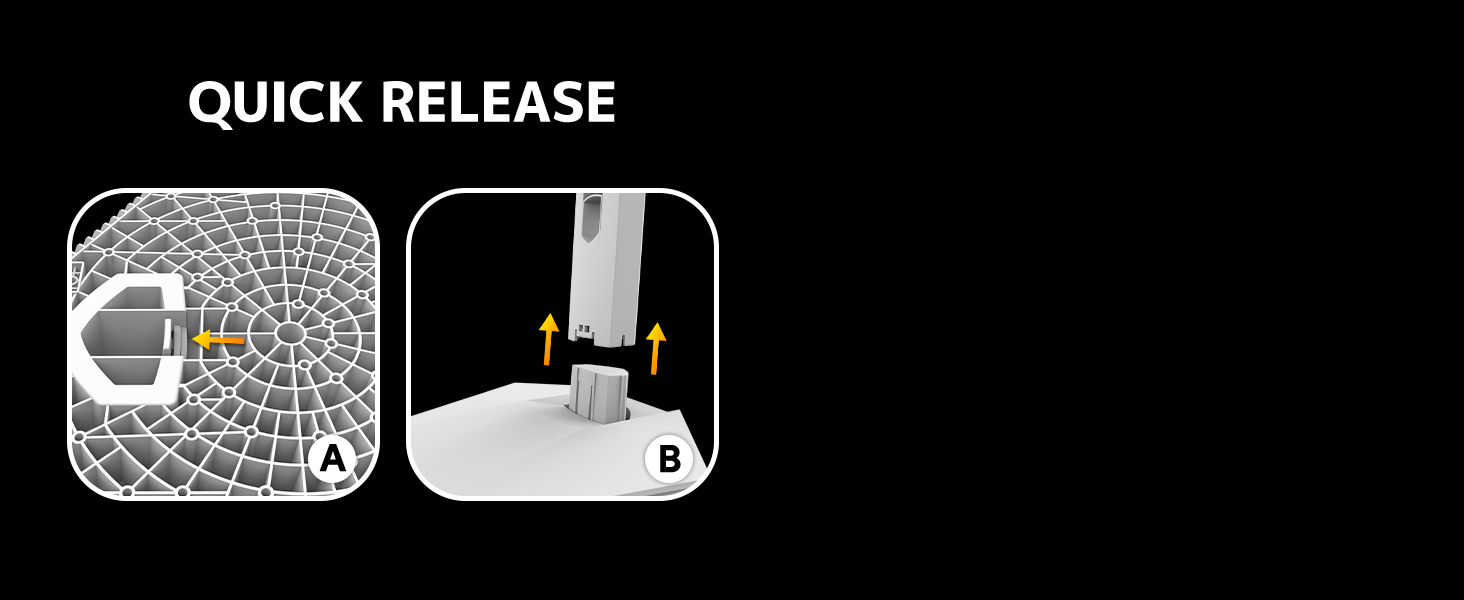
Image: Diagram illustrating the quick release stand assembly.
3.2 Хананд суурилуулах (заавал биш)
The monitor supports VESA wall mounting (75mm x 75mm). To wall mount:
- Хэрэв суурийг аль хэдийн суурилуулсан бол дэлгэцээс салга.
- Тохирох боолтыг ашиглан VESA-тай нийцтэй хананд бэхлэх хаалт (дагалдахгүй)-ийг мониторт бэхлэнэ үү.
- Follow the instructions provided with your wall mount for secure installation.

Зураг: Ар талд view of the monitor showing VESA mount points (75x75mm) and built-in speakers.
3.3 Компьютерт холбогдох
Connect the monitor to your computer using one of the following methods:
- Дэлгэцийн Порт (DP 1.4): For optimal performance, especially at 240Hz QHD resolution, use the included DisplayPort cable.
- HDMI (HDMI 2.0): Use an HDMI cable for QHD resolution at up to 144Hz.
Цахилгаан адаптерийг мониторын тэжээлийн оролтод холбож, цахилгааны залгуурт залгаарай.

Зураг: Ар талд view of the monitor displaying the input ports, including HDMI and DisplayPort.
4. Ашиглалтын заавар
4.1 Асаах/унтраах
Press the power button located on the back of the monitor to turn it on or off. The power button may resemble a joystick for OSD navigation.
4.2 Дэлгэц дээрх дэлгэц (OSD) цэс
The OSD menu allows you to adjust various monitor settings. Use the joystick-like button on the back of the monitor to navigate the menu:
- Товчлуурыг дарна уу: OSD цэсийг нээнэ.
- Дээш/Доош хөдөлгөх: Цэсийн сонголтоор шилжинэ.
- Зүүн/Баруун тийш шилжих: Adjusts selected settings or enters sub-menus.
- Дахин дарна уу: Сонголтыг баталгаажуулах эсвэл дэд цэснээс гарна.
4.3 Дэлгэцийн тохиргоо
Within the OSD menu, you can adjust:
- Гэрэлтүүлэг/Ялгарал: Нийт гэрэлтүүлэг болон тодосгогч харьцааг тохируулна уу.
- Өнгөний тохиргоо: Fine-tune color temperature, hue, and saturation. The monitor offers 120% sRGB color coverage for accurate and vibrant visuals.
- Оролтын эх сурвалж: HDMI болон DisplayPort оролтын хооронд гараар сонгоно уу.

Image: Details on true color accuracy, including 120% sRGB, 8-bit color depth, and 16.7 million colors.
4.4 Тоглоомын онцлогууд
- Сэргээх хурд: The monitor supports up to 240Hz refresh rate for smooth motion. Ensure your graphics card and cable support this rate.
- AMD FreeSync: Enable FreeSync in the OSD menu and on your AMD graphics card settings to eliminate screen tearing and stuttering.

Зураг: 240Гц-ийн сэргээх хурд болон 60Гц-ийн жигд байдлыг харуулсан харааны харьцуулалт.

Image: Illustrates the effect of Adaptive Sync (FreeSync) on reducing screen tearing and stuttering.
4.5 Нүдний хамгаалалт
The monitor includes a built-in blue light filter to reduce eye strain during extended use. This feature can be enabled or adjusted through the OSD menu.
5. Засвар үйлчилгээ
Дэлгэцийн гүйцэтгэл, харагдах байдлыг хадгалахын тулд:
- Дэлгэц цэвэрлэх: Зөөлөн, хөвөнгүй даавуугаар дэлгэцийг зөөлөн арчина. Зөрүүд тэмдгүүдийн хувьд дэлгэцэн дээр шууд биш харин даавуунд түрхсэн мониторын тусгай цэвэрлэгээний уусмалыг хэрэглээрэй.
- C цэвэрлэхasing: Мониторыг зөөлөн хуурай даавуугаар арчих casing. Зүлгүүрийн цэвэрлэгч эсвэл уусгагчаас зайлсхий.
- Унтраах: Цэвэрлэхийн өмнө дэлгэцээ үргэлж унтрааж, залгуураас нь салга.
6. Алдаа засах
| Асуудал | Боломжит шалтгаан | Шийдэл |
|---|---|---|
| Дэлгэц дээр зураг алга | Monitor is off or not receiving signal. | Ensure power cable is connected and monitor is on. Check video cable connection (HDMI/DP) to both monitor and computer. Select correct input source via OSD. |
| Зураг анивчих эсвэл урагдах | FreeSync not enabled or incompatible settings. | Enable FreeSync in the monitor OSD and your graphics card control panel. Ensure your graphics card drivers are up to date. |
| Poor picture quality (blurry, incorrect colors) | Incorrect resolution, color settings, or faulty cable. | Set display resolution to 2560x1440. Adjust brightness, contrast, and color settings in the OSD. Try a different video cable. |
| Суулгасан чанга яригчаас дуу гарахгүй | Volume too low, incorrect audio output selected. | Increase monitor volume via OSD. Ensure the monitor is selected as the audio output device in your computer's sound settings. |
| Үхсэн пиксел | Үйлдвэрлэлийн гэмтэл. | Refer to warranty information for pixel policy. Contact customer support if within warranty. |
7. Техникийн үзүүлэлтүүд
| Онцлог | Тодорхойлолт |
|---|---|
| Загварын дугаар | CR270I |
| Дэлгэцийн хэмжээ | 27 инч |
| Самбарын төрөл | IPS |
| Шийдвэр | 2560 x 1440 (QHD) |
| Сэргээх хурд | 240 Гц |
| Харьцаа | 16:9 |
| Өнгөний хүрээ | 120% sRGB |
| Гэрэлтүүлэг | 300 кд/м² |
| Ялгаатай харьцаа | 1000:1 |
| Viewing өнцөг | 178° (Хэвтээ/Босоо) |
| Видео оролт | HDMI 2.0, DisplayPort 1.4 |
| Аудио | Суулгасан чанга яригч |
| VESA уул | 75 мм x 75 мм |
| Бүтээгдэхүүний хэмжээс | 1.78 x 24 x 14 инч |
| Зүйлийн жин | 12.62 фунт |
8. Баталгаат хугацаа ба дэмжлэг
CRUA provides high-quality computer monitors and premium services. If you have any questions or require assistance, please contact CRUA customer support. Refer to your purchase documentation for specific warranty terms and contact information.


