1. Бүтээгдэхүүн дууссанview
The QCOQ Air Tracker Tags are compact, Bluetooth-enabled devices designed to help you locate your personal belongings. Utilizing the Apple Find My network, these tags provide a reliable solution for tracking items such as keys, wallets, luggage, and backpacks. Each tag features a loud 100dB sound for nearby location and supports advanced tracking features through the Find My app on iOS devices.

Image: Four QCOQ Air Tracker Tags in black, accompanied by keyrings and lanyards.
2. Багцын агуулга
Your QCOQ Air Tracker Tags багцад дараахь зүйлс орно.
- 4 x QCOQ агаарын хянагч Tags (Model TX01)
- 4 х оосор
- 4 ширхэг түлхүүрийн оосор
- 1 х хэрэглэгчийн гарын авлага (энэ баримт бичиг)

Image: The complete contents of the QCOQ Air Tracker Tags 4-pack, neatly arranged.
3. Тохиргоо ба Хослуулах
To begin using your QCOQ Air Tracker Tags, follow these steps to pair them with your iOS device:
- -г идэвхжүүлнэ Tag: Hold the function button on the Air Tracker Tag for 2 seconds until you hear a confirmation sound. This indicates the tag is activated and ready for pairing.
- Find My App нээх: On your iOS device, ensure Bluetooth and network functions are enabled. Open the "Find My" application.
- Шинэ зүйл нэмэх: In the "Find My" app, navigate to the "Items" tab. Tap the "+" icon and select "Add Other Item" or "Other Supported Item".
- Холбох: Your iOS device will begin searching for nearby compatible items. Once "Huthur tag" (or similar) appears, tap "Connect".
- Name Your Tag: Follow the on-screen prompts to name your Air Tracker Tag (e.g., "Keys," "Wallet," "Luggage") and assign an emoji for easy identification.

Image: Visual instructions for pairing the Air Tracker Tag Apple Find My програмын тусламжтайгаар.
4. Operating Your Air Tracker Tags
4.1 Finding Nearby Items (Play Sound)
When your Air Tracker Tag is within Bluetooth range (approximately 200 feet or 60 meters in open areas, 30 meters with obstructions), you can use the "Play Sound" feature in the Find My app. The tag will emit a loud 100dB alert tone, helping you quickly locate misplaced items nearby.

Image: Using the 'Play Sound' feature to locate keys hidden under a couch.
4.2 Finding Far Away Items (Apple Find My Network)
If your item is out of Bluetooth range, the Apple Find My network can still help. This network, composed of billions of Apple devices worldwide, anonymously relays the location of your tag to iCloud. You can view its last known location on a map within the Find My app and get directions to it.

Image: Remote tracking of an item using the Apple Find My map feature.
4.3 Үлдсэн сануулагч
To prevent leaving important items behind, enable "Notify When Left Behind" in the Find My app. Your iOS device will send a notification if the tracker tag moves out of Bluetooth range. You can also set specific "Do Not Disturb" zones to avoid alerts in familiar locations.
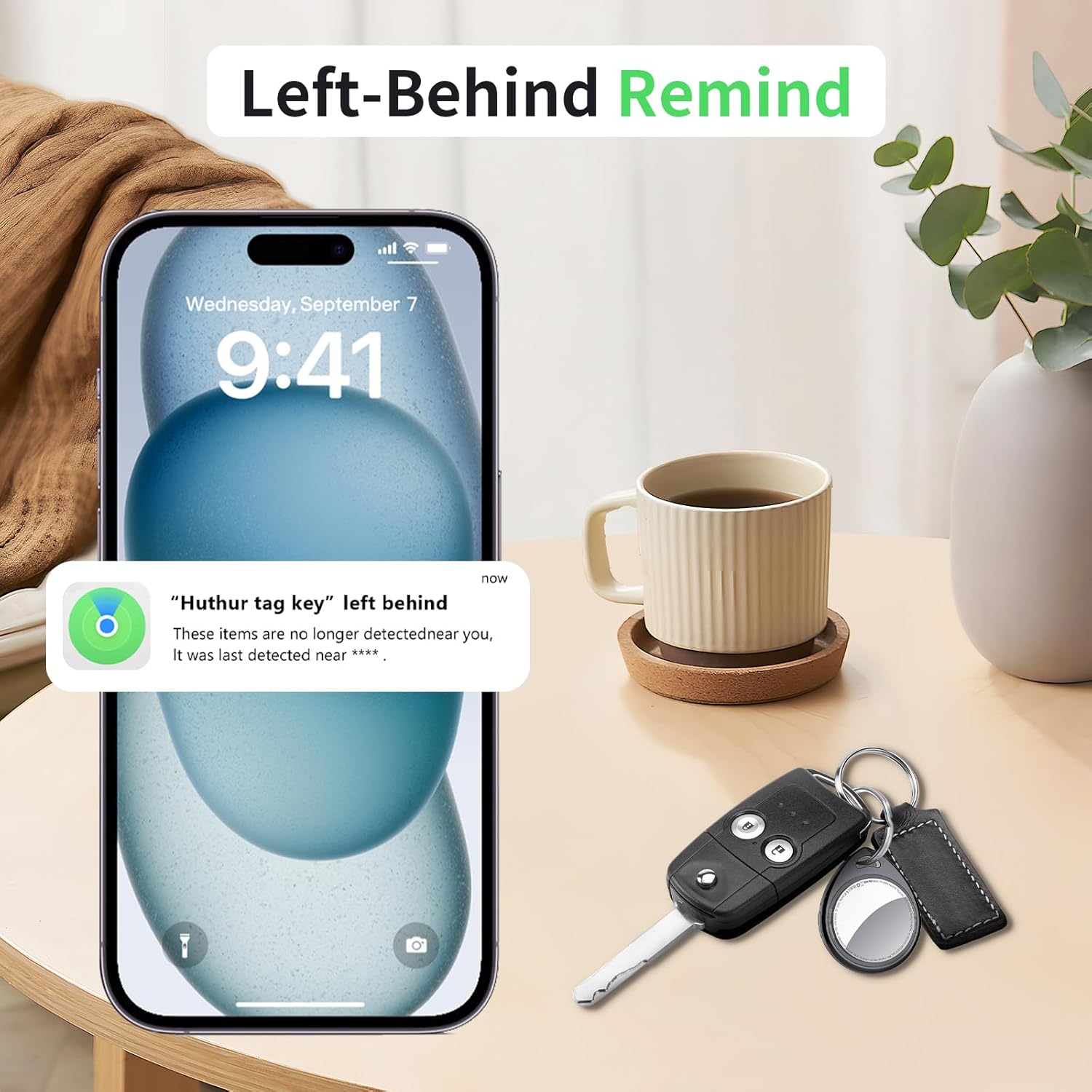
Image: A notification on an iPhone indicating an item has been left behind.
4.4 Алдагдсан горим
If an item with an Air Tracker Tag is lost, activate "Lost Mode" in the Find My app. This allows any nearby Apple user to anonymously detect your tag and provide its location to iCloud, significantly increasing the chances of recovery. You can also leave contact information for the finder.

Image: Activating Lost Mode for a backpack with an Air Tracker Tag.
4.5 Нууцлал ба аюулгүй байдал
QCOQ агаарын хянагч Tags are MFi-certified, ensuring all communications are encrypted and anonymous. Location data is never stored on the tag itself, and even the manufacturer cannot access it. This design prioritizes your privacy and provides secure anti-loss protection.

Image: Representation of the Air Tracker Tag's privacy and security features.
5. Засвар үйлчилгээ
5.1 Батерейг солих
The QCOQ Air Tracker Tags use a replaceable CR2032 coin cell battery, which typically lasts up to 1 year. The tag will alert you when the battery is low, prompting timely replacement. The unique snap design helps prevent accidental opening by children.

Image: The replaceable CR2032 battery and its 1-year lifespan.
Video: Instructions on how to replace the battery in your QCOQ Air Tracker Tag.
6. Алдаа засах
6.1 Location Update Frequency
Location updates for your Air Tracker Tag depend on several factors:
- Nearby Apple Devices: The frequency of updates is influenced by the number of nearby Apple devices that can detect your tag.
- Bluetooth Activity: Nearby Apple devices must have Bluetooth turned on and active (connected state) for location data to be relayed.
- Сүлжээний хоцролт: Apple's Find My network inherently has some delays. It records the last updated location, which is not real-time GPS positioning.
If you experience infrequent updates, ensure your tag is in an area with active Apple devices and good signal coverage.
6.2 Effective Range
The effective Bluetooth range for the "Play Sound" feature is approximately 60 meters (200 feet) in open areas. This range can be reduced to about 30 meters when obstructed by walls or other barriers. For tracking beyond this range, the Apple Find My network is utilized.
7. Техникийн үзүүлэлтүүд
| Онцлог | Тодорхойлолт |
|---|---|
| Загварын дугаар | TX01 |
| Бүтээгдэхүүний хэмжээс | 1.26 x 0.35 x 1.52 инч (32.1 x 9 x 38.6 мм) |
| Зүйлийн жин | 0.275 унц (7.8 грамм) |
| Холболт | Bluetooth 5.3 |
| Зайны төрөл | CR2032 (солих боломжтой) |
| Зайны ашиглалт | 1 жил хүртэл |
| Дууны түвшин | 100дБ |
| Тохиромжтой байдал | iOS devices only (Apple Find My network) |
| Материал | Хуванцар |
8. Баталгаат хугацаа ба дэмжлэг
For warranty information, technical support, or any inquiries regarding your QCOQ Air Tracker Tags, please refer to the contact information provided with your product packaging or visit the official QCOQ webсайт. Баталгаат зардлаа авахын тулд худалдан авалтын баримтаа хадгална уу.


