1. Аюулгүй байдлын чухал мэдээлэл
Проекторыг ашиглахаасаа өмнө бүх аюулгүй байдлын зааврыг уншина уу. Энэхүү гарын авлагыг ирээдүйд лавлах зорилгоор хадгална уу.
- Агааржуулалтын нүхийг хааж болохгүй. Агаарын урсгалыг хэвийн болгохын тулд проекторын эргэн тойронд хангалттай зайг хангах.
- Avoid direct exposure to the projector lens light.
- Проекторыг дулааны эх үүсвэрийн ойролцоо эсвэл нарны шууд тусгалд байрлуулж болохгүй.
- Зөвхөн төхөөрөмжид дагалдаж ирсэн тэжээлийн адаптерийг ашиглана уу.
- Проекторыг өөрөө нээх эсвэл засах гэж бүү оролдоорой. Бүх засвар үйлчилгээг мэргэшсэн ажилтнуудад даатга.
- Проекторыг ус болон бусад шингэнээс хол байлга.
2. Багцын агуулга
Бүх зүйл багцад байгаа эсэхийг шалгана уу:
- Aurzen Roku TV Smart Projector (D1R Cube)
- Цахилгааны утас
- Remote Control (2 AAA Batteries Required, not included)
- Хэрэглэгчийн гарын авлага (энэ баримт бичиг)
3. Бүтээгдэхүүн дууссанview
The Aurzen D1R Cube is a compact smart projector featuring built-in Roku TV for integrated streaming. It offers 1080P Full HD resolution, Dolby Audio, and a sealed optical engine for enhanced durability and clarity.
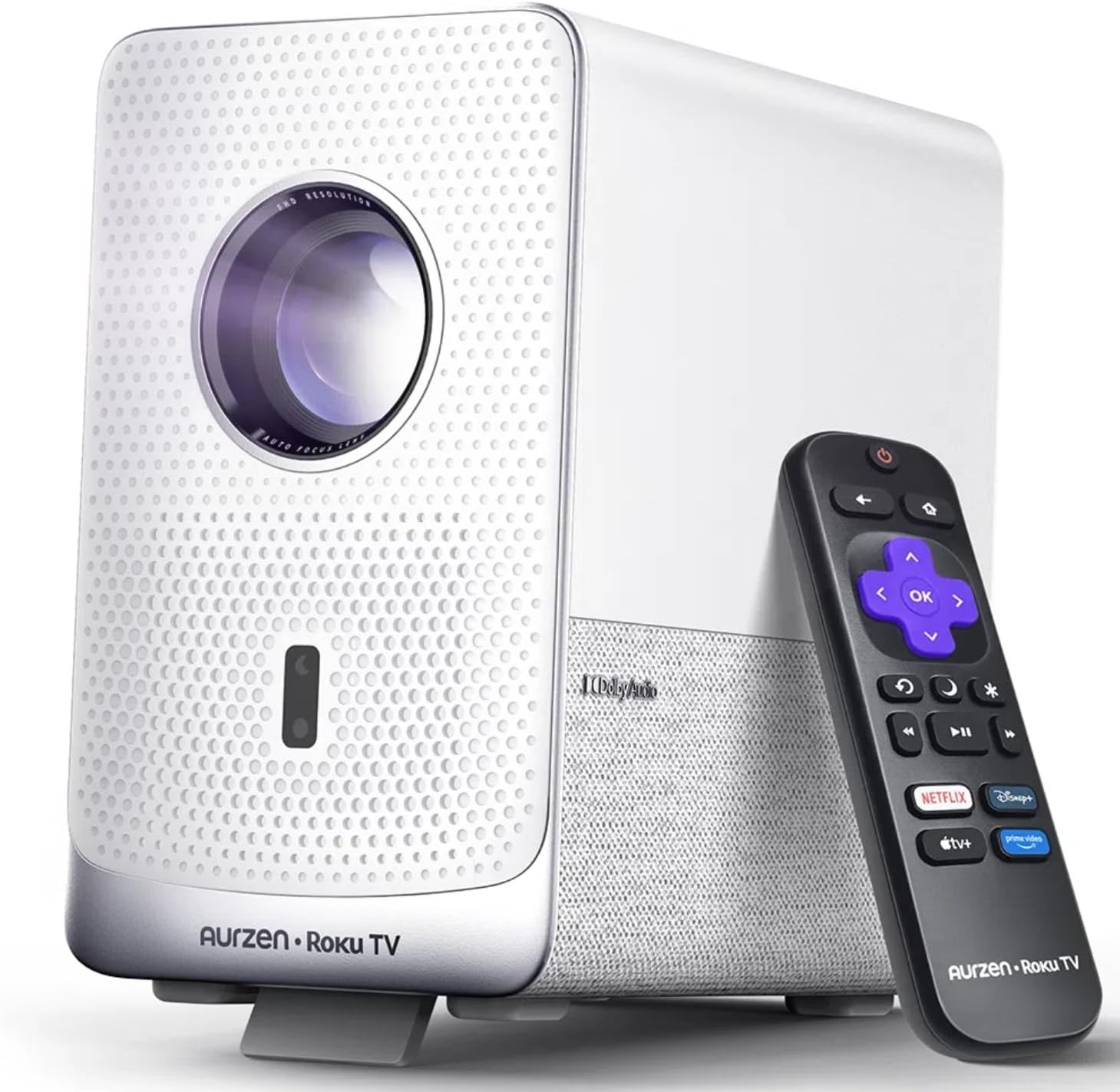
Image: The Aurzen D1R Cube Smart Projector shown with its remote control. The projector is white with a textured front panel and a visible lens.
Гол онцлогууд:
- Roku TV Built-in: Access popular streaming services directly.
- Битүүмжилсэн оптик хөдөлгүүр: Protects against dust, maintaining image quality and extending lifespan.
- 1080P FHD Resolution: Delivers crisp and clear visuals.
- Dolby Аудио: Provides enhanced sound experience.
- Автомат фокус ба тулгуур чулуун залруулга: Automatic image adjustment for quick setup.
- Dual-band WiFi & Bluetooth 5.2: For seamless connectivity.
- Apple AirPlay: Effortless content sharing from Apple devices.
- Ухаалаг гэрийн нийцтэй байдал: Works with Apple HomeKit, Siri, Alexa, and Google Assistant.

Image: An internal diagram illustrating the sealed optical engine of the Aurzen D1R Cube projector, highlighting its dust-proof design.
4. Тохиргоо
4.1 Анхны байршуулалт
Проекторыг тогтвортой, тэгш гадаргуу дээр байрлуул. Хамгийн оновчтой viewing, position it directly in front of your projection surface (wall or screen). The projector features automatic focus and keystone correction to adjust the image, but a relatively straight angle is recommended.

Image: A visual representation of the projector's auto-focus and auto-keystone correction features, showing how the image automatically adjusts to create a perfect rectangular display.
4.2 Эрчим хүчний холболт
- Цахилгааны утсыг проекторын тэжээлийн оролтын порт руу холбоно уу.
- Цахилгааны утасны нөгөө үзүүрийг тохирох цахилгаан залгуурт холбоно.
- The projector will power on automatically or can be turned on using the power button on the device or remote.
4.3 Алсын удирдлагатай тохиргоо
Insert two AAA batteries (not included) into the remote control. Ensure correct polarity. The remote is pre-paired with the projector.
4.4 Initial Roku TV Setup
Upon first power-on, follow the on-screen instructions to set up your Roku TV. This includes:
- Таны хэлийг сонгож байна.
- Connecting to a Wi-Fi network (a stable internet connection is required).
- Activating your Roku account. If you do not have one, you will be prompted to create a free account.
- Installing desired streaming channels.
5. Ашиглалтын заавар
5.1 Асаах/унтраах
Төхөөрөмжийг асаах, унтраахын тулд проектор эсвэл алсын удирдлага дээрх цахилгаан товчийг дарна уу.
5.2 Roku Home Screen Navigation
Use the directional pad and OK button on the remote to navigate the Roku home screen. Access streaming channels, search for content, and adjust settings.

Image: A screenshot of the Roku TV home screen, displaying various streaming app icons and navigation options.
5.3 Урсгал дамжуулах програмууд
The Roku TV platform provides access to a wide range of streaming applications such as Netflix, Prime Video, Disney+, Hulu, YouTube, and more. Select an app from the home screen to begin streaming.

Зураг: График шоуasing various popular streaming service logos available on the Roku TV platform, including Netflix, Disney+, and Hulu.
5.4 Гадаад төхөөрөмжүүдийг холбох
The projector includes HDMI and USB ports for connecting external devices.
- HDMI: Connect gaming consoles, Blu-ray players, or other HDMI-enabled devices. Select the corresponding HDMI input from the Roku TV menu.
- USB: Медиа тоглуулах files (photos, videos, music) from a USB storage device.
5.5 Bluetooth холболт
Connect Bluetooth headphones or speakers for an enhanced audio experience.
- Go to the Roku TV settings menu.
- Select 'Remotes & devices' then 'Bluetooth devices'.
- Bluetooth төхөөрөмжөө хослуулах горимд оруулна уу.
- Хослуулахын тулд проекторын дэлгэц дээрх жагсаалтаас төхөөрөмжөө сонгоно уу.

Image: A diagram illustrating the Bluetooth connectivity of the Aurzen D1R Cube projector, showing it connecting to various external audio devices.
5.6 Apple AirPlay
Effortlessly share content from your Apple devices (iPhone, iPad, Mac) to the projector using Apple AirPlay.
- Ensure your Apple device and the projector are connected to the same Wi-Fi network.
- On your Apple device, open the content you wish to share (e.g., photos, videos).
- AirPlay дүрс дээр дарна уу (usually a rectangle with an upward-pointing arrow).
- Select your Aurzen D1R Cube projector from the list of available devices.

Image: A family watching content projected from an Apple device onto a large screen via Apple AirPlay using the Aurzen D1R Cube projector.
5.7 Voice Control and Smart Home Integration
The projector supports voice control via the Roku mobile app and is compatible with Apple HomeKit, Siri, Alexa, and Google Assistant for broader smart home integration.
- Roku гар утасны програм: Download the Roku mobile app to use voice commands, type easily, and control your projector from your smartphone.
- Smart Home Assistants: Link your Roku account to your preferred smart home ecosystem (Apple Home, Amazon Alexa, Google Home) to control the projector with voice commands.
6. Засвар үйлчилгээ
6.1 Sealed Optical Engine
The Aurzen D1R Cube features a sealed optical engine designed to prevent dust accumulation on internal components. This reduces the need for routine internal cleaning and helps maintain consistent image quality over time.

Image: A side-by-side comparison showing the difference in dust accumulation between a sealed optical engine (left) and an open optical engine (right) after a period of use.
6.2 Ерөнхий цэвэрлэгээ
- Гадна: Проекторын гадна талыг зөөлөн, хуурай даавуугаар арчина. Зүлгүүрийн цэвэрлэгч эсвэл уусгагч хэрэглэж болохгүй.
- Линз: Gently clean the projector lens with a lens cleaning cloth or specialized lens cleaning solution. Avoid touching the lens with your fingers.
- Агааржуулалт: Ensure ventilation openings are clear of dust and debris. Use a soft brush or compressed air to gently clean them if necessary.
6.3 Хадгалалт
When not in use for extended periods, store the projector in a cool, dry place, away from direct sunlight and extreme temperatures. Consider using a protective cover or case to prevent dust accumulation.
7. Алдаа засах
If you encounter issues with your Aurzen D1R Cube projector, refer to the following common solutions:
| Асуудал | Боломжит шийдэл |
|---|---|
| Хүч чадалгүй | Ensure the power cord is securely connected to both the projector and the electrical outlet. Test the outlet with another device. |
| Зураг байхгүй | Check if the projector is powered on. Verify the input source (HDMI, USB) is correctly selected. Ensure the lens cap is removed. |
| Бүдэг зураг | The projector has auto-focus. If the image remains blurry, try repositioning the projector or restarting it to trigger auto-focus again. Ensure the lens is clean. |
| Дуу байхгүй | Check the volume level on the projector and any connected external audio devices. Ensure Bluetooth audio is correctly paired or external speakers are properly connected. |
| Wi-Fi холболтын асуудал | Ensure your Wi-Fi router is working. Restart the projector and your router. Verify the Wi-Fi password is correct in the Roku TV settings. |
| Алсын удирдлага хариу өгөхгүй байна | Replace the AAA batteries in the remote control. Ensure there are no obstructions between the remote and the projector. |
For further assistance, please refer to the online support resources or contact Aurzen customer service.
8. Техникийн үзүүлэлтүүд
Detailed technical specifications for the Aurzen D1R Cube Smart Projector:
| Онцлог | Тодорхойлолт |
|---|---|
| Брэнд | Аурзен |
| Загвар | D1R Cube |
| Дэлгэцийн хамгийн дээд нарийвчлал | 1920 x 1080 (1080P FHD) |
| Холболтын технологи | WiFi (Dual-band 2.4G/5G), Bluetooth 5.2, HDMI, USB, Audio |
| Онцлог шинж чанарууд | Roku TV Smart Projector, Sealed Optical Engine, Dolby Audio, Apple AirPlay, Smart Home Compatibility |
| Зүйлийн жин | 5.68 фунт |
| Бүтээгдэхүүний хэмжээс | 7.42 x 7 x 7.83 инч |
| Өнгө | Цагаан |
9. Баталгаат хугацаа ба дэмжлэг
9.1 Бүтээгдэхүүний баталгаа
Aurzen products are covered by a manufacturer's warranty. Please refer to the warranty card included with your product or visit the official Aurzen webтусгай баталгаат нөхцөл, болзлын сайт.
9.2 Хэрэглэгчийн дэмжлэг
For technical support, troubleshooting assistance, or warranty claims, please contact Aurzen customer service through their official channels. You can find more information and contact options on the Aurzen Brand Store on Amazon.


