1. Танилцуулга
This manual provides essential information for the installation, operation, and maintenance of your GIGABYTE GeForce RTX 5060 WINDFORCE MAX OC 8G Graphics Card. This high-performance graphics card is powered by the NVIDIA Blackwell architecture and DLSS 4, featuring 8GB of 128-bit GDDR7 memory and a PCIe 5.0 interface. It incorporates the WINDFORCE cooling system, a Hawk fan, server-grade thermal conductive gel, and a reinforced structure for optimal performance and durability. Please read this manual thoroughly before installation and use.
2. Аюулгүй байдлын мэдээлэл
- Тоног төхөөрөмжийн эд ангиудыг суулгах эсвэл салгахаасаа өмнө компьютерээсээ үргэлж цахилгаан тэжээлийг салга.
- Wear an anti-static wrist strap or frequently touch a grounded metal object to prevent electrostatic discharge (ESD) damage to the graphics card and other components.
- Эмзэг бүрэлдэхүүн хэсгүүдэд хүрэхээс зайлсхийхийн тулд график картыг ирмэгээр нь барина уу.
- Хэт халалтаас урьдчилан сэргийлэхийн тулд компьютерийн гэр доторх агааржуулалтыг сайтар ханга.
- График картыг өөрөө засах гэж бүү оролдоорой. Тусламж авахын тулд мэргэшсэн үйлчилгээний ажилтнаас лавлана уу.
3. Багцын агуулга
Таны багцад бүх зүйл байгаа эсэхийг шалгана уу:
- GIGABYTE GeForce RTX 5060 WINDFORCE MAX OC 8G Graphics Card
- Зааварчилгааны гарын авлага
Note: Additional accessories may vary by region or retailer.
4. Тохиргоо (Суулгах)
4.1 Техник хангамж суурилуулах
Before proceeding, ensure your system meets the minimum requirements, including a 450W power supply and a compatible PCI Express graphics slot.
- Системээ бэлтгэ: Turn off your computer and disconnect the power cable from the wall outlet. Open your computer case.
- PCI Express үүрийг олох: Identify an available PCI Express 5.0 x8 slot on your motherboard.
- Слотын тагийг арилгах: Remove the metal slot covers from the back of your computer case corresponding to the graphics card's size.
- График карт суулгах: Carefully align the graphics card with the PCI Express slot and press it firmly until it is securely seated. Ensure the retention clip on the motherboard clicks into place.
- Аюулгүй график карт: График картыг эрэг ашиглан компьютерийн хайрцагт бэхлээрэй.
- Эрчим хүчийг холбох: Connect the required 1x 8-pin PCIe power connector from your power supply to the graphics card.
- Кейс хаах: Компьютерийнхээ гэрийг хаагаад цахилгааны кабелийг дахин холбоно уу.

Зураг 1: Урд view of the GIGABYTE GeForce RTX 5060 WINDFORCE MAX OC 8G Graphics Card.

Зураг 2: Хажуу тал view of the GIGABYTE GeForce RTX 5060 WINDFORCE MAX OC 8G Graphics Card, showing the heatsink and power connector.
4.2 Драйвер суурилуулах
After hardware installation, you need to install the latest drivers for optimal performance.
- Асаах: Компьютерээ асаана уу.
- Драйверуудыг татаж авах: Албан ёсны GIGABYTE-д зочилно уу webсайт (www.gigabyte.com) or NVIDIA webсайт (www.nvidia.com) GeForce RTX 5060 график картынхаа хамгийн сүүлийн үеийн драйверуудыг татаж авахын тулд.
- Драйверуудыг суулгах: Follow the on-screen instructions to install the drivers. Restart your computer if prompted.
4.3 Харагдах байдалview болон Хайрцагнаас задлах
Watch this official GIGABYTE video for a visual overview of the RTX 50 Series graphics cards and an unboxing experience.
Video 1: GIGABYTE GeForce RTX 50 Series - Official Trailer. This video provides a general overview of the RTX 50 series, highlighting key features and design elements.
Video 2: Gigabyte RTX 5060 8gb OC unboxing review by 'Remember This Tech'. This video demonstrates the unboxing process and initial impressions of the Gigabyte RTX 5060 graphics card, including its physical appearance and included accessories.
5. Ажиллаж байгаа
5.1 Дэлгэцүүдийг холбох
The GIGABYTE GeForce RTX 5060 graphics card supports multiple display outputs for a versatile setup.
- DisplayPort: Connect up to three DisplayPort 2.1 compatible monitors using DisplayPort cables.
- HDMI: Connect one HDMI 2.1 compatible monitor or TV using an HDMI cable.
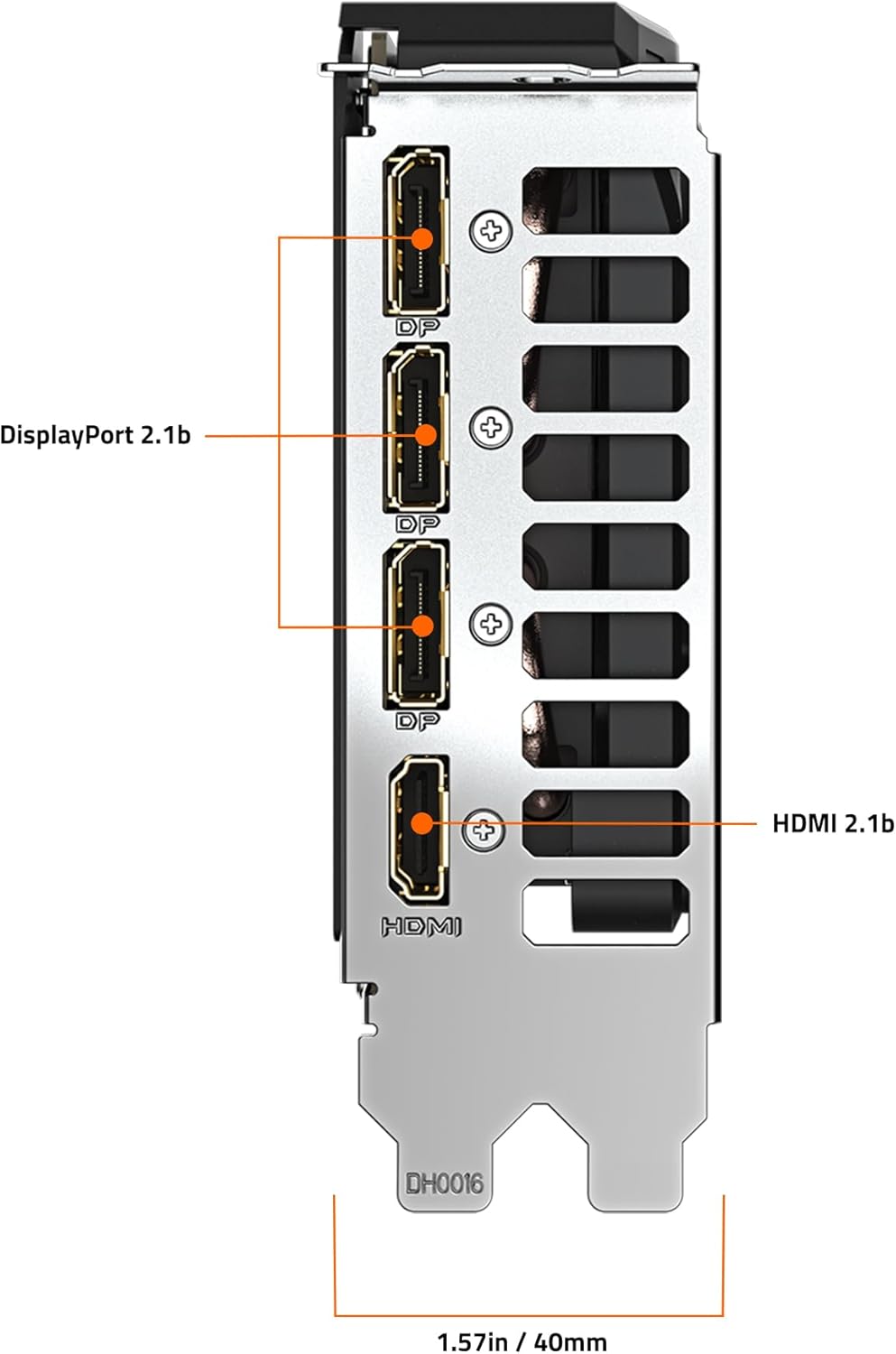
Зураг 3: Ар талд view of the GIGABYTE GeForce RTX 5060 WINDFORCE MAX OC 8G Graphics Card, highlighting the DisplayPort and HDMI output connectors.
5.2 Програм хангамжийн хэрэгслүүд
Utilize GIGABYTE and NVIDIA software for enhanced control and customization:
- GIGABYTE Control Center: Download from the GIGABYTE website to monitor GPU status, adjust fan speeds, and customize RGB lighting (if applicable).
- NVIDIA хяналтын самбар: Access advanced display settings, manage 3D settings, and configure features like DLSS and Ray Tracing.
6. Засвар үйлчилгээ
6.1 Цэвэрлэгээ
Тогтмол цэвэрлэгээ нь таны график картын ашиглалтын хугацааг уртасгаж, оновчтой гүйцэтгэлийг хадгалахад тусалдаг.
- Унтраах: Цэвэрлэхийн өмнө компьютерээ үргэлж унтрааж, цахилгаан тэжээлийн эх үүсвэрээс салгаж байгаарай.
- Тоос арилгах: Use compressed air to gently blow dust from the fans, heatsink fins, and other components. Hold the fans in place to prevent over-spinning.
- Гадаргууг цэвэрлэх: Зөөлөн, хөвөнгүй даавууг хөнгөн хэрэглээрэй dampened with isopropyl alcohol to clean the exterior surfaces of the card. Avoid harsh chemicals.
6.2 Драйверын шинэчлэлтүүд
Keep your graphics drivers updated to ensure compatibility with the latest games and applications, and to benefit from performance improvements and bug fixes.
- GIGABYTE эсвэл NVIDIA-г үе үе шалгаж байгаарай webшинэ драйвер хувилбаруудын сайт.
- Follow the provided instructions for driver installation.
7. Алдаа засах
Хэрэв та өөрийн график карттай холбоотой асуудалтай тулгарвал дараах нийтлэг асуудал, шийдлүүдийг үзнэ үү.
| Асуудал | Боломжит шалтгаан | Шийдэл |
|---|---|---|
| Дэлгэц дээр дэлгэц байхгүй | Incorrect cable connection, loose card, power issue, driver problem. | Ensure display cables are securely connected. Re-seat the graphics card. Verify power connectors are attached. Reinstall or update drivers. |
| Тоглоом/аппликейшн дээр гүйцэтгэл багатай | Outdated drivers, incorrect settings, insufficient power. | Update graphics drivers. Adjust in-game graphics settings. Ensure adequate power supply. Check for background applications consuming resources. |
| Overheating or loud fan noise | Dust accumulation, poor case airflow, high load. | Clean fans and heatsink. Improve case airflow. Monitor temperatures with GIGABYTE Control Center. Adjust fan curves if necessary. |
| Системийн тогтворгүй байдал эсвэл эвдрэл | Driver conflicts, overheating, faulty hardware. | Perform a clean driver installation. Monitor temperatures. Check other system components. |
8. Техникийн үзүүлэлтүүд
| Онцлог | Дэлгэрэнгүй |
|---|---|
| График боловсруулах нэгж | NVIDIA GeForce RTX 5060 (Blackwell architecture) |
| Видео санах ой | 8 ГБ GDDR7 |
| Санах ойн интерфейс | 128-бит |
| Санах ойн хурд | 28000 МГц |
| GPU цагийн хурд | 2512 MHz (Boost Clock) |
| PCI Express | PCIe 5.0 x8 |
| Хөргөлтийн систем | WINDFORCE cooling system with Hawk fan |
| Видео гаралтын интерфейс | 3х DisplayPort 2.1, 1х HDMI 2.1 |
| Хамгийн их дэлгэцийн нягтрал | 3840х2160 |
| Цахилгаан холбогч | 1х 8 зүү |
| Санал болгож буй PSU | 450 Вт ба түүнээс дээш |
| Хэмжээ (LxWxH) | 7.83 x 4.57 x 1.57 инч (199 x 116 x 40 мм) |
| Зүйлийн жин | 1.1 фунт |
| Гол онцлогууд | DLSS 4, AI Cores, 4th Gen Ray Tracing Cores, Reinforced structure, Server-grade Thermal conductive gel |
9. Баталгаат хугацаа ба дэмжлэг
GIGABYTE products are covered by a limited warranty. For detailed warranty information, technical support, and service inquiries, please visit the official GIGABYTE support webсайт:
GIGABYTE-н дэмжлэг: https://www.gigabyte.com/Support
Баталгаат заргад зориулж худалдан авалтаа нотлох баримтаа үлдээнэ үү.


