1. Танилцуулга
This manual provides detailed instructions for the setup, operation, and maintenance of your Arducam GMSL2 8MP IMX219 Raspberry Pi Camera Extension Kit. This kit enables long-distance camera connectivity for Raspberry Pi systems, leveraging GMSL2 technology for stable and high-quality video transmission.

Image 1.1: Arducam GMSL2 8MP IMX219 Raspberry Pi Camera Extension Kit, showing the camera module connected via a coaxial cable to the deserializer board.
2. Аюулгүй байдлын мэдээлэл
- Ensure all connections are secure before powering on the Raspberry Pi.
- Avoid exposing the camera module or boards to extreme temperatures, moisture, or static electricity.
- Handle components with care to prevent damage to delicate connectors and circuits.
- Do not attempt to modify the hardware beyond the intended assembly.
3. Багцын агуулга
Доор жагсаасан бүх зүйл таны багцад байгаа эсэхийг шалгаарай.
- 1 x Arducam GMSL2 Rx board (Deserializer board)
- 1 x Arducam GMSL2 camera Tx board (Serializer board)
- 1 x 1м Fakra Z Эмэгтэйгээс Эмэгтэй RF коаксиаль кабель
- 1 x Arducam IMX219 Camera Module (8MP)
- 1 x 40мм 22-22pin FPC кабель
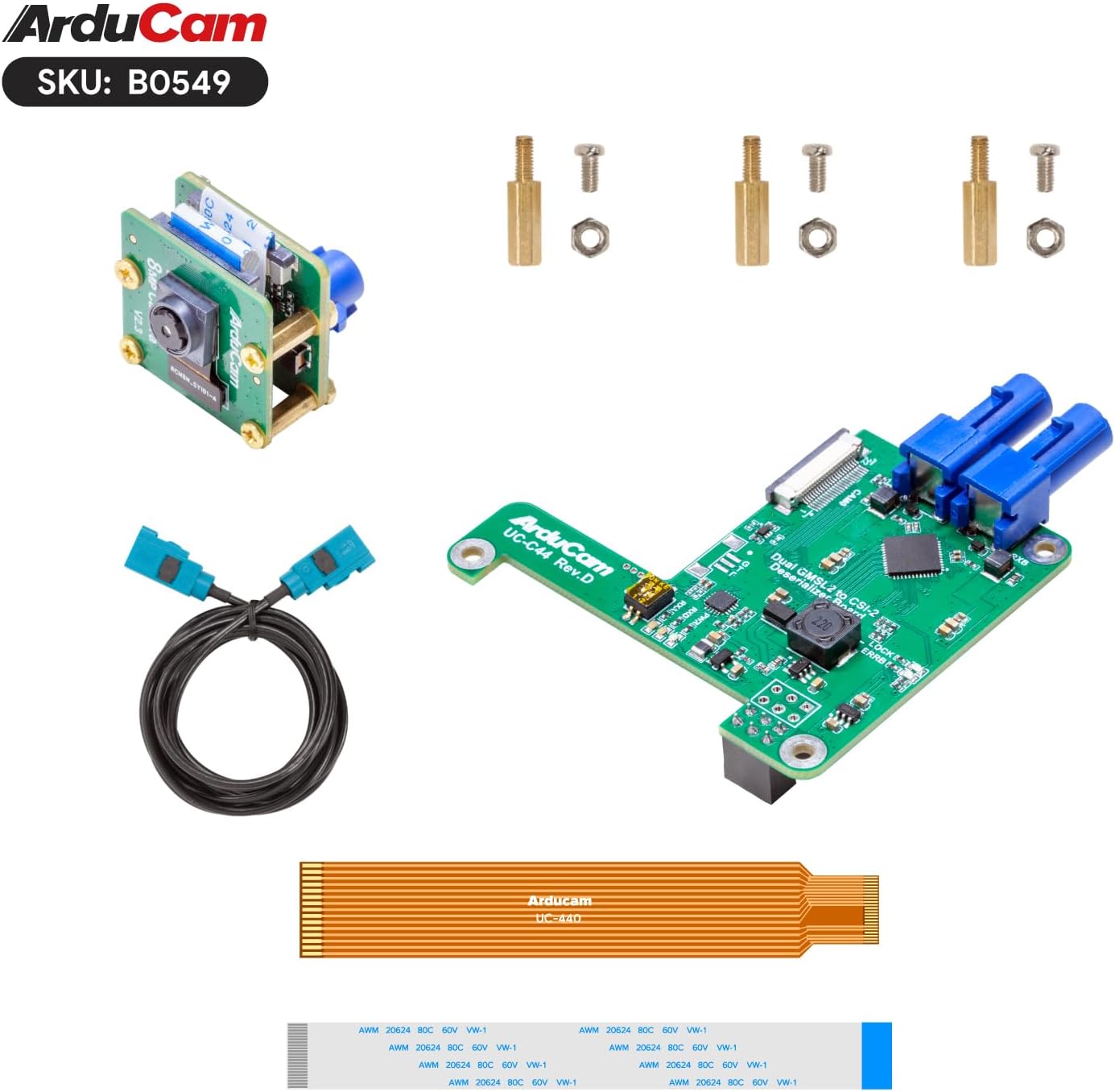
Image 3.1: All components included in the Arducam GMSL2 8MP IMX219 Raspberry Pi Camera Extension Kit.
4. Тохируулах заавар
Follow these steps to assemble and connect your camera extension kit to a Raspberry Pi.
4.1 Hardware Assembly
- Attach IMX219 Camera Module to Tx Board: Carefully connect the 8MP IMX219 camera module to the Arducam GMSL2 camera Tx (Serializer) board. Ensure the ribbon cable is inserted correctly and the latch is secured.
- Connect Fakra Coaxial Cable: Connect one end of the 1m Fakra Z coaxial cable to the Tx board and the other end to the Rx (Deserializer) board. Ensure the connectors click into place securely.
- Mount Rx Board to Raspberry Pi: Attach the Arducam GMSL2 Rx board to your Raspberry Pi (compatible with Pi 4B and Pi 5). Use the provided stand-offs and screws to secure the board to the Raspberry Pi's mounting holes.
- Connect FPC Cable: Connect the 40mm 22-22pin FPC cable from the Rx board to the CSI-2 camera port on your Raspberry Pi. Note that the white cable is typically for Pi 5 and the bronze/orange cable for Pi 4. Ensure the cable is inserted with the contacts facing the correct direction and the connector latch is closed.
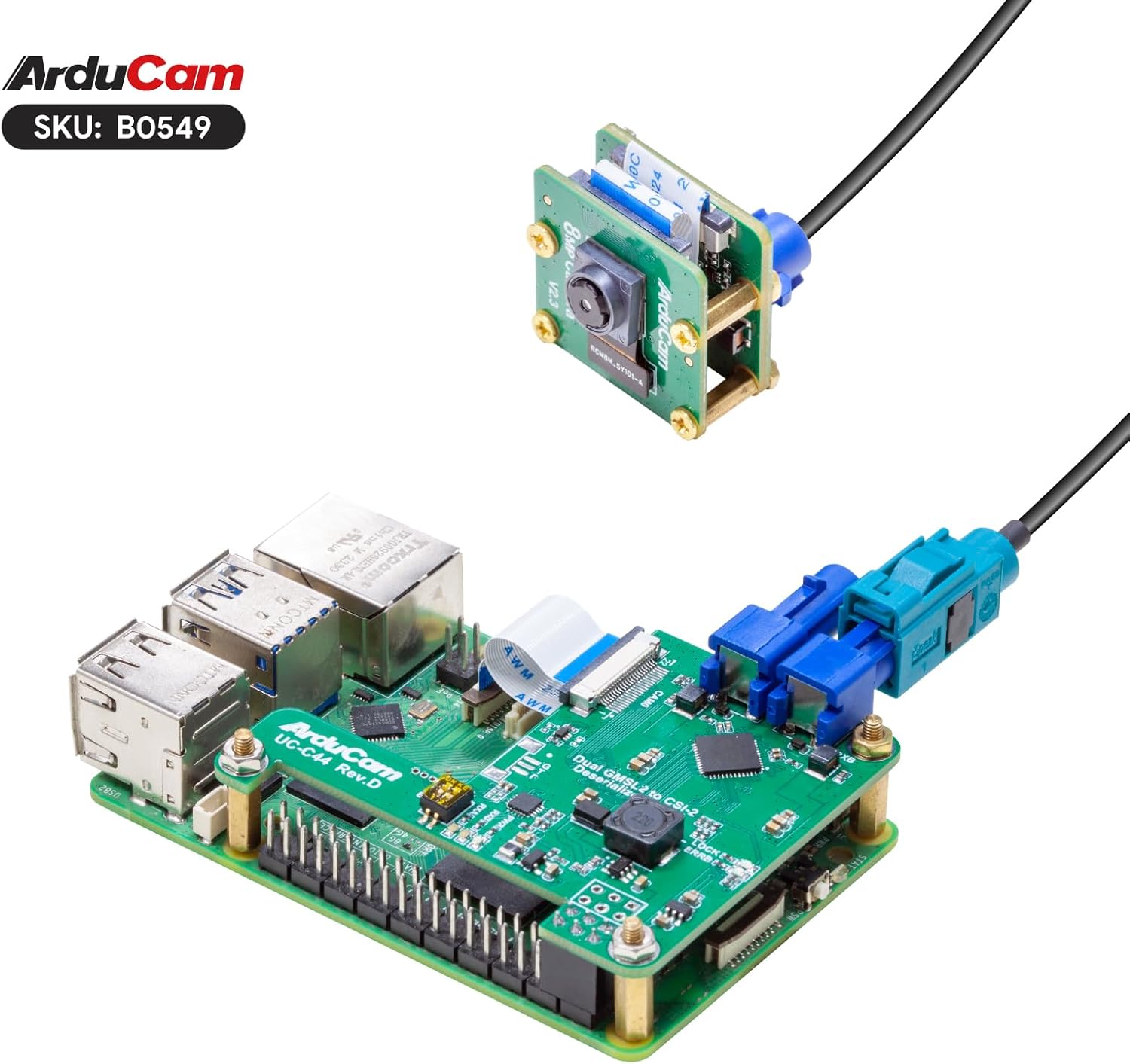
Image 4.1: The Arducam GMSL2 Rx board securely mounted onto a Raspberry Pi, with the FPC cable connected.

Image 4.2: Complete assembly of the Arducam GMSL2 camera extension kit with the camera module, coaxial cable, and Rx board connected to a Raspberry Pi.

Image 4.3: Visual representation of the kit's compatibility with Raspberry Pi 4B and Raspberry Pi 5 models.

Image 4.4: The kit supports up to 15 meters extension, though the included coaxial cable is 1 meter in length.
4.2 Програм хангамжийн тохиргоо
After hardware assembly, configure your Raspberry Pi OS to recognize and utilize the camera. This typically involves enabling the camera interface and using libcamera хэрэгсэл.
- Raspberry Pi үйлдлийн системийг шинэчлэх: Ensure your Raspberry Pi OS is up to date by running:
sudo apt update && sudo apt full-upgrade -y - Камерын интерфэйсийг идэвхжүүлэх: Use the Raspberry Pi configuration tool:
руу шилжих Интерфейсийн сонголтууд > Камер and enable it. Reboot your Raspberry Pi if prompted.sudo raspi-config - Verify Camera Detection: After reboot, you can check if the camera is detected using
libcamera-still:
You should see your IMX219 camera listed.libcamera-still --list-cameras
5. Ашиглалтын заавар
This section covers basic commands for operating your Arducam GMSL2 camera with Raspberry Pi.
5.1 Хөдөлгөөнгүй зураг авах
To capture a still image, use the libcamera-still тушаал:
libcamera-still -o image.jpgThis command will capture an image and save it as image.jpg таны одоогийн лавлах дотор.
For a preview window and autofocus, you can use:
libcamera-still -t 0 --autofocus --keypressThis command will open a preview window, enable autofocus, and wait for a key press to capture an image. Press 'q' to quit the preview.
5.2 Видео бичлэг хийх
To record video, use the libcamera-vid тушаал:
libcamera-vid -t 10000 -o video.h264This command will record video for 10 seconds (10000 milliseconds) and save it as video.h264.
5.3 Live Preview
For a continuous live preview without saving, use libcamera-still with a long timeout and no output file:
libcamera-still -t 0Press 'q' to quit the preview.
5.4 Үзүүлэнгийн видео
Watch this video for a visual demonstration of the Arducam GMSL2 camera extension kit in operation, including setup and image capture examples.
Video 5.1: Demonstration of the Arducam Cable Extension Kit, showcasing its use with a Raspberry Pi for long-distance imaging and command-line operation.
6. Засвар үйлчилгээ
- Keep the camera lens clean using a soft, lint-free cloth. Avoid abrasive materials.
- Хэрэглээгүй үедээ хэрэгслийг хуурай, тоосгүй орчинд хадгална уу.
- Кабелийн холболтыг сул, эвдэрсэн эсэхийг тогтмол шалгана.
- Ensure proper ventilation for the Raspberry Pi and camera boards during operation to prevent overheating.
7. Алдаа засах
- Камер илрээгүй:
- Verify all ribbon and coaxial cable connections are secure and correctly oriented.
- Ensure the camera interface is enabled in
raspi-config. - Check if the Raspberry Pi OS is updated to the latest version.
- Confirm the FPC cable type matches your Raspberry Pi model (white for Pi 5, bronze for Pi 4).
- Poor Image Quality / No Signal:
- Inspect the Fakra coaxial cable for kinks or damage.
- Камерын линз цэвэр, саадгүй байгаа эсэхийг шалгаарай.
- Check the power supply to the Raspberry Pi; insufficient power can affect camera performance.
- Автомат фокусын асуудал:
- Хүрээлэн буй орчинд хангалттай гэрэлтүүлэгтэй байхыг баталгаажуул.
- Try manually focusing if the
libcameracommand supports it, or restart the application.
8. Техникийн үзүүлэлтүүд
| Онцлог | Дэлгэрэнгүй |
|---|---|
| Брэнд | Ардукам |
| Загварын нэр | В0549 |
| Мэдрэгч | 8 MP IMX219 |
| Технологи | GMSL2 (Гигабит Мультимедиа Цуваа Холбоос 2) |
| Хамгийн их сунгах зай | Up to 15 meters (with appropriate cable) |
| Багцлагдсан кабелийн урт | 1 meter Fakra Z Coaxial Cable |
| Тохиромжтой байдал | Raspberry Pi Camera V2 compatible, supports Raspberry Pi 4B, Raspberry Pi 5 |
| Видео бичлэгийн нягтрал | 1080p |
| Фото мэдрэгчийн технологи | CMOS |
| Хамгийн их фокусын урт | 3 миллиметр |
| Хамгийн их диафрагм | 2 f |
| Видео бичлэгийн формат | H.264, JPEG |
| Зүйлийн жин | 1.76 унц |
| Багцын хэмжээ | 4.06 x 2.99 x 1.65 инч |
9. Баталгаат хугацааны мэдээлэл
For detailed warranty information regarding your Arducam GMSL2 8MP IMX219 Raspberry Pi Camera Extension Kit, please refer to the official Arducam website or contact their customer support directly. Warranty terms and conditions may vary by region and purchase location.
10. Дэмжлэг
If you encounter any issues or require further assistance, please visit the Arducam official support page or contact their technical support team. You can often find drivers, documentation, and community forums on their webсайт.
Arducam Official Webсайт: www.arducam.com


