1. Танилцуулга
Thank you for choosing the Pisichen 27 Inch 2K 165Hz Gaming Touch Screen Computer Monitor. This manual provides essential information for setting up, operating, and maintaining your new monitor. Please read it thoroughly before use to ensure optimal performance and longevity of your device.
This monitor features a 27-inch QHD (2560x1440) display with a 165Hz refresh rate and 10-point multi-touch functionality, offering a responsive and immersive visual experience for gaming, business, and everyday use. It supports versatile connectivity options including HDMI, DisplayPort, and USB Type-C.

Image: The Pisichen 27 Inch 2K 165Hz Touchscreen Monitor, showcasing түүний гоёмсог дизайн, эрч хүчтэй дэлгэц.
2. Бүтээгдэхүүн дууссанview
2.1 Гол онцлогууд
- 10-Point Touch Control: Intuitive interaction with pinch, zoom, and swipe gestures directly on the screen.
- 2K QHD Resolution & 165Hz Refresh Rate: Delivers sharp visuals and ultra-smooth motion for gaming and multimedia.
- Олон талт холболт: Equipped with HDMI, DisplayPort (DP), and USB Type-C ports for broad compatibility.
- High-Speed Type-C: Single cable solution for video, data, and peripheral connectivity with compatible devices.
- Нүд арчилгааны технологи: Features reduced blue light and flicker-free backlighting for comfortable extended viewing.
2.2 Багцын агуулга
Дараах зүйлсийн нүдийг шалгана уу.
- Pisichen 27 Inch 2K 165Hz Touch Screen Monitor
- Хяналтын суурь
- HDMI кабель
- DC цахилгаан хувиргагч
- USB A-B Cable (for touch functionality)
- USB CC кабель
- DP кабель
- Хэрэглэгчийн гарын авлага (энэ баримт бичиг)

Image: All components included in the package, such as the monitor, stand, and various connection cables.
3. Тохиргоо
3.1 Мониторын угсралт
- Carefully remove the monitor and its base from the packaging.
- Attach the monitor stand to the back of the monitor by aligning the mounting points and securing it with the provided screws (if applicable). Ensure it is firmly attached.
- Угсарсан мониторыг тогтвортой, тэгш гадаргуу дээр байрлуул.
The monitor also supports VESA mounting (100x100mm) for wall or arm installation, providing flexibility to optimize your workspace.

Image: Comparison of the monitor mounted on its base versus a VESA wall mount, illustrating space-saving benefits.
3.2 Монитороо холбох
The monitor offers multiple input options. Choose the appropriate cable for your device:
- Эрчим хүчний холболт: Connect the DC Power Adapter to the monitor's DC Power port and plug it into a power outlet.
- Видео холболт:
- HDMI: Connect one end of the HDMI cable to the monitor's HDMI port and the other end to your computer's HDMI output.
- DisplayPort (DP): Connect one end of the DP cable to the monitor's DP port and the other end to your computer's DP output.
- USB Type-C: For compatible devices (e.g., laptops with USB-C video output), connect the USB C-C cable to the monitor's Type-C port and your device's Type-C port. This can transmit video, data, and power simultaneously.
- Touch Functionality Connection: To enable touch functionality, connect the USB A-B cable from the monitor's USB B port to an available USB-A port on your computer. This cable transmits the touch signal.
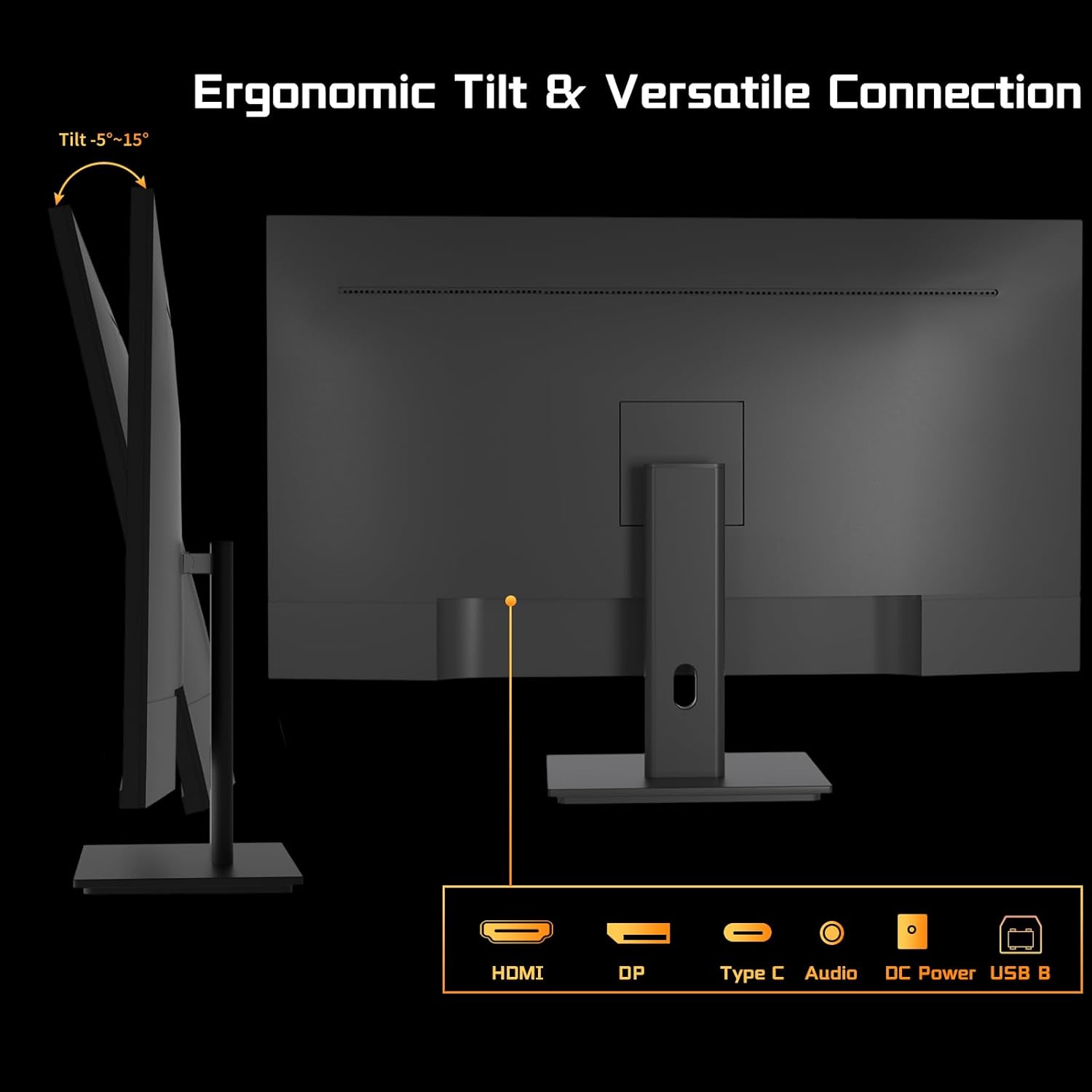
Зураг: Ар талд view of the monitor highlighting the HDMI, DP, Type-C, Audio, DC Power, and USB B ports, along with tilt adjustment range.

Image: The monitor connected to both a desktop PC and a laptop, demonstrating its compatibility with various interfaces. Note: For touch, the USB 2.0 signal cable must be connected.

Image: The monitor connected to a smartphone via Type-C, showcasing its ability to extend display to mobile devices. An iPhone connection via Lightning to HDMI adapter is also shown, with a note about touch functionality limitations.
4. Ашиглалтын заавар
4.1 Үндсэн үйл ажиллагаа
- Асаах/унтраах: Press the power button (location not specified, typically on the back or bottom right) to turn the monitor on or off.
- OSD цэс: Use the OSD (On-Screen Display) buttons (not specified) to navigate and adjust settings such as brightness, contrast, color, input source, and audio.
4.2 Refresh Rate and Response Time
This monitor boasts a 165Hz refresh rate and a 2ms response time, crucial for smooth and fluid visuals, especially in fast-paced gaming and video playback. A higher refresh rate reduces motion blur and screen tearing, providing a more immersive experience.

Image: Visual comparison demonstrating the smoothness of a 165Hz refresh rate compared to lower rates, reducing lag and delay.

Image: Illustration of premium performance with 165Hz refresh rate and 2ms response time, showing crisp motion compared to a 75Hz/10ms display.
4.3 Мэдрэгчтэй дэлгэцийн функц
The monitor features a 10-point capacitive multi-touch panel, allowing for direct and intuitive interaction with your content. You can use gestures such as pinching to zoom, swiping to navigate, and tapping for selection, enhancing productivity and creativity.

Image: A user interacting with the 27-inch touch panel monitor, demonstrating its use for tasks like data analysis and presentations without a mouse or keyboard.

Image: A person interacting with the touch screen, illustrating the ease of use for zooming, handwriting, and navigating content with 10-point multi-touch technology.
4.3.1 Touch Compatibility
The touch functionality is compatible with a wide range of devices, supporting multi-touch for:
- Зөөврийн компьютерууд
- Ухаалаг утаснууд
- Таблетууд
- Бүгдийг нэг дор багтаасан компьютерууд
- Desktop Hosts
However, due to platform-specific restrictions, touch functionality is дэмжигдээгүй дараах төхөөрөмжүүд дээр:
- iPhone
- iPad
- Nintendo Switch
- Xbox (all models)
- PlayStation (PS3, PS4, PS5)
- Галын ТВ куб
- Уурын тавцан
- Certain Apple products (e.g., Mac mini M1/M2/M3 series when connecting to front USB-C ports without video output)

Image: A chart illustrating devices that support multi-touch (laptops, smartphones, tablets, all-in-one PCs, desktop hosts) and single-touch (MacBook, iMac), along with a note about Mac mini compatibility.

Image: A visual representation of devices that do not support touch functionality, including various gaming consoles and Apple products.
4.4 Нүд арчилгааны технологи
The monitor is designed with eye-care features to reduce strain during extended use. It incorporates reduced blue light modes and flicker-free backlighting, which help minimize eye fatigue and provide a more comfortable viewтуршлага.

Image: A visual demonstrating the monitor's low blue light mode, which adjusts brightness and color temperature to alleviate eye strain.
5. Хэрэглээ
The versatility of the Pisichen touchscreen monitor extends to various professional and interactive environments:
5.1 Interactive Teaching
In educational settings, the touchscreen allows students and instructors to directly interact with content, answer questions, and collaborate on the screen, enhancing engagement and participation.

Image: An instructor and students using the touchscreen monitor for interactive teaching, writing directly on the display.
5.2 Conference Collaboration Whiteboard
During team meetings, the monitor can function as a digital whiteboard, enabling participants to edit, discuss, and share ideas in real-time, fostering dynamic collaboration.

Image: A business meeting where the touchscreen monitor is used as a collaborative whiteboard, with a presenter pointing to data on the screen.
5.3 Self-service Terminals
Ideal for retail or hospitality, the monitor can serve as an information or ordering terminal, allowing customers to browse products, place orders, and interact with the system independently.

Image: A person using the touchscreen monitor as a self-service terminal in a retail environment, interacting with product information.
5.4 Industrial Monitoring and Control
In industrial settings, the touchscreen facilitates monitoring production processes and equipment control, enabling operators to quickly input data and view analytical results directly on the screen.

Image: An engineer using the touchscreen monitor for industrial monitoring and control, interacting with a technical diagram.
6. Засвар үйлчилгээ
Мониторын урт наслалт, оновчтой ажиллагааг хангахын тулд дараах засвар үйлчилгээний удирдамжийг дагана уу.
- Дэлгэц цэвэрлэх: Gently wipe the screen with a soft, lint-free cloth. For stubborn smudges, use a screen-specific cleaning solution applied to the cloth, not directly to the screen. Avoid harsh chemicals or abrasive materials.
- C цэвэрлэхasing: Мониторыг зөөлөн, хуурай даавуугаар цэвэрлэх casing.
- Агааржуулалт: Хэт халалтаас сэргийлэхийн тулд мониторын агааржуулалтын нүхийг хаагаагүй эсэхийг шалгаарай.
- Хадгалах: Хэрэв дэлгэцийг удаан хугацаагаар хадгалах бол цахилгаан тэжээлээс салгаад сэрүүн, хуурай газар хадгална уу.
7. Алдаа засах
If you encounter issues with your monitor, refer to the common problems and solutions below. For problems not listed, please contact customer support.

Image: Frequently Asked Questions (FAQs) for the monitor, addressing common issues and solutions.
Нийтлэг асуудал ба шийдэл:
- How to connect to touch function?
For USB-C (DP Alt Mode) or Thunderbolt 3/4 devices: Use a 12V/3A mini adapter for power + USB C-C cable for video + touch. For other devices: Use HDMI/DP cable for video + 12V/3A mini adapter for power + USB A-B cable for touch. - Why does touching the 27" display move the cursor on my PC screen instead?
Setup required (Windows only): Control Panel > Hardware and Sound > Tablet PC Settings > Setup > Press ENTER > Select 27" Touch screen monitor when prompted. - How to set the resolution of this monitor?
Right-click on the mouse to select Display Settings, and select Extend Mode in Multi Monitor Settings. Find this monitor and select the recommended resolution of 2560x1440P in the resolution column. - Does the monitor support touch when connected to an iPhone?
Unfortunately, due to system restriction, the touch function of the monitor will not work after connecting to the iPhone.
8. Техникийн үзүүлэлтүүд
Below are the detailed technical specifications for the Pisichen 27 Inch 2K 165Hz Gaming Touch Screen Computer Monitor:
| Онцлог | Тодорхойлолт |
|---|---|
| Бүтээгдэхүүний хэмжээс | 0.7 x 24 x 14.1 инч (1.9 x 61.2 x 36.3 см) |
| Зүйлийн жин | 15.52 фунт |
| Үйлдвэрлэгч | Shenzhen Konowa Electronics Co., LTD |
| ASIN | B0FGX87VPF |
| Загварын дугаар | 27INCM2K-165HZ |
| Эхний боломжтой огноо | 29 оны наймдугаар сарын 2025 |
| Байнгын дэлгэцийн хэмжээ | 27 инч |
| Харьцаа | 16:9 |
| Шийдвэр | 2560 x 1440 пиксел (2K UHD) |
| Зургийн тод байдал | 350 Кандела |
| Брэнд | Писичен |
| Дэлгэцийн гадаргуугийн тодорхойлолт | Гялгар |

Image: A diagram illustrating the precise dimensions of the monitor in both centimeters and inches.
9. Баталгаат хугацаа ба дэмжлэг
For warranty information, please refer to the documentation provided with your purchase or contact the seller directly. Pisichen is committed to providing quality products and customer satisfaction.
If you are experiencing a problem that is not listed in the troubleshooting section or require further assistance, please contact our customer service team via email:
Имэйл: support_2308@163.com
Please describe the issue in detail and include pictures or a video if possible to help our technical team identify and resolve the problem promptly.


