1. Танилцуулга
Thank you for choosing the PRIXTON Prado XL 15.6-inch Digital Photo Frame. This manual provides essential information for setting up, operating, and maintaining your device. Please read it carefully before use to ensure optimal performance and longevity of your digital photo frame.
The PRIXTON Prado XL features a vibrant 15.6-inch Full HD IPS touchscreen display, offering clear and vivid image reproduction. With built-in Wi-Fi, 32GB of internal memory, and support for both photos and videos, it allows you to easily share and display your cherished memories. The frame also includes integrated speakers and multiple input options, including USB Type-C, USB-A, and an SD card slot, providing versatile ways to manage your content.
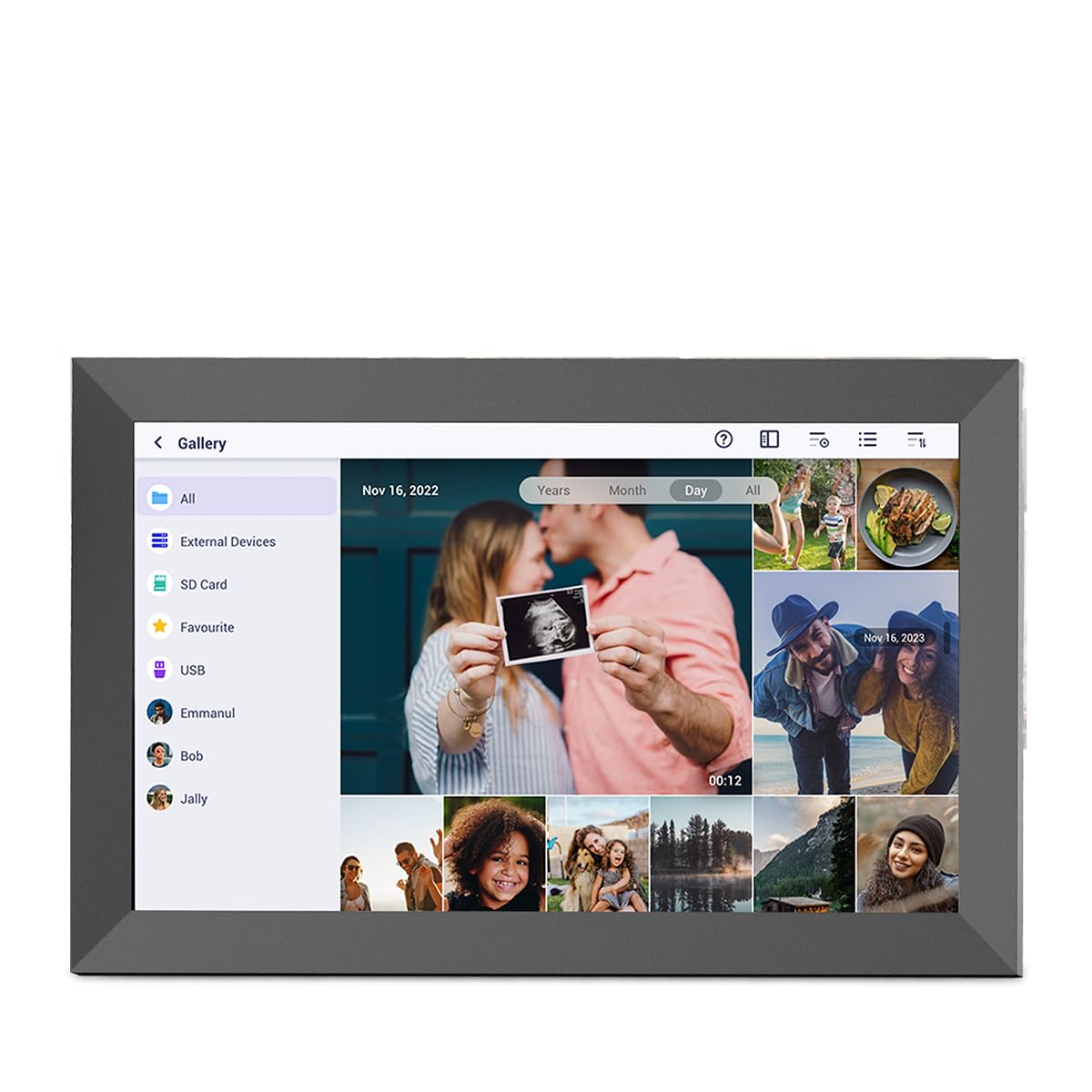
Image: The PRIXTON Prado XL digital photo frame showcasinга гэр бүлийн зураг.
2. Багцын агуулга
Дараах зүйлсийн нүдийг шалгана уу.
- PRIXTON Prado XL 15.6-inch Digital Photo Frame
- Эрчим хүчний адаптер
- Хэрэглэгчийн гарын авлага (энэ баримт бичиг)
3. Бүтээгдэхүүн дууссанview
Familiarize yourself with the various ports and controls on your digital photo frame.

Image: Back panel of the frame, highlighting the power button, USB-A, USB-C, SD card slot, and headphone jack.
Гол бүрэлдэхүүн хэсгүүд:
- Цахилгаан товч: Located on the back, used to turn the frame on/off or put it into sleep mode.
- USB-A порт: For connecting USB flash drives to transfer photos and videos.
- USB Type-C порт: For connecting compatible devices or for data transfer.
- SD картны үүр: For inserting SD cards to display or transfer media.
- Чихэвчний Жак: Гадаад аудио төхөөрөмжийг холбоход зориулагдсан.
- DC тэжээлийн оролт: Цахилгаан адаптерийг холбоход зориулагдсан.
- Хананд бэхлэх нүхнүүд: Хүрээг хананд бэхлэх зориулалттай.
4. Тохиргоо
4.1 Асаах
- Connect the power adapter to the DC Power Input port on the back of the frame.
- Цахилгаан адаптерийг ханын залгуурт холбоно уу.
- The frame will automatically power on. If not, press and hold the Power Button for a few seconds.
4.2 Анхны тохиргоо
Upon first startup, you will be guided through the initial setup process:
- Хэл сонгох: Жагсаалтаас дуртай хэлээ сонгоно уу.
- Wi-Fi-д холбогдох: Select your Wi-Fi network and enter the password. A stable internet connection is required for app functionality and software updates.
- Огноо, цагийг тохируулах: Configure the correct date, time, and time zone.
4.3 Connecting with the Uhale App
The Uhale app allows you to easily send photos and videos directly to your frame from your smartphone.
- Апп татаж авах: хайх "Uhale" in your smartphone's app store (iOS or Android) and install it.
- Бүртгэл үүсгэх: Open the Uhale app and follow the instructions to create a new user account.
- Хүрээг хослуулах: On your digital photo frame, navigate to the "Settings" menu and find the "Bind Device" or "Add Device" option. This will display a unique code or QR code.
- Enter Code/Scan QR: In the Uhale app, select "Add Device" and either manually enter the code displayed on your frame or use your phone's camera to scan the QR code.
- Хослуулсны дараа та зураг болон видеог өөрийн хүрээ рүү илгээж эхлэх боломжтой.

Image: A smartphone screen showing the Uhale app interface next to the digital photo frame.
5. Хүрээг ажиллуулах
5.1 Мэдрэгчтэй дэлгэцийн навигаци
The Prado XL features a responsive touchscreen for easy navigation:
- Товш: Зүйл сонгох эсвэл цэс нээх.
- Шудрах: Navigate through photos, menus, or lists.
- Томруулахын тулд чимхэх: Zoom in or out on photos (if supported by software).
5.2 Зураг болон видео нэмэх
There are several ways to add media to your frame:
5.2.1 Via Uhale App
- Open the Uhale app on your paired smartphone.
- Илгээхийг хүссэн зураг эсвэл видеогоо сонгоно уу.
- Tap the "Send" or "Share" button to transfer them to your frame.
- The media will appear on your frame shortly, provided it is connected to Wi-Fi.
5.2.2 Via USB Drive or SD Card
- Insert a USB flash drive into the USB-A port or an SD card into the SD card slot.
- The frame will detect the external storage. Navigate to the "Gallery" or "Files" section.
- Select the desired photos or videos and choose to copy them to the frame's internal memory.

Image: User interacting with the Uhale app to send content to the digital photo frame.
5.3 Managing Content and Slideshows
- Галерей: Access all your stored photos and videos. You can view them individually or start a slideshow.
- Устгах: Select unwanted media and choose the delete option.
- Слайд шоуны тохиргоо: Customize slideshow duration, transition effects, and playback order in the settings menu.

Image: The digital photo frame displaying a lively birthday party scene.
6. Тохиргооны цэс
Access the settings menu by tapping the gear icon on the home screen. Here you can configure various aspects of your frame:
- Дэлгэц: Adjust brightness, screen sleep time, and display mode.
- Wi-Fi: Сүлжээний холболтоо удирдаарай.
- Огноо ба цаг: Manually set or synchronize date and time.
- Хадгалах: View internal storage usage and manage external storage devices.
- тухай: View device information, including software version and model number.
7. Засвар үйлчилгээ
7.1 Дэлгэц цэвэрлэх
Мэдрэгчтэй дэлгэцийг цэвэрлэхийн тулд зөөлөн, хөвөнгүй даавуугаар зөөлөн арчина. Зөрүүд толботой бол бага зэрэг арчина.ampАлчуурыг ус эсвэл дэлгэцэнд тэсвэртэй цэвэрлэгээний уусмалаар арчина. Хүчтэй химийн бодис эсвэл зүлгүүрийн материал хэрэглэхээс зайлсхий.
7.2 Програм хангамжийн шинэчлэлтүүд
Ensure your frame is connected to Wi-Fi to receive automatic software updates. Updates provide new features, performance improvements, and bug fixes. You can manually check for updates in the "Settings" > "About" menu.
8. Алдаа засах
| Асуудал | Боломжит шийдэл |
|---|---|
| Frame does not turn on. | Цахилгаан адаптер нь хүрээ болон ажиллаж байгаа цахилгаан залгуурт найдвартай холбогдсон эсэхийг шалгаарай. Өөр залгуурыг туршаад үзээрэй. |
| Wi-Fi-д холбогдох боломжгүй байна. | Check if your Wi-Fi router is on and working. Re-enter the Wi-Fi password carefully. Move the frame closer to the router. |
| Зураг/видео харагдахгүй байна. | Verify that the media has been successfully uploaded via the app or copied from USB/SD. Check file formats for compatibility. Ensure the frame is connected to Wi-Fi if using the app. |
| Мэдрэгч дэлгэц хариу өгөхгүй байна. | Restart the frame by holding the power button. Ensure the screen is clean and free of debris. |
| Frame is slow or freezes. | Restart the frame. Clear some internal storage if it is nearly full. |
9. Техникийн үзүүлэлтүүд
| Онцлог | Дэлгэрэнгүй |
|---|---|
| Загварын дугаар | 10006183 |
| Дэлгэцийн хэмжээ | 15.6 инч |
| Дэлгэцийн төрөл | IPS мэдрэгчтэй дэлгэц |
| Шийдвэр | 1920 x 1080 бүрэн HD |
| Дотоод санах ой | 32 ГБ флаш |
| RAM | 1 ГБ |
| Холболт | Wi-Fi |
| Портууд | USB Type-C, USB-A, SD Card Slot, Headphone Jack |
| Аудио | Нэгдсэн спикерүүд |
| Хэмжээ (L x W x H) | 14 x 21 x 2.51 см |
10. Баталгаат хугацаа ба дэмжлэг
PRIXTON products are designed and manufactured to the highest quality standards. For information regarding warranty coverage, please refer to the warranty card included with your product or visit the official PRIXTON webсайт.
If you encounter any issues or have questions not covered in this manual, please contact PRIXTON customer support for assistance. You can find contact details on the PRIXTON webсайт эсвэл таны худалдан авах платформоор дамжуулан.
Онлайн дэмжлэг: Visit the PRIXTON Store on Amazon


