1. Танилцуулга
This manual provides detailed instructions for the Acer USB C to Dual HDMI Adapter (Model ODK540). This 4-in-1 adapter is designed to expand the connectivity of your USB-C enabled device, offering dual 4K@60Hz HDMI outputs, a USB 3.0 port for data transfer, and 100W Power Delivery (PD) charging. Please read this manual thoroughly before use to ensure proper operation and to maximize the product's capabilities.
2. Бүтээгдэхүүний онцлог
- Multifunctional 4-in-1 Connectivity: Integrates two HDMI ports (4K@60Hz), one USB-A 3.0 port (5Gbps), and one USB-C Power Delivery port (100W input).
- Хос 4K@60Hz дэлгэц: Supports stunning 4K@60Hz resolution on both single and dual displays. Ensure all connected devices (laptop, cables, monitors) support HDMI 2.0 or higher for optimal performance.
- Super-Fast 5Gbps Data Transfer: Equipped with a USB-A 3.0 port for high-speed file transfers, ideal for large data volumes.
- Reliable 100W Power Delivery: Supports up to 100W input and delivers up to 90W to your laptop, ensuring continuous power during use. A 65W or higher power adapter and cable (not included) are required. Your laptop's USB-C port must support Power Delivery.
- Авсаархан, зөөврийн дизайн: Хөнгөн цагаан хайлш c онцлогтойasing for efficient heat dissipation and a braided nylon cable for durability.
3. Багцын агуулга
- Acer USB C to Dual HDMI Adapter (Model ODK540)
- Integrated USB-C cable (approximately 20 cm / 0.66 ft)
Please ensure all items are present and in good condition. If any items are missing or damaged, contact customer support.
4. Тохируулах заавар
- Зөөврийн компьютерын нийцтэй байдлыг шалгах: Ensure your laptop's USB-C port supports DisplayPort Alternate Mode (DP Alt Mode) for video output. This is often indicated by a Thunderbolt symbol, a 'D' symbol, or a full-function USB-C port. Ports labeled 'Data Transfer Only' or 'Charging Only' are not compatible for video output.
- Зөөврийн компьютерт холбогдох: Plug the integrated USB-C cable of the adapter into a compatible USB-C port on your laptop.
- Мониторуудыг холбох: Connect your HDMI monitors to the HDMI 1 and HDMI 2 ports on the adapter using HDMI 2.0 or higher cables.
- Цахилгааныг холбох (заавал биш боловч санал болгож байна): For stable operation and to charge your laptop, connect a 65W or higher USB-C PD power adapter (not included) to the USB-C PD port on the adapter.
- USB төхөөрөмжүүдийг холбох (заавал биш): Plug any USB-A devices, such as a mouse, keyboard, or USB drive, into the USB 3.0 port on the adapter.
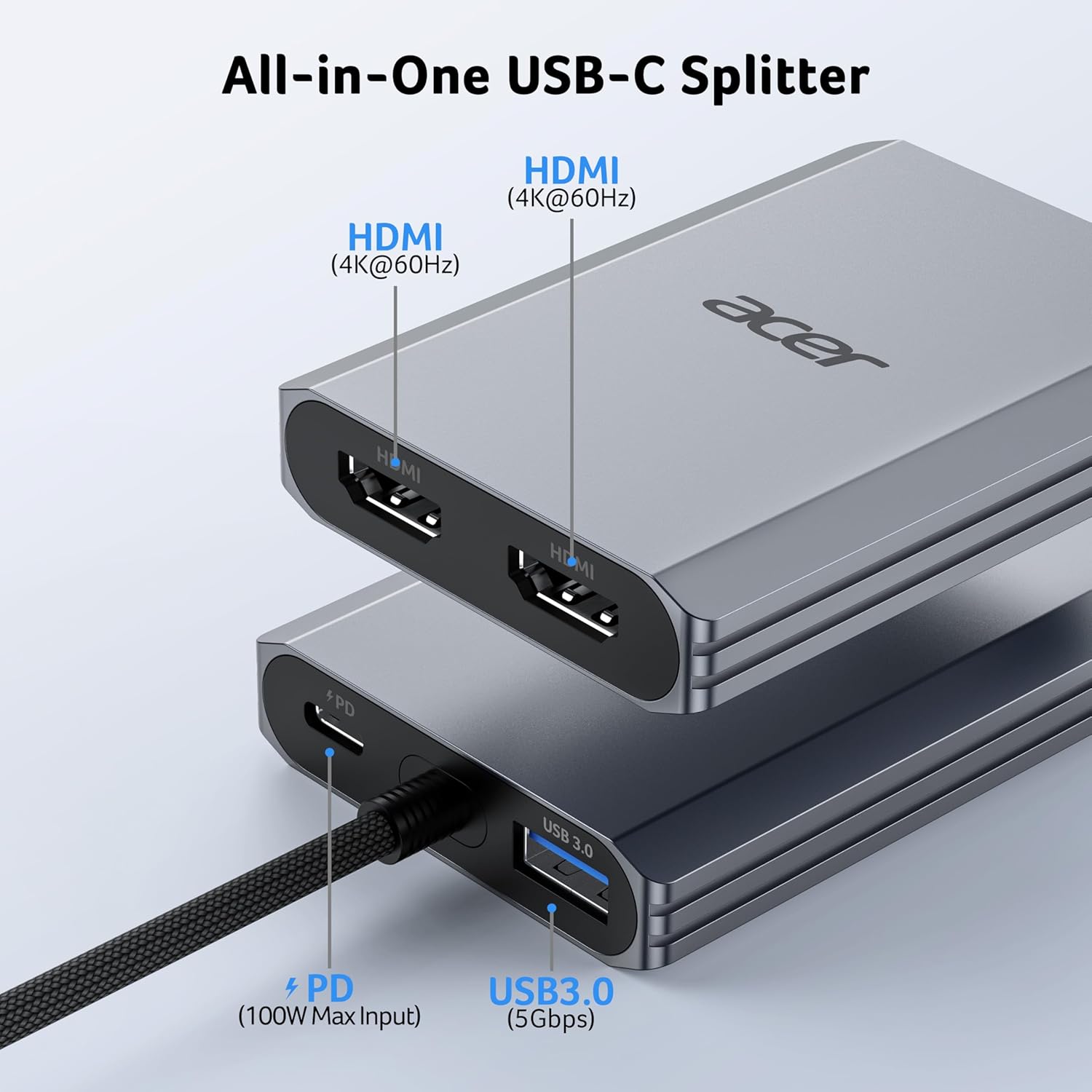
Зураг: Дууслааview of the Acer USB C to Dual HDMI Adapter showing its HDMI, USB 3.0, and PD ports.
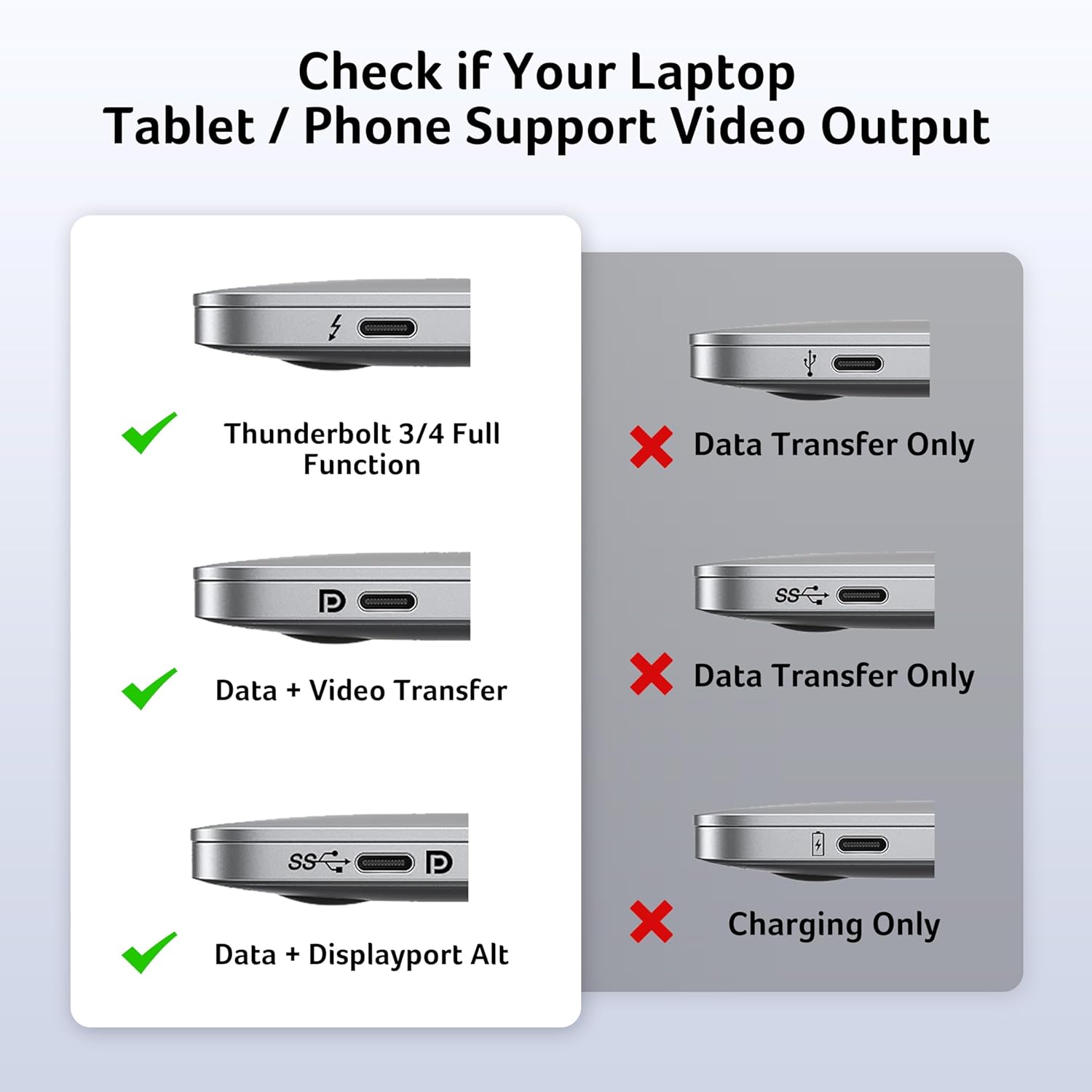
Image: Guide to checking your laptop's USB-C port for video output compatibility (Thunderbolt, Data+Video Transfer, Data+Displayport Alt are compatible; Data Transfer Only, Charging Only are not).
5. Ашиглалтын заавар
5.1 Дэлгэцийн горимууд
Once connected, your operating system should automatically detect the external monitors. You may need to configure the display settings to achieve your desired setup.
- Windows хэрэглэгчдийн хувьд:
Right-click on your desktop and select "Display settings" or press Windows товчлуур + P. You can choose between:- Duplicate (Mirror) Mode (A-A-A): Displays the same content on all screens.
- Extend Mode (A-B-B or A-B-C): Extends your desktop across multiple screens. For A-B-C (MST Mode), ensure your laptop supports Multi-Stream Transport.
- macOS хэрэглэгчдийн хувьд:
руу оч Apple menu > System Preferences > Displays. macOS does not support Multi-Stream Transport (MST). Therefore, dual display is limited to:- Mirror Mode (A-A-A): Both external monitors will mirror the laptop display.
- Extend Mode (A-B-B): The two external monitors will display the same extended content, different from the laptop display. It does not support A-B-C (three independent displays).
- Chromebook хэрэглэгчдийн хувьд:
Most Chromebooks do not support MST. You will typically be limited to mirror mode or a single extended display.
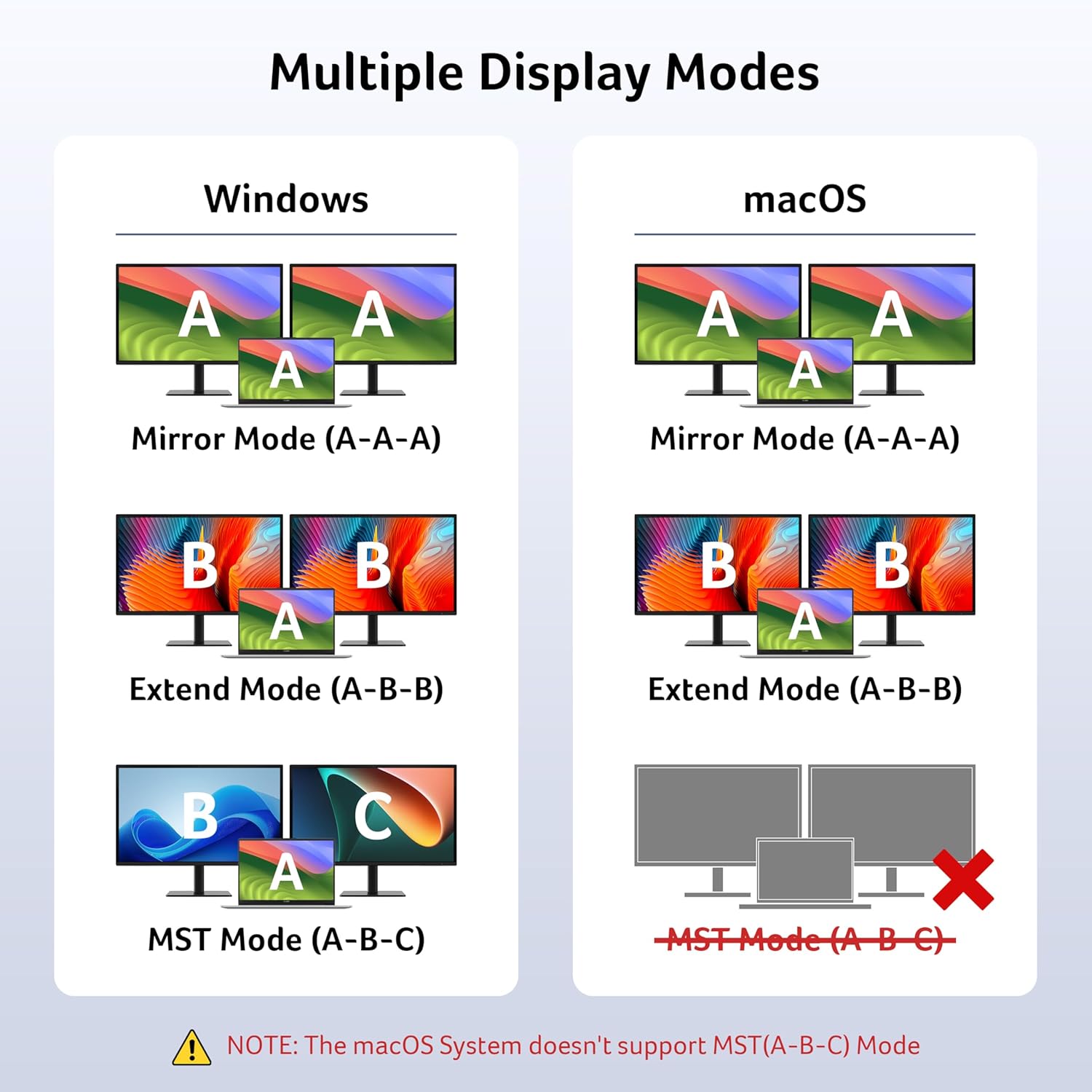
Image: Visual representation of Mirror Mode and Extend Mode configurations for Windows and macOS, highlighting macOS MST limitations.

Image: A laptop connected to two external monitors, demonstrating a dual monitor setup. A note indicates macOS MST limitations.
5.2 Мэдээлэл дамжуулах
The USB-A 3.0 port supports data transfer speeds up to 5Gbps. Connect your USB storage devices, external hard drives, or other peripherals for fast data exchange.
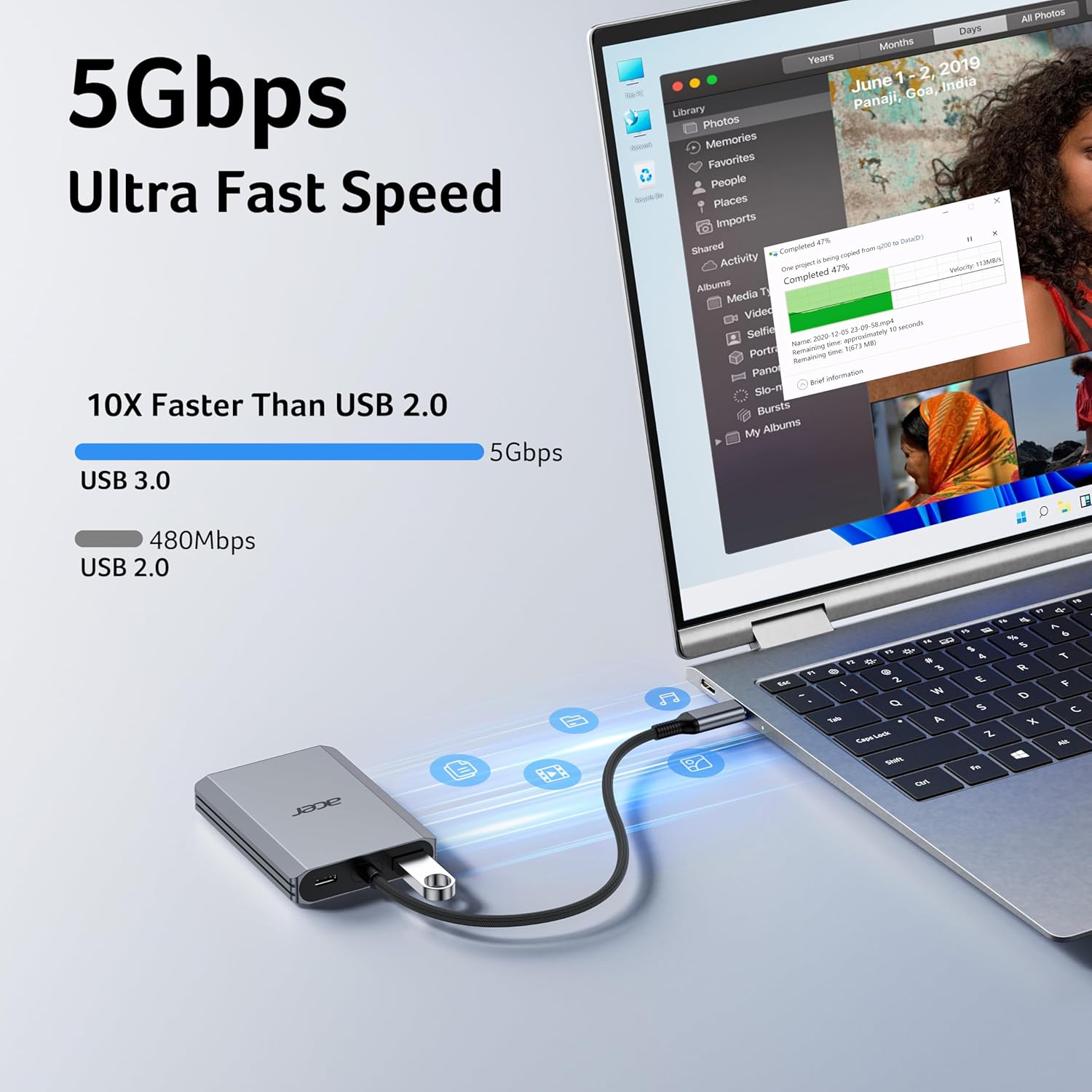
Image: A laptop connected to the adapter, with a USB flash drive inserted into the USB 3.0 port, illustrating high-speed data transfer.
5.3 Эрчим хүчний хангамж
The USB-C PD port allows you to charge your laptop while using the adapter. Connect your laptop's original power adapter or a compatible 65W+ USB-C PD charger to this port. The adapter supports up to 100W input and delivers up to 90W to your laptop.
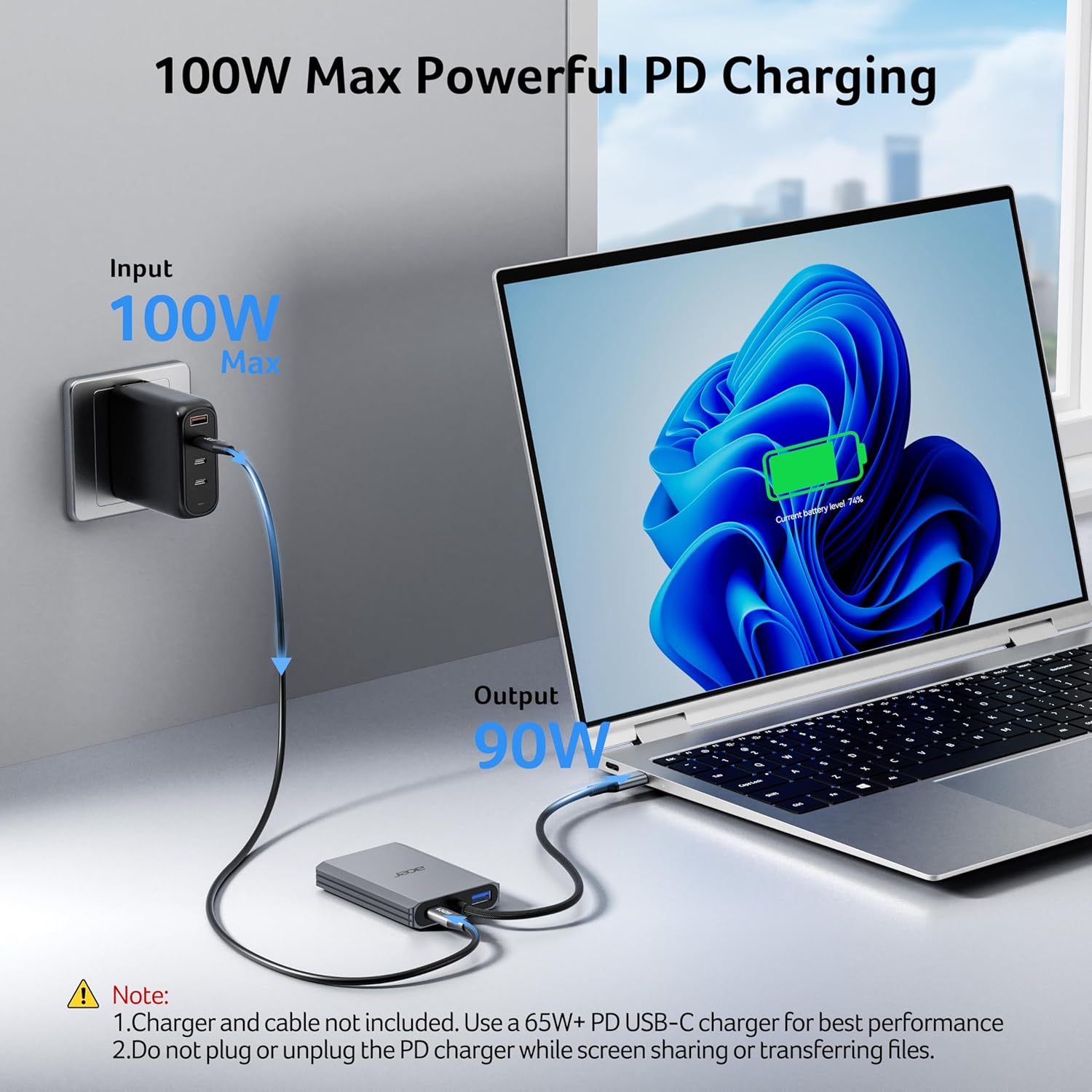
Image: Illustration of the power delivery function, showing a 100W power input to the adapter and 90W output to a connected laptop.
6. Тохиромжтой байдал
This adapter is compatible with Windows and macOS devices that support DisplayPort Alternate Mode (DP Alt Mode) via their USB-C port. This enables display, charging, and data transfer functionalities.
Supported Devices Include:
- Acer laptops
- Dell XPS series
- Lenovo laptops
- Microsoft Surface devices
- HP laptops
- ASUS laptops
- MacBook Air/Pro models
- Samsung laptops and smartphones
- Various accessories like mice and keyboards

Image: A visual guide to wide compatibility, featuring various laptop, tablet, and phone models.
7. Засвар үйлчилгээ
- Keep the adapter clean and dry. Avoid exposure to liquids or extreme temperatures.
- Төхөөрөмжийг өөрөө задлах, засах гэж бүү оролдоорой. Энэ нь баталгааг хүчингүй болгож, гэмтэл учруулж болзошгүй.
- Бие махбодид гэмтэл учруулахгүйн тулд адаптерыг ашиглаагүй үед аюулгүй газар хадгална уу.
- Avoid bending the integrated USB-C cable excessively to prevent internal wire damage.
8. Алдаа засах
- Дэлгэц байхгүй эсвэл дэлгэц анивчихгүй байна:
- Ensure your laptop's USB-C port supports video output (DP Alt Mode).
- Check all cable connections (USB-C to adapter, HDMI to monitors) are secure.
- Verify that your HDMI cables are HDMI 2.0 or higher and in good condition.
- Test with a single monitor first to isolate the issue.
- Зөөврийн компьютераа дахин эхлүүлээд адаптераа дахин холбоно уу.
- Cannot Achieve Dual HDMI Display Simultaneously:
- For Windows, go to Display Settings and ensure "Extend these displays" is selected, not "Show desktop only on 1" or "Show desktop on 2".
- For macOS, remember that MST (Multi-Stream Transport) is not supported. Dual monitors will either mirror the laptop (A-A-A) or mirror each other while extending from the laptop (A-B-B).
- For Chromebooks, most do not support MST, limiting to mirror mode or single display.
- Laptop Not Charging via Adapter:
- Зөөврийн компьютерын USB-C порт нь Power Delivery-г дэмждэг эсэхийг шалгаарай.
- Use a 65W or higher USB-C PD power adapter and cable (not included).
- Do not plug or unplug the PD charger while screen sharing or transferring files to avoid interruptions.
- Delay or Interference with Wireless Mouse/Keyboard:
- If using a 2.4GHz wireless mouse or keyboard, the product may cause interference.
- It is recommended to reduce the distance between the wireless receiver and the mouse/keyboard to minimize interference.
- Адаптер дулаан мэдрэмж төрүүлдэг:
- It is normal for the adapter to become warm during heavy use, especially when charging and driving multiple displays. The aluminum alloy design aids in heat dissipation.
- At full load, the surface temperature may reach about 122°F (50°C). This is within normal operating parameters.
Image: A summary of common troubleshooting steps and user tips for display settings, USB device interference, and power delivery.
9. Техникийн үзүүлэлтүүд
| Загварын дугаар | ODK540 |
| Брэнд | Acer |
| Өнгө | Саарал |
| Тоног төхөөрөмжийн интерфейс | 2x HDMI, 1x USB 3.0, 1x USB Type C (PD) |
| HDMI гаралт | Dual 4K@60Hz (HDMI 2.0 compatible) |
| USB-A мэдээллийн порт | 1x USB 3.0 (5Gbps) |
| USB-C тэжээлийн хангамж | Up to 100W input, 90W output to laptop |
| Кабелийн урт | 20 см (0.66 фут) |
| Зүйлийн жин | 3.87 унц |
| Багцын хэмжээ | 6.42 x 6.42 x 0.28 инч |
| Онцлог шинж чанарууд | Fast Charging, Fast Data Transfer, Lightweight, Plug and Play, Portable |
10. Баталгаат хугацаа ба дэмжлэг
Баталгаат мэдээлэл болон техникийн дэмжлэг авах бол албан ёсны Acer-аас лавлана уу website or contact Acer customer service directly. Keep your purchase receipt for warranty claims.


