1. Танилцуулга
Thank you for choosing the Darmoshark M5PRO Mini Wireless Gaming Mouse. This manual provides detailed instructions for setting up, operating, and maintaining your new gaming mouse. The M5PRO features a tri-mode connection (2.4G wireless, Bluetooth, wired), a high-precision PAW3950 optical sensor, and a lightweight design for optimal performance.
2. Бүтээгдэхүүн дууссанview
The Darmoshark M5PRO is designed for competitive gaming, offering versatile connectivity and advanced sensor technology. Its ergonomic shape is ideal for finger grip players, providing responsive control and comfort during extended use.

Image: Darmoshark M5PRO Mini Wireless Gaming Mouse in various colors, highlighting its design.
Гол онцлогууд:
- Гурван горимын холболт: Seamlessly switch between 2.4G wireless, Bluetooth 5.0, and wired USB connections.
- PAW3950 Оптик мэдрэгч: Provides up to 30000 DPI, 750 IPS tracking speed, and 50G acceleration for precise and responsive tracking.
- 8KHz Polling Rate: Experience ultra-low latency with an 8KHz polling rate in 2.4G wireless mode, ensuring rapid response times.
- Хэт хөнгөн загвар: Weighing approximately 38 grams, the mouse reduces hand fatigue during long gaming sessions.
- 5 програмчлагдсан товчлуурууд: Customize button functions via the dedicated software.
- Баригдсан лити батерей: High-capacity rechargeable battery for extended wireless usage.
- Өргөн нийцтэй байдал: Compatible with Windows and Apple Mac operating systems.
3. Багцын агуулга
Дараах зүйлсийн багцад байгаа эсэхийг шалгана уу.
- Darmoshark M5PRO Mini Wireless Gaming Mouse
- 2.4G утасгүй хүлээн авагч (USB Dongle)
- USB-C-ээс USB-A хүртэлх кабель (цэнэглэх болон утастай холболтод зориулагдсан)
- Хэрэглэгчийн гарын авлага (энэ баримт бичиг)
- Grip Tape (optional accessory, if included)
4. Тохиргоо ба холболт
4.1. Утастай горим
- Өгөгдсөн кабелийн USB-C үзүүрийг хулганад холбоно уу.
- Кабелийн USB-A төгсгөлийг компьютер дээрээ байгаа USB порт руу холбоно уу.
- Хулгана автоматаар утастай горимд шилжиж, цэнэглэж эхэлнэ.
4.2. 2.4G Wireless Mode (with 8KHz Receiver)
- Locate the 2.4G wireless receiver (USB dongle) in the package.
- 2.4G утасгүй хүлээн авагчийг компьютер дээрээ байгаа USB порт руу холбоно уу.
- On the bottom of the mouse, locate the tri-mode switching key. Switch it to the 2.4G wireless icon (usually indicated by a small antenna or 'G' symbol).
- The mouse should automatically connect. If not, press and hold the pairing button (if available, refer to the diagram) on the mouse until the indicator light flashes, then release.

Image: M5PRO mouse with its 8KHz wireless receiver for 2.4G connectivity.
4.3. Bluetooth горим
- On the bottom of the mouse, switch the tri-mode switching key to the Bluetooth icon.
- The mouse's indicator light will start flashing, indicating it is in pairing mode.
- Компьютер эсвэл төхөөрөмж дээрээ Bluetooth тохиргоог нээнэ үү.
- хайх new devices and select "Darmoshark M5PRO" from the list.
- Хослуулах үйл явцыг дуусгахын тулд дэлгэцэн дээрх дурын зааврыг дагана уу.
5. Хулгана ажиллуулах
5.1. Товчлуурын функцууд
The M5PRO mouse features 5 programmable buttons and a scroll wheel.
- Зүүн товшилт: Стандарт анхдагч товшилт.
- Баруун товшино уу: Стандарт хоёрдогч товшилт.
- Track Roller Key (Scroll Wheel): Scrolls up/down, and acts as a middle click button.
- DPI Adjustment Key: Урьдчилан тохируулсан DPI түвшингүүдээр дамжин мөчлөг хийнэ.
- Урагшаа товч: Default function for navigating forward in web хөтөч эсвэл file судлаачид.
- Буцах товч: Default function for navigating backward in web хөтөч эсвэл file судлаачид.

Зураг: Тэсэрсэн view of the M5PRO mouse showing internal components and button layout.
5.2. DPI тохируулга
Press the DPI Adjustment Key (located on the underside of the mouse, refer to the product diagram) to cycle through different DPI sensitivity levels. The default DPI settings can be customized using the Darmoshark software.
5.3. Хулгана цэнэглэж байна
When the battery is low, the mouse's indicator light will typically flash red. Connect the mouse to your computer using the provided USB-C cable to charge it. The indicator light will show charging status and turn off or change color when fully charged.
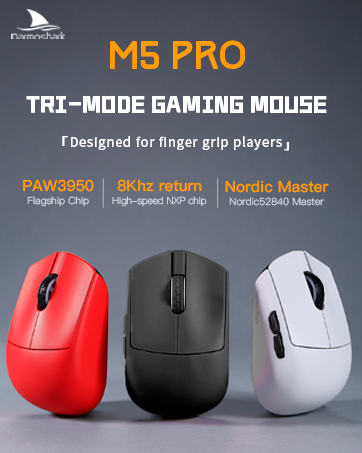
Image: Darmoshark M5PRO mouse charging via USB-C cable, highlighting its built-in lithium battery.
6. Програм хангамжийн тохируулга
To unlock the full potential of your Darmoshark M5PRO mouse, download and install the official Darmoshark driver software from the manufacturer's webсайт. Програм хангамж нь танд дараах боломжийг олгоно:
- Customize DPI settings and create multiple profiles.
- Program button functions and macros.
- Adjust polling rate.
- Manage power settings and battery life.
- Програм хангамжийг шинэчлэх.

Image: Darmoshark proprietary driver software interface for mouse customization.
7. Техникийн үзүүлэлтүүд
| Загвар | M5PRO |
| Мэдрэгч | PAW3950 Оптик мэдрэгч |
| DPI | 30000 DPI хүртэл |
| Хяналтын хурд | 750IPS |
| Хурдатгал | 50G |
| Санал хураалтын хувь | 8KHz (2.4G Wireless), 1KHz (Wired/Bluetooth) |
| Холболт | 2.4G утасгүй, Bluetooth 5.0, USB-C утастай |
| Товчлуур | 5 програмчлах товчлуур |
| Жин | Ойролцоогоор 38 гр |
| Хэмжээ (L x W x H) | 91.7 мм х 57.4 мм х 35.7 мм |
| Батерей | Баригдсан литийн зай (300mAh) |
| Тохиромжтой байдал | Windows, Apple Mac |
Image: Product parameter diagram with mouse dimensions.
8. Засвар үйлчилгээ
- Цэвэрлэгээ: Хулганыг цэвэрлэхийн тулд зөөлөн, хуурай даавуу ашиглана уу. Химийн хатуу бодис, зүлгүүрийн материал ашиглахаас зайлсхий.
- Хадгалах: Хулганыг сэрүүн, хуурай газар, нарны шууд тусгал болон хэт өндөр температураас хол хадгална уу.
- Батерейны арчилгаа: Батерейны ашиглалтын хугацааг уртасгахын тулд хулганыг байнга бүрэн цэнэггүй болгохоос зайлсхий. Батерей бага байх заалт гарч ирэхэд цэнэглээрэй.
9. Алдаа засах
9.1. Хулгана хариу өгөхгүй байна
- Утастай горим: Ensure the USB cable is securely connected to both the mouse and the computer. Try a different USB port.
- 2.4G утасгүй горим: Ensure the 2.4G receiver is plugged in and the mouse is switched to 2.4G mode. Try re-pairing the mouse with the receiver. Ensure the mouse battery is charged.
- Bluetooth горим: Ensure Bluetooth is enabled on your device and the mouse is in Bluetooth pairing mode. Try re-pairing the mouse in your device's Bluetooth settings. Ensure the mouse battery is charged.
9.2. Cursor Movement is Erratic or Inaccurate
- Хулганы доод талын оптик мэдрэгчийг зөөлөн, хуурай даавуугаар цэвэрлэ.
- Хулганаа тохиромжтой гадаргуу дээр (жишээ нь, хулганы дэвсгэр) ашиглаж байгаа эсэхээ шалгаарай. Өндөр гэрэл ойлгодог эсвэл тунгалаг гадаргуугаас зайлсхий.
- Adjust the DPI settings using the DPI Adjustment Key or the software.
- Check for any software conflicts or outdated drivers. Update mouse drivers if necessary.
9.3. Утасгүй холболтын асуудлууд
- Хулгана болон хүлээн авагч/төхөөрөмжийн хоорондох зайг багасга.
- Хүлээн авагчийг бусад утасгүй төхөөрөмж эсвэл хөндлөнгийн оролцооны эх үүсвэрүүдийн (жишээ нь, Wi-Fi чиглүүлэгч, утасгүй утас) ойролцоо байрлуулахаас зайлсхий.
- Хулгана бүрэн цэнэглэгдсэн эсэхийг шалгаарай.
10. Бүтээгдэхүүний албан ёсны видео
Watch the official product video for a visual guide on the Darmoshark M5PRO Mini Wireless Gaming Mouse.
Видео: Дууслааview of the Darmoshark M5PRO Wireless Gaming Mouse, showcasing its design and features in various colors.
11. Баталгаат хугацаа ба дэмжлэг
For warranty information and technical support, please refer to the warranty card included with your product or visit the official Darmoshark webсайт.
Үйлдвэрлэгч: Дармошарк
Webсайт: Darmoshark Official Store


