1. Бүтээгдэхүүн дууссанview
The HP OmniDesk M02 Tower Desktop is a high-performance personal computer designed for business and productivity. It features an AMD Ryzen 7 8700G processor, ample DDR5 RAM, and fast SSD storage, running on Windows 11 Home. This manual provides essential information for setting up, operating, maintaining, and troubleshooting your device.
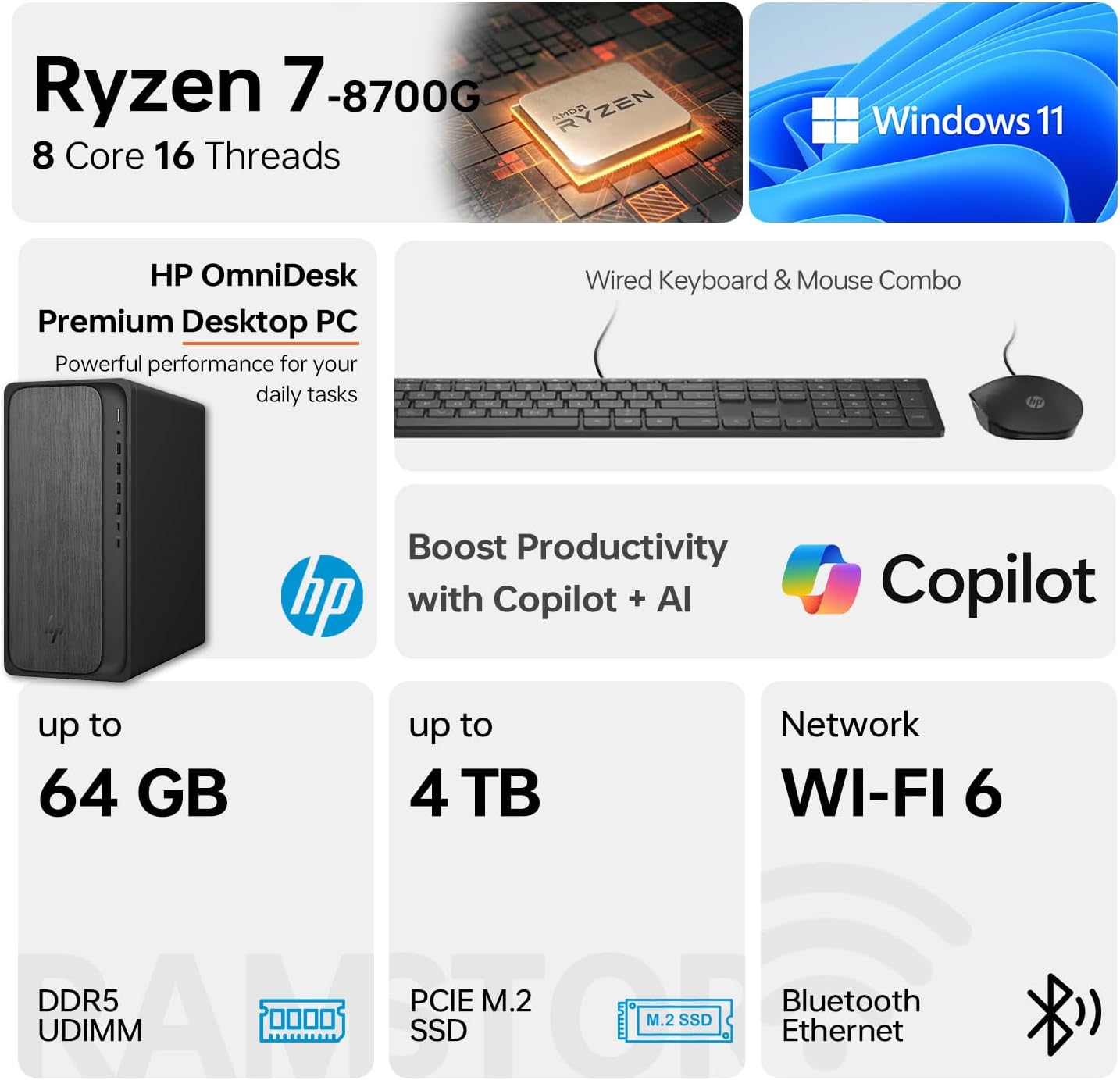
Image 1.1: HP OmniDesk M02 Tower Desktop highlighting its AMD Ryzen 7 8700G processor, Windows 11 operating system, Wi-Fi 6 connectivity, and memory/storage capabilities.
Гол онцлогууд:
- Процессор: AMD Ryzen 7 8700G (8 Cores, 16 Threads, up to 5.1GHz Max Boost)
- Санах ой: 16GB DDR5 RAM (64GB хүртэл өргөтгөх боломжтой)
- Хадгалах: 1TB PCIe M.2 SSD, bundled with ADATA 512GB External SSD
- Үйлдлийн систем: Windows 11 Нүүр хуудас
- График: Нэгдсэн AMD Radeon график
- Холболт: Wi-Fi 6, Bluetooth, Ethernet (RJ-45)
- Портууд: Multiple USB Type-A and Type-C ports, HDMI, DisplayPort, audio jacks
- Дагалдах хэрэгслүүд: Wired Keyboard & Mouse
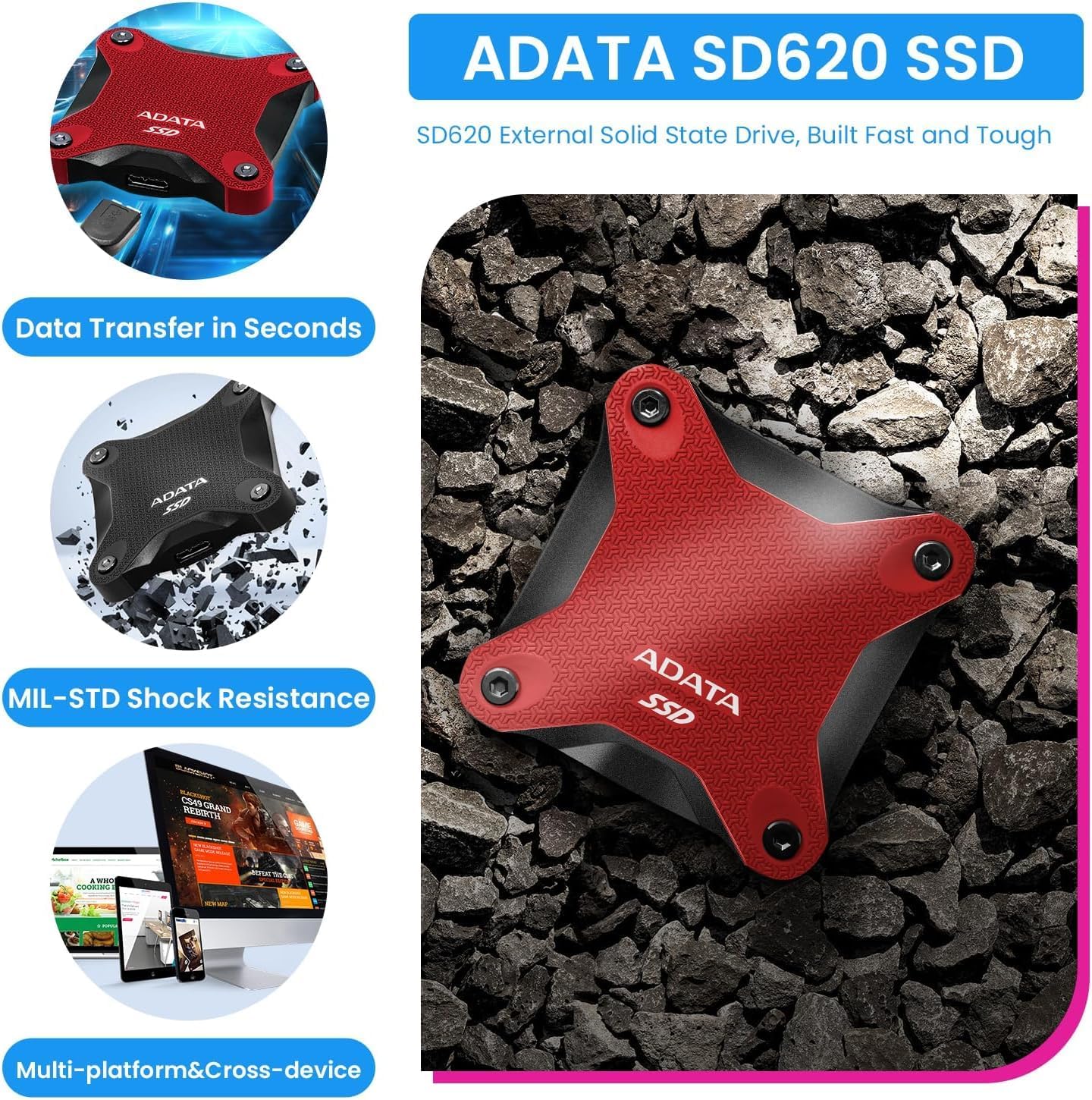
Image 1.2: The ADATA SD620 External SSD, included with the HP OmniDesk M02, highlighting its data transfer speed and MIL-STD shock resistance.
2. Тохируулах заавар
Follow these steps to set up your HP OmniDesk M02 Tower Desktop.
2.1 Савлах
- Сав баглаа боодолоос бүх бүрэлдэхүүн хэсгүүдийг болгоомжтой арилгана.
- Verify that all items are present: HP OmniDesk M02 Tower Desktop, Wired Keyboard, Wired Mouse, Power Cable, and ADATA 512GB External SSD.
- Retain packaging materials for future transport or service.
2.2 Захын төхөөрөмжүүдийг холбох
Дэлгэц, гар, хулгана болон бусад төхөөрөмжөө ширээний компьютер дээрх тохирох портуудад холбоно уу.

Зураг 2.1: Нарийвчилсан view of the front and rear ports on the HP OmniDesk M02 Tower Desktop, indicating their types and functions.
- Монитор: Connect your monitor to either the HDMI or DisplayPort on the rear of the desktop.
- Гар, хулгана: Connect the wired keyboard and mouse to any available USB Type-A ports.
- Эрчим хүч: Connect the power cable to the desktop's power input and then to a wall outlet.
- External SSD: Connect the ADATA 512GB External SSD to an available USB port.
- Сүлжээ (заавал биш): For a wired internet connection, connect an Ethernet cable to the RJ-45 port.
2.3 Анхны ачаалалт
- Ширээний урд талд байрлах асаах товчийг дарна уу.
- Follow the on-screen instructions to complete the Windows 11 Home setup. This typically involves selecting your region, language, and creating a user account.
- Ensure an internet connection is established during setup for updates and account synchronization.
3. Ашиглалтын заавар
This section covers basic operation of your HP OmniDesk M02.
3.1 Асаах/унтраах ба дахин эхлүүлэх
- Асаах: Ширээний урд талд байрлах асаах товчийг дарна уу.
- Унтраах: Windows 11 дээр Start товчийг дараад, дараа нь Power > Shut down-г сонгоно уу.
- Дахин эхлүүлэх: Эхлүүлэх товчийг дараад, дараа нь Асаах > Дахин эхлүүлэх гэснийг сонгоно уу.
3.2 Wi-Fi болон Bluetooth-тэй холбогдох
- Wi-Fi: Click the Network icon in the taskbar, select your desired Wi-Fi network, enter the password, and click Connect.
- Bluetooth: Go to Settings > Bluetooth & devices, ensure Bluetooth is turned on, and then click "Add device" to pair new Bluetooth devices.
3.3 Using Windows 11 and AI Features
Your HP OmniDesk M02 comes with Windows 11 Home, offering a modern interface and integrated AI capabilities through Copilot.
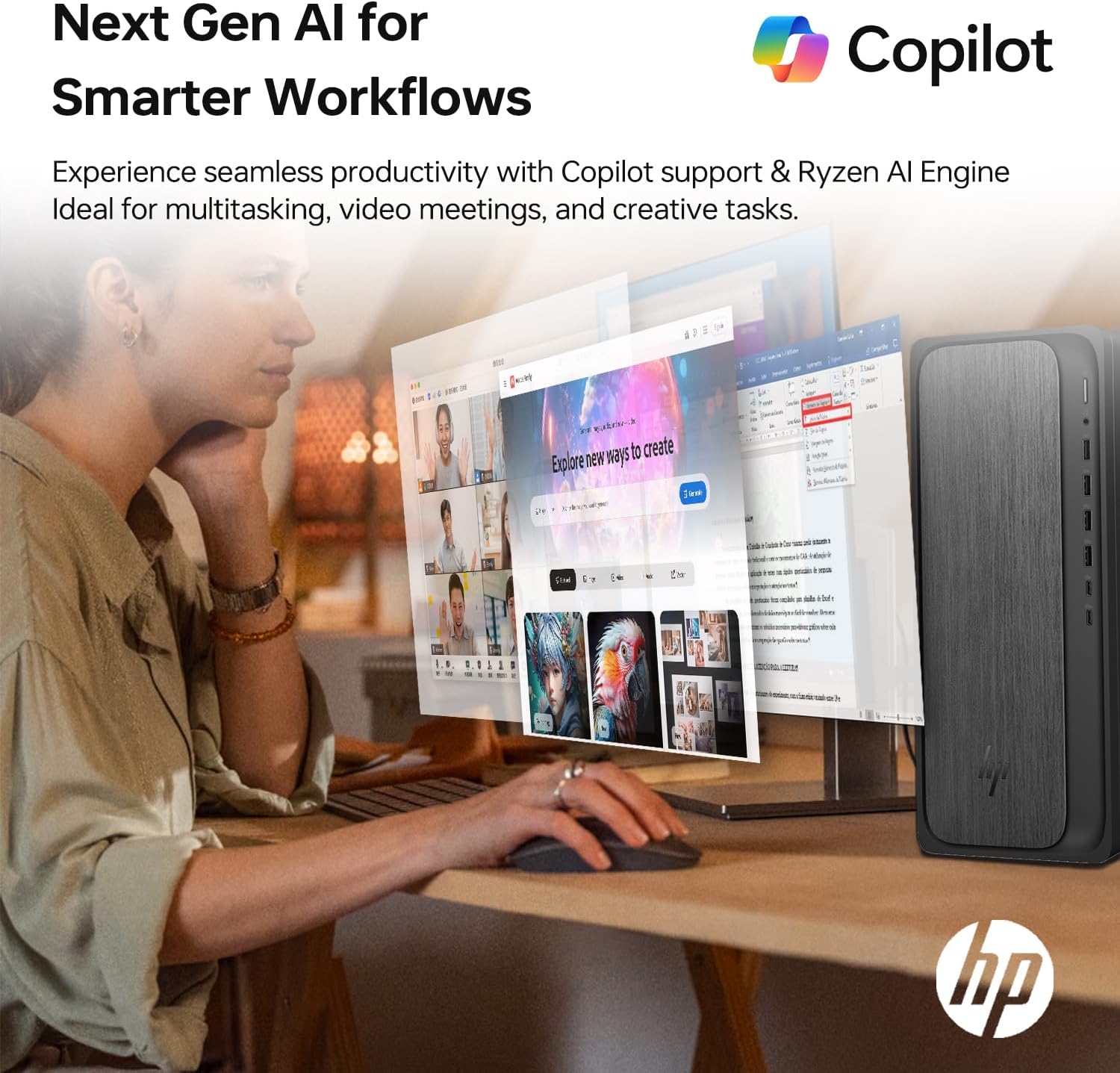
Image 3.1: A user interacting with the HP OmniDesk M02, demonstrating the integration of Copilot for enhanced productivity and AI-driven workflows.
- Эхлэх цэс: Access applications, settings, and power options from the centered Start menu.
- Виджетүүд: Personalize your desktop with widgets for news, weather, and more.
- Туслах нисгэгч: Utilize the integrated Copilot AI for assistance with tasks, content creation, and system navigation. Access it via the taskbar icon.
4. Засвар үйлчилгээ
Зөв засвар үйлчилгээ нь таны ширээний компьютерын урт наслалт, оновчтой ажиллагааг баталгаажуулдаг.
4.1 Цэвэрлэгээ
- Гадна: Зөөлөн, хөвөнгүй даавууг бага зэрэг хэрэглээрэй dampус эсвэл зөөлөн цэвэрлэгээний уусмалаар дүүргэнэ. Химийн хүчтэй бодисоос зайлсхий.
- Агааржуулалт: Periodically clean dust from the ventilation grilles using compressed air to prevent overheating. Ensure the desktop is powered off before cleaning vents.
4.2 Програм хангамжийн шинэчлэлтүүд
Аюулгүй байдал, гүйцэтгэлийг хангахын тулд үйлдлийн систем болон драйверуудаа тогтмол шинэчил.
- Windows шинэчлэлтүүд: Go to Settings > Windows Update and check for available updates.
- Драйверын шинэчлэлтүүд: Албан ёсны HP дэмжлэг рүү зочилно уу website for your model to download the latest drivers for components like graphics and chipset.
4.3 Тоног төхөөрөмжийн шинэчлэлтүүд
The HP OmniDesk M02 supports upgrades for RAM and internal storage.
- RAM: The system supports up to 64GB DDR5 UDIMM RAM.
- Дотоод SSD: The system supports up to 4TB PCIe M.2 SSD.
- Чухал: Opening the chassis for upgrades may affect the original manufacturer's warranty. Consult the warranty section for details.
5. Алдаа засах
Энэ хэсэгт танд тулгарч болох нийтлэг асуудлуудыг авч үзэх болно.
5.1 Эрчим хүчгүй
- Ensure the power cable is securely connected to both the desktop and a working power outlet.
- Цахилгаан залгуур ажиллаж байгаа эсэхийг өөр төхөөрөмжид залгаж шалгана уу.
- Verify the power supply unit (PSU) switch (if present) is in the ON position.
5.2 Дэлгэц дээр дэлгэц байхгүй
- Confirm the monitor is powered on and its input source is correctly selected (HDMI/DisplayPort).
- Check that the video cable is securely connected to both the desktop and the monitor.
- Try connecting the monitor to a different video port on the desktop if available.
5.3 Сүлжээний холболтын асуудлууд
- Утастай: Ensure the Ethernet cable is properly connected and your router/modem is working.
- Wi-Fi: Windows тохиргоонд Wi-Fi идэвхжсэн, та зөв нууц үгээр зөв сүлжээнд холбогдсон эсэхээ шалгаарай. Чиглүүлэгч/модемоо дахин эхлүүлнэ үү.
6. Техникийн үзүүлэлтүүд
Detailed technical specifications for the HP OmniDesk M02 Tower Desktop.

Зураг 6.1: Ойролцоогоор view of the AMD Ryzen 7 8700G processor, highlighting its core count, thread count, clock speed, and L3 cache.
| Бүрэлдэхүүн хэсэг | Тодорхойлолт |
|---|---|
| Загварын дугаар | TPC-F134-MT |
| Процессор | AMD Ryzen 7 8700G (8 Cores, 16 Threads, 4.2GHz base, up to 5.1GHz max turbo) |
| RAM | 16GB DDR5 UDIMM (4800 MHz), expandable to 64GB |
| Дотоод санах ой | 1TB PCIe M.2 SSD, expandable to 4TB |
| Гадаад санах ой | ADATA 512GB External SSD (bundled) |
| График | Нэгдсэн AMD Radeon график |
| Үйлдлийн систем | Windows 11 Нүүр хуудас |
| Утасгүй холболт | Wi-Fi 6 (802.11ax), Bluetooth |
| Урд портууд | 1x USB Type-C 10Gbps, 1x USB Type-C 5Gbps, 2x USB Type-A 10Gbps, 2x USB Type-A 5Gbps, 1x Headphone/Microphone Combo |
| Арын портууд | 4x USB 2.0 Type-A, 1x RJ-45 (Ethernet), 3x 3.5mm Audio Jack Combo, 1x HDMI, 1x DisplayPort |
| Хэмжээ (LxWxH) | 6.10" x 13.27" x 12.40" (15.5 x 33.7 x 31.5 см) |
| Жин | 12.72 фунт (5.77 кг) |
| Өнгө | Саарал |
7. Баталгаат хугацаа ба дэмжлэг
7.1 Баталгаат хугацааны мэдээлэл
The HP OmniDesk M02 Tower Desktop comes with a manufacturer's warranty. For this specific configuration, a 1-year warranty on the upgraded RAM and SSD is provided by PCOnline US. All other original components retain the standard 1-year manufacturer's warranty from HP.
Баталгаат заргад зориулж худалдан авалтаа нотлох баримтаа үлдээнэ үү.
7.2 Техникийн дэмжлэг
Техникийн туслалцаа авахыг хүсвэл HP-ийн албан ёсны дэмжлэгтэй холбогдоно уу website or contact their customer service. For issues related to the upgraded RAM or SSD, please contact PCOnline US directly.
HP дэмжлэг: www.hp.com/support