Танилцуулга
This manual provides detailed instructions for the setup, operation, maintenance, and troubleshooting of your acer Wireless Gaming Mouse OMR279. Please read this manual thoroughly before using the product to ensure optimal performance and longevity.
Багцын агуулга
- acer Wireless Gaming Mouse OMR279
- USB-A Receiver (stored inside the mouse)
- USB цэнэглэгч кабель
- Хэрэглэгчийн гарын авлага (энэ баримт бичиг)
Бүтээгдэхүүн дууссанview
The acer Wireless Gaming Mouse OMR279 is designed for precision and versatility, offering both wired and 2.4GHz wireless connectivity. It features a high-performance optical sensor, 8 programmable buttons, and dynamic RGB lighting.
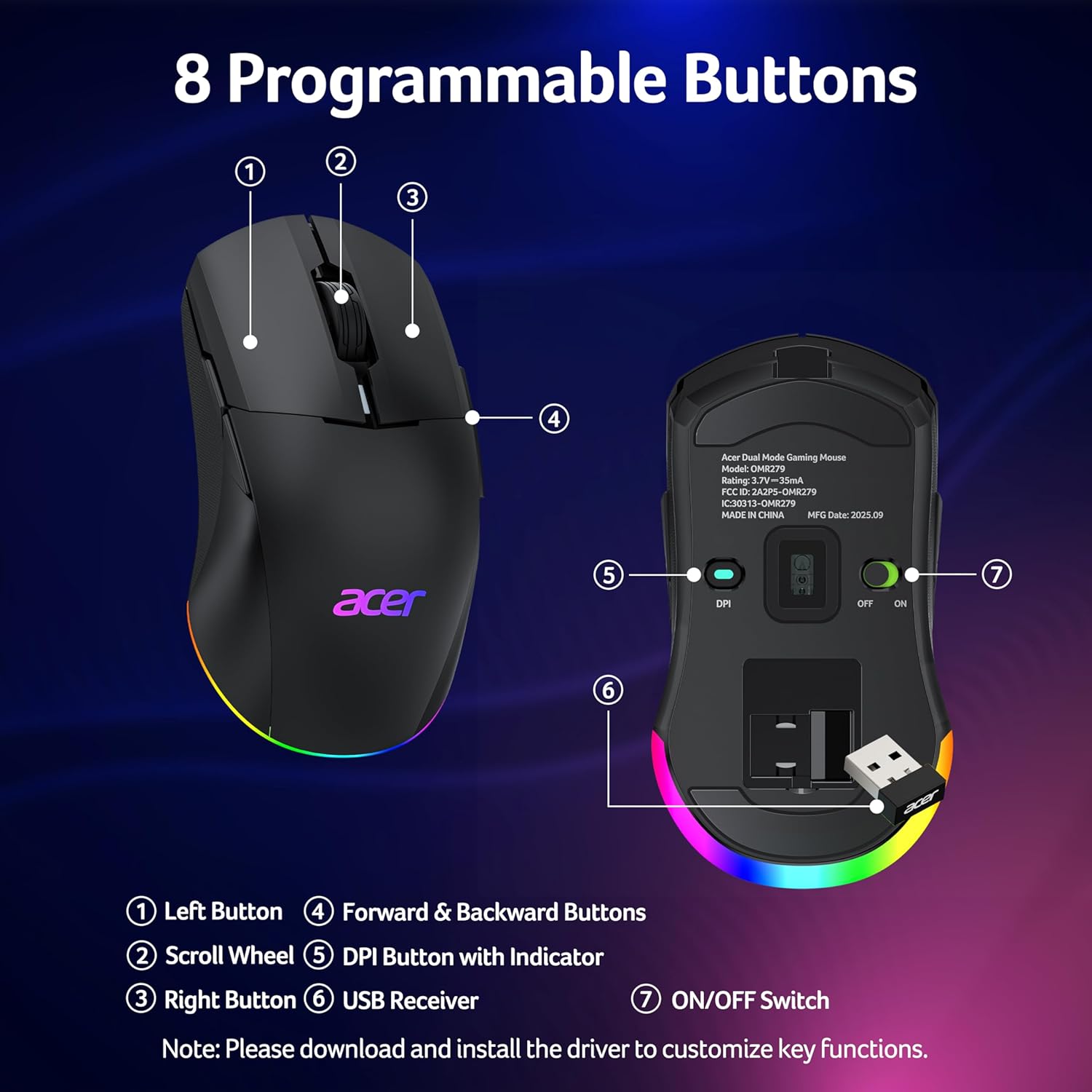
Зураг 1: Дээд тал view of the mouse highlighting the Left Button, Scroll Wheel, DPI Button with Indicator, Right Button, and Forward & Backward Buttons.

Зураг 2: Доод талд view болон хажуугийн мэргэжлийнfile of the mouse, detailing the USB receiver storage, ON/OFF switch, and dimensions.
Гол онцлогууд:
- 24,000 DPI Оптик мэдрэгч: High-performance sensor with 1000Hz polling rate and 35G acceleration for precise tracking.
- Хос горимын холболт: Seamlessly switch between high-speed wired and lag-free 2.4GHz wireless modes.
- 8 програмчлагдсан товчлуурууд: Customize functions and macros via driver software.
- Хоёр талт загвар: Symmetrical shape for comfortable use by both left and right-handed users.
- Динамик RGB гэрэлтүүлэг: 9 customizable RGB modes with 16.8 million colors.
- Батерейны урт наслалт: 650mAh rechargeable battery provides up to 40 hours of use per charge.
- Ухаалаг эрчим хүчний менежмент: Features light sleep (30s idle) and deep sleep (180s idle) modes to conserve battery.
Тохиргоо
1. Wireless Connection (2.4GHz)
- Locate the USB-A receiver stored under the back cover of the mouse.
- USB-A хүлээн авагчийг компьютер дээрх боломжтой USB порт руу залгаарай.
- Хулганы доод хэсэгт байрлах ON/OFF товчлуурыг ашиглан хулганаа асаана уу.
- Хулгана таны компьютерт автоматаар холбогдох ёстой.

Figure 3: Dual-mode connectivity, showing wireless setup with a laptop and wired setup with a desktop.
2. Утастай холболт
- Connect the provided USB charging cable to the front port of the mouse.
- USB кабелийн нөгөө үзүүрийг компьютер дээрээ байгаа USB порт руу холбоно уу.
- Хулгана нь утастай хулгана шиг ажиллах бөгөөд дотоод батерейгаа цэнэглэх болно.
3. Драйвер суулгах
To unlock full customization options for DPI, programmable buttons, and RGB lighting, it is recommended to install the official driver software. Please visit the official acer support website for your region to download the latest driver for the OMR279 model. Follow the on-screen instructions for installation.

Зураг 4: Хулганы тохиргоог өөрчлөх драйверын програм хангамжийн интерфэйс.
Жич: Some users have reported difficulties accessing the driver download page. If you encounter issues, please refer to the Troubleshooting section or contact acer support.
Ашиглалтын заавар
1. DPI тохируулга
The mouse features 6 default DPI levels, which can be cycled through using the DPI button located on the bottom of the mouse. The default DPI values are 1200, 1600, 2400, 5000, 12000, and 24000. Each level is indicated by a specific LED color.

Figure 5: DPI levels and their corresponding LED indicators and polling rates.
Custom DPI values (max 24000, min 1200) and their associated LED colors can be configured using the driver software.
2. Програмчлах боломжтой товчлуурууд
The mouse is equipped with 8 programmable buttons. These buttons can be remapped, and multi-step macros can be assigned using the driver software. After making changes in the driver, ensure you click "Apply" for the settings to take effect.
3. RGB гэрэлтүүлгийн удирдлага
The mouse features dynamic RGB lighting with 9 modes and 16.8 million colors. You can adjust brightness, speed, and effects through the driver software. To cycle through RGB modes without the driver, hold the front side button and scroll the mouse wheel. The RGB auto-off feature can also be toggled in the driver.

Figure 6: Dynamic RGB lighting effects.
4. Цэнэглэх болон батерейны удирдлага
The mouse has a built-in 650mAh rechargeable battery, providing up to 40 hours of use on a single charge. It fully charges in approximately 2 hours. The mouse can be used while charging via the USB cable.

Figure 7: Charging indicator and battery capacity.
To conserve power, the mouse enters a light sleep mode after 30 seconds of inactivity (wakes with movement) and a deep sleep mode after 180 seconds of inactivity (wakes with a click). This feature can be disabled in the driver software.

Figure 8: Adaptive sleep for power saving.
Засвар үйлчилгээ
- Цэвэрлэгээ: Хулганыг цэвэрлэхийн тулд зөөлөн, хуурай даавуу ашиглана уу. Зөрүүд шороонд бага зэрэг damp Хулганад шингэн орохгүй байхын тулд даавуу ашиглаж болно.
- Хадгалах: When not in use for extended periods, turn off the mouse to conserve battery. Store the USB receiver inside the mouse's dedicated compartment to prevent loss.
- Батерейны арчилгаа: Avoid fully discharging the battery frequently. Charge the mouse regularly to maintain battery health.
Алдааг олж засварлах
| Асуудал | Боломжит шалтгаан | Шийдэл |
|---|---|---|
| Хулгана хариу өгөхгүй байна (утасгүй) | Low battery, receiver not connected, mouse turned off, out of range. | Charge the mouse. Ensure USB receiver is securely plugged in. Turn on the mouse. Move mouse closer to the receiver (within 10m). |
| Хулгана хариу өгөхгүй байна (утастай) | USB cable not connected properly, faulty USB port. | Ensure USB cable is securely connected to both mouse and computer. Try a different USB port. |
| DPI тохиргоо өөрчлөгдөхгүй байна | Driver not installed or settings not applied. | Install the official driver software. After changing settings in the driver, click "Apply". |
| RGB гэрэлтүүлэг ажиллахгүй эсвэл гацсан байна | RGB auto-off enabled, incorrect mode selection, driver issue. | Check RGB auto-off setting in the driver. Cycle through modes by holding the front side button and scrolling the wheel. Reinstall driver if necessary. |
| Difficulty installing driver software | Буруу website, temporary server issue, firewall blocking. | Ensure you are visiting the official acer support website for your region. Try accessing the site from a different browser or device. Temporarily disable firewall/antivirus if necessary. Contact acer support if issues persist. |
| Unclear battery status indication | Limited visual indicator on the mouse. | The mouse's LED provides basic charging status (flashing while charging, off when full). For more detailed battery percentage, check the driver software if available and installed. |
Үзүүлэлтүүд
| Онцлог | Дэлгэрэнгүй |
|---|---|
| Загварын дугаар | OMR279 |
| Холболт | 2.4GHz Утасгүй, Утастай (USB) |
| DPI хүрээ | 1200 - 24,000 DPI (Тохируулж болно) |
| Санал хураалтын хувь | 1000 Гц |
| Хурдатгал | 35G |
| Товчлуур | 8 програмчлах товчлуур |
| Гэрэлтүүлэг | Dynamic RGB (9 modes, 16.8M colors) |
| Батерей | 650mAh Rechargeable (Nonstandard Battery) |
| Зайны ашиглалт | 40 цаг хүртэл |
| Цэнэглэх хугацаа | Ойролцоогоор 2 цаг |
| Хэмжээ | 4.9 x 2.7 x 0.1 инч (124 мм x 67.5 мм x 39.5 мм) |
| Жин | 0.704 унц (ойролцоогоор 20 гр) |
| Хөдөлгөөнийг илрүүлэх технологи | Оптик |
| Онцлог шинж чанарууд | Ambidextrous Design, LED Lights, Programmable Buttons, Rechargeable |
Аюулгүй байдлын мэдээлэл
- Хулгана хэт өндөр температур, чийгшилд бүү гарга.
- Хулгана унах, хүчтэй цохилтонд оруулахаас зайлсхий.
- Do not attempt to disassemble or modify the mouse, as this will void the warranty and may cause damage.
- Хүүхдийн гар хүрэхгүй газар хадгална.
- Зайг орон нутгийн дүрмийн дагуу устгана уу.
Баталгаат болон дэмжлэг
Your acer Wireless Gaming Mouse OMR279 is covered by a limited warranty. For detailed warranty terms and conditions, please refer to the warranty card included with your product or visit the official acer support website. For technical assistance or customer service, please contact acer support through their official channels.


