1. Бүтээгдэхүүн дууссанview
The LAMTTO 10.25'' Wireless CarPlay Screen is designed to enhance your in-car experience by providing seamless integration of smartphone features, entertainment, and navigation. This portable device offers a high-definition display, wireless connectivity for Apple CarPlay and Android Auto, and built-in applications like Netflix and YouTube.

Зураг: Дууслааview of the LAMTTO 10.25'' Wireless CarPlay Screen's multi-functional capabilities.
Гол онцлогууд:
- 10.25-inch HD In-Cell Touchscreen Display (1920x720 Resolution)
- Wireless Apple CarPlay and Android Auto compatibility
- Built-in streaming apps: Netflix, YouTube, TikTok
- Dual-band Wi-Fi and Bluetooth 5.3 for stable connectivity
- Voice control for navigation, music, and calls
- Split-screen functionality
- AHD Reverse Assistant Camera with dynamic guidelines
- Multiple audio output options: Built-in speaker, Bluetooth, FM Transmission, AUX
- Customizable UI with boot logos and wallpapers
2. Багцын агуулга
Доор жагсаасан бүх зүйл таны багцад байгаа эсэхийг шалгаарай.
- 1 x 10.25'' In-Cell Portable CarPlay Screen
- 1 x Car Charger (Type-C, USB)
- 1 x 59-inch AUX Cable
- 2 x Mounting Brackets (Suction Cup and Adhesive)
- 1 x AHD Backup Camera with 256-inch Cable
- 1 х хэрэглэгчийн гарын авлага
- Installation Tools & 3M Adhesive Tape

Зураг: Нарийвчилсан view бүтээгдэхүүний багцад багтсан бүх зүйлсийн талаар.
Video: Unboxing and initial display of the LAMTTO CarPlay screen and its components.
3. Суурилуулалт
3.1 Mounting the Screen
The LAMTTO CarPlay screen offers flexible mounting options to suit your vehicle's dashboard or windshield. Choose the most suitable bracket for your setup.
- Хяналтын самбарын суурь: Use the adhesive bracket for a secure placement on your dashboard. Ensure the surface is clean and dry before applying the adhesive.
- Салхины шилний бэхэлгээ: Utilize the suction cup bracket for easy attachment to your windshield. Clean the windshield surface thoroughly for optimal suction.

Image: Two primary installation methods for the CarPlay screen.
3.2 Эрчим хүчний холболт
Connect the provided car charger to your vehicle's cigarette lighter socket and plug the Type-C end into the CarPlay screen. The device will power on automatically when your vehicle starts.
3.3 Нөөц камер суурилуулах
The AHD backup camera provides a clear view for safe reversing. Connect the camera to the designated input on the CarPlay screen and route the cable to the rear of your vehicle. Professional installation is recommended for optimal wiring concealment and connection to your vehicle's reverse light circuit for automatic activation.
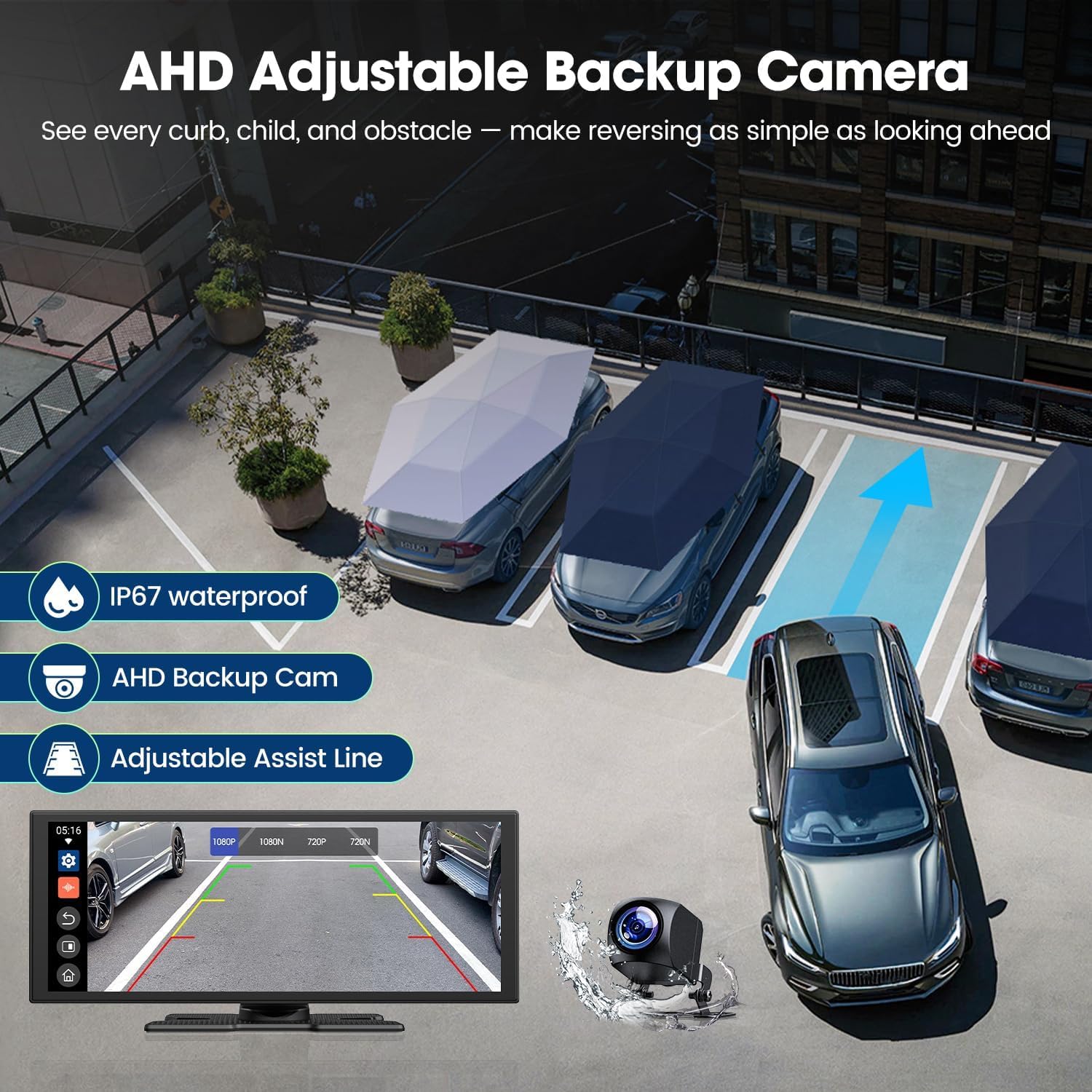
Image: AHD Adjustable Backup Camera with parking assist lines.
4. Анхны тохиргоо
Upon first power-on, the device will guide you through initial setup steps:
- Хэл сонгох: Choose your preferred language (e.g., English).
- Бүс сонгох: Choose your geographical region (e.g., United States, Canada).
- Аюулгүй хэрэглээний заавар: Review the safety guidelines. It is strictly prohibited to manually enter information, make or receive calls, or engage in any other activities that may interfere with driving while the vehicle is in motion. These actions should only be performed when the vehicle is stationary to ensure driving safety.
- Жолооны байрлал: Select the driving position (left or right-hand side) to optimize the navigation bar layout.
5. Connecting Your Smartphone
The CarPlay screen supports both Wireless Apple CarPlay and Android Auto for seamless smartphone integration.
5.1 Apple-ийн утасгүй CarPlay холболт
To connect your iPhone:
- Ensure Bluetooth and Wi-Fi are turned on on your iPhone.
- On your iPhone, search for and connect to the Bluetooth name displayed on the CarPlay screen (e.g., T88-RX85EA0).
- Wait for the iPhone pop-up inquiry and select "Connect" to CarPlay.
- Холболт амжилттай.

Image: Visual guide for connecting to Apple CarPlay.
5.2 Android Auto Connection
To connect your Android phone:
- Ensure Bluetooth and Wi-Fi are turned on on your Android device.
- On your Android device, search for and connect to the Bluetooth name displayed on the CarPlay screen (e.g., T88-RX85EA0).
- Confirm the Bluetooth pairing request.
- Холболт амжилттай.

Image: Visual guide for connecting to Android Auto.
Video: Demonstration of connecting a smartphone to the CarPlay screen.
6. Төхөөрөмжийг ажиллуулах
6.1 Хэрэглэгчийн интерфейсийн навигаци
The device features an intuitive touchscreen interface. Swipe left or right to navigate between screens and tap icons to open applications. The side navigation bar provides quick access to frequently used functions like Home, Back, and currently open applications.

Image: CarPlay screen displaying its main user interface and features.
6.2 Built-in Apps (Netflix, YouTube, TikTok)
Connect the device to your phone's hotspot to stream content directly from built-in apps. These apps are designed for use when the vehicle is stationary.
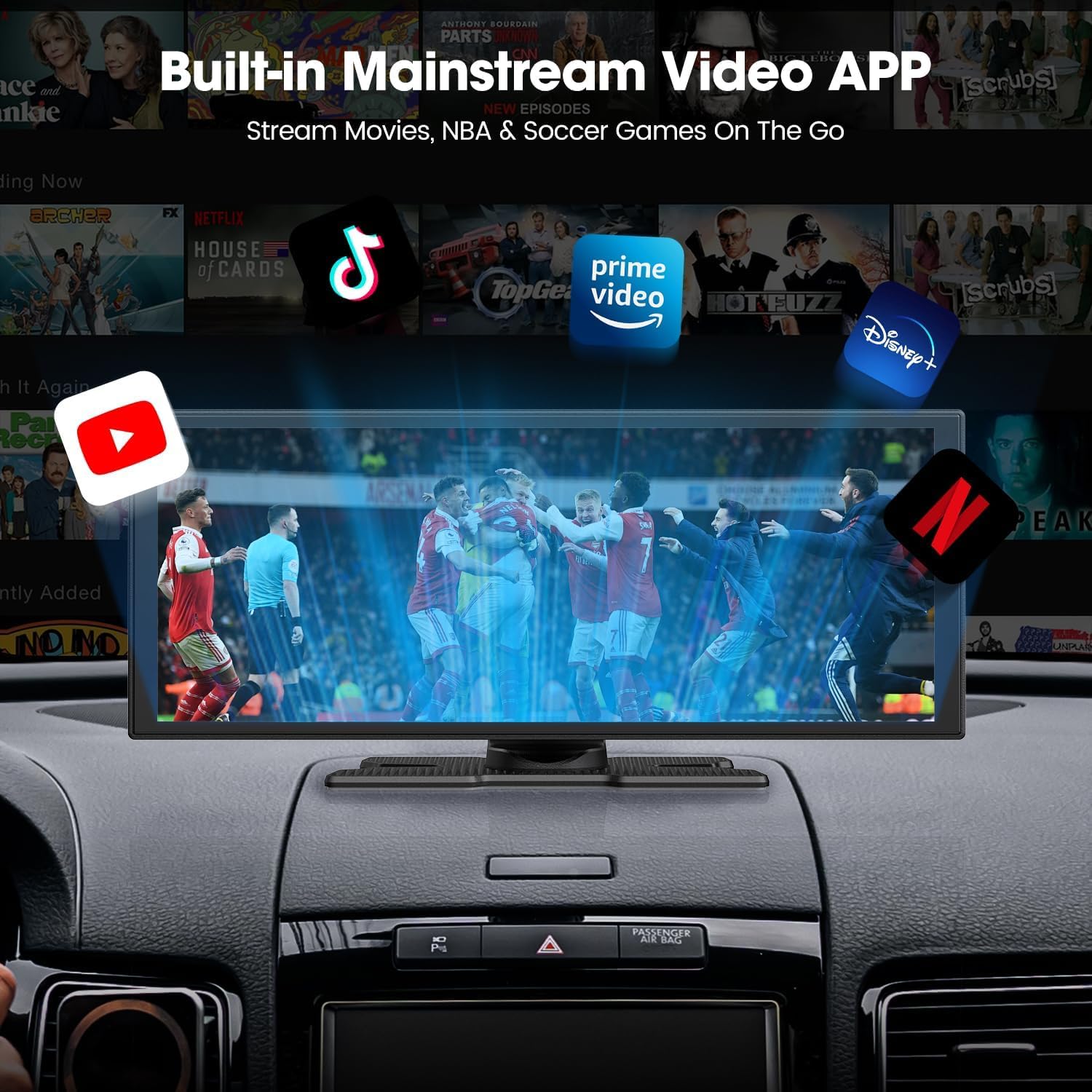
Image: Built-in mainstream video applications on the CarPlay screen.
Видео: Дууслааview of the CarPlay screen's built-in Netflix and YouTube applications.
6.3 Split-Screen Functionality
Utilize the split-screen feature to display two applications simultaneously. For exampле, view navigation on one side while a passenger enjoys entertainment on the other.

Image: Wireless CarPlay and Android Auto with split-screen capability.
6.4 Дуут удирдлага
Access navigation, make calls, and control music using voice commands through Apple CarPlay or Android Auto. This feature promotes safer driving by minimizing manual interaction with the screen.

Image: Wireless CarPlay/Android Auto with Voice Control.
6.5 Онлайн навигаци
When connected to your smartphone, the device provides real-time online navigation through your preferred map applications (e.g., Apple Maps, Google Maps).

Image: Navigation requires a smartphone connection.
6.6 Хөгжим тоглуулах
Stream music from your smartphone via CarPlay or Android Auto. The device supports various audio output options for an optimized listening experience.
7. Аудио гаралтын сонголтууд
The CarPlay screen offers several ways to output audio:
- Суулгасан чанга яригч: Audio is played directly through the CarPlay screen's integrated speaker.
- Bluetooth дамжуулалт: Pair the CarPlay screen with your car's original stereo system via Bluetooth to play audio through your car speakers.
- FM дамжуулалт: Use the FM output to connect the CarPlay screen to your car's original sound system. Tune your car radio to the matching FM frequency on the smart screen (between 100-108 MHz). Avoid non-popular or blank FM frequencies to prevent signal interference.
- AUX: Use the provided AUX cable to connect the CarPlay screen to your car's audio system for a wired connection.
8. Тохируулга
Personalize your CarPlay screen experience:
- Boot Logos & Wallpapers: Upload your favorite boot logos and wallpapers via an SD card to customize the device's appearance.

Image: Customizing the CarPlay screen with personal wallpapers and boot logos.
9. AHD Reverse Assistant Camera
The advanced AHD backup camera activates automatically when you shift into reverse, providing a stable and clear real-time view, even in low-light conditions. Intuitive dynamic guidelines assist with confident maneuvering and scratch prevention.

Image: Adjustable Parking Assist Lines for the AHD Reverse Assistant Camera.
10. Засвар үйлчилгээ, арчилгаа
- Цэвэрлэгээ: Regularly clean the screen with a soft, lint-free cloth. Avoid harsh chemicals or abrasive materials.
- Температур: Avoid exposing the device to extreme temperatures. If the screen becomes hot during operation, do not worry; this is normal.
- Програм хангамжийн шинэчлэлтүүд: Check for online firmware updates to ensure optimal performance and compatibility.
11. Алдаа засах
| Асуудал | Боломжит шалтгаан | Шийдэл |
|---|---|---|
| Video playback is lagging. | Unstable network connection or full cache. | Ensure a stable network connection (phone hotspot) and regularly clear the device's cache. |
| CarPlay/Android Auto frequently disconnects. | Switching between full-screen and split-screen mode can cause reconnection. | This is normal behavior as the system reconfigures. Ensure your phone's Wi-Fi and Bluetooth remain stable. |
| Cannot install other apps. | System stability restrictions. | For system stability, only apps available in the device's app store can be installed. |
| Screen does not switch to dark mode automatically. | Missing light sensor or theme not following Google Maps. | Check device settings for manual brightness adjustment or dark mode options. Some devices may not have an automatic light sensor. |
12. Техникийн үзүүлэлтүүд
| Онцлог | Дэлгэрэнгүй |
|---|---|
| Дэлгэцийн хэмжээ | 10.25 инч |
| Дэлгэцийн нягтрал | 1920х720 |
| Холболтын технологи | Bluetooth 5.3, Dual-band Wi-Fi |
| Онцлог шинж чанарууд | Android Auto, Apple CarPlay, Built-In Bluetooth, Built-In YouTube & Netflix apps, Voice Control |
| Тохиромжтой төхөөрөмжүүд | Smartphone (iOS 10+, Android 11+) |
| Холбогч төрөл | USB Type-C |
| Аудио гаралтын горим | Стерео |
| Видео кодчилол | H.264, H.265/HEVC, VP9, AV1 |
| Дэмжигдсэн интернет үйлчилгээ | Google TV, Hulu, Netflix, YouTube |
| Зүйлийн жин | 2.66 фунт |
| Багцын хэмжээ | 11.5 x 5.59 x 4.21 инч |
13. Баталгаат хугацаа ба дэмжлэг
LAMTTO is committed to providing professional customer support. If you have any questions, require installation guidance, or need troubleshooting assistance, please contact us. We aim to respond within 24 hours with dedicated solutions.
Холбоо барих имэйл: DC@yoomail.com


