1. Танилцуулга
This manual provides essential information for the setup, operation, maintenance, and troubleshooting of your NIMO N159 15.6-inch IPS FHD Gaming Laptop. This device is equipped with an AMD Ryzen 7 7735HS processor, 32GB DDR5 RAM, and a 1TB PCIe SSD, designed for balanced performance in productivity and light gaming tasks. Please read this manual thoroughly to ensure proper usage and to maximize the lifespan of your laptop.
2. Хайрцагт юу байна
Савлагаанд бүх зүйл байгаа эсэхийг шалгана уу:
- 1 x NIMO N159 зөөврийн компьютер
- 1 x Type-C 100W PD хурдан цэнэглэгч
- 1 х хэрэглэгчийн гарын авлага (энэ баримт бичиг)
- Windows 11 Home (урьдчилан суулгасан)
3. Бүтээгдэхүүн дууссанview
Familiarize yourself with the components and features of your NIMO N159 laptop.

Зураг 3.1: Урд view of the NIMO N159 laptop, showcasing its 15.6-inch display and overall design.
3.1 Гол онцлогууд
- Процессор: AMD Ryzen 7 7735HS with 8 Cores and 16 Threads, up to 4.75GHz.
- График: Integrated AMD Radeon 680M GPU.
- Санах ой: Үр ашигтай олон ажлыг гүйцэтгэхэд зориулсан 32GB DDR5 RAM.
- Хадгалах: 1TB PCIe 4.0 SSD for fast boot times and data access.
- Дэлгэц: 15.6-inch Full HD (1920x1080) IPS Anti-Glare Display.
- Цэнэглэж байна: 100W Type-C PD Fast Charger.
- Аюулгүй байдал: Fingerprint Unlock integrated into the touchpad.
- Оруулах: Backlit Keyboard with Numeric Keypad.

Зураг 3.2: Илүүview of the AMD Ryzen 7 7735HS processor and its integrated Radeon 680M graphics.
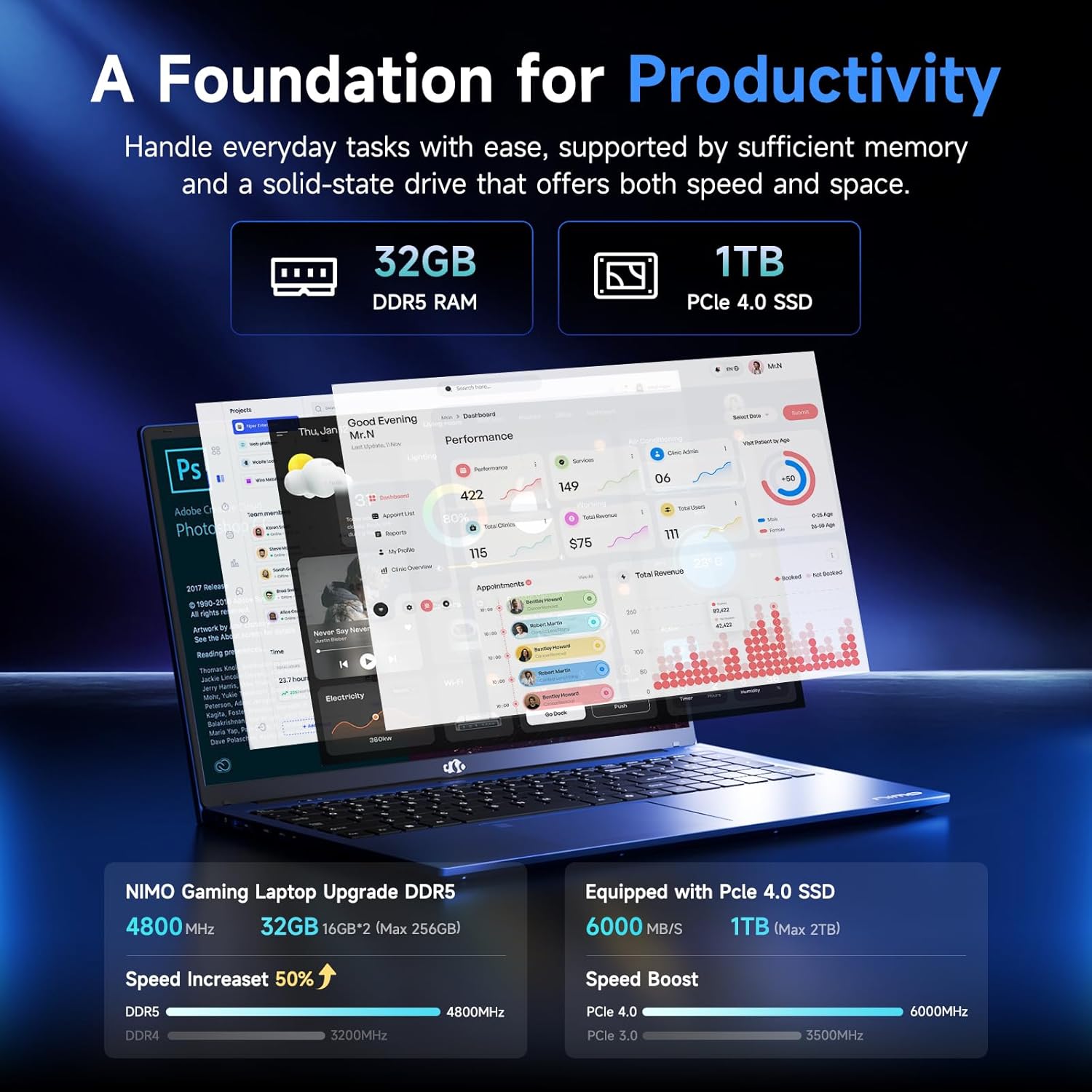
Figure 3.3: Illustration of the 32GB DDR5 RAM and 1TB PCIe 4.0 SSD, highlighting their speed and capacity.
3.2 Порт ба холбогч
The NIMO N159 laptop provides a variety of ports for connectivity:

Зураг 3.4: Нарийвчилсан view of the laptop's ports and their functions.
- Зүүн тал: Kensington Lock, Audio Jack, USB 3.2 Gen 1, USB 2.0, Micro SD Reader.
- Баруун тал: Type-C Gen2 (Multifunction), USB 3.2 Gen 1, HDMI 2.0, Type-C Gen2 (Multifunction).
3.3 Эрчим хүч ба зай

Figure 3.5: Battery and charging capabilities of the NIMO N159 laptop.
The laptop is equipped with a 54Wh smart battery. It supports fast charging via the included 100W Type-C PD charger, providing approximately 5 hours of usage from a 1-hour charge.
3.4 Keyboard and Fingerprint Unlock
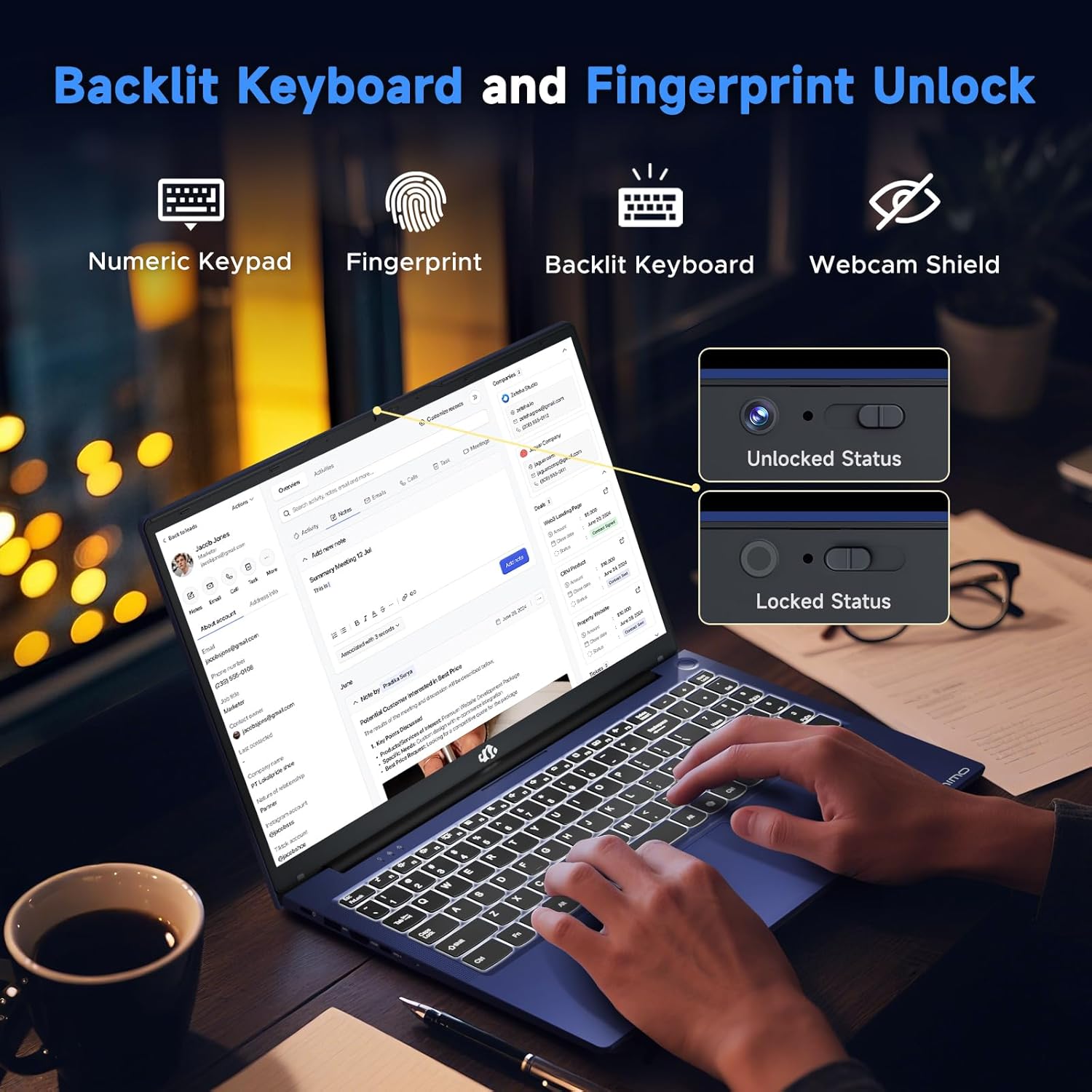
Figure 3.6: Features of the backlit keyboard, numeric keypad, fingerprint unlock, and webcam shield.
The keyboard features backlighting for use in low-light conditions and includes a numeric keypad. The fingerprint reader is integrated into the touchpad for secure and quick access.
3.5 Дэлгэц
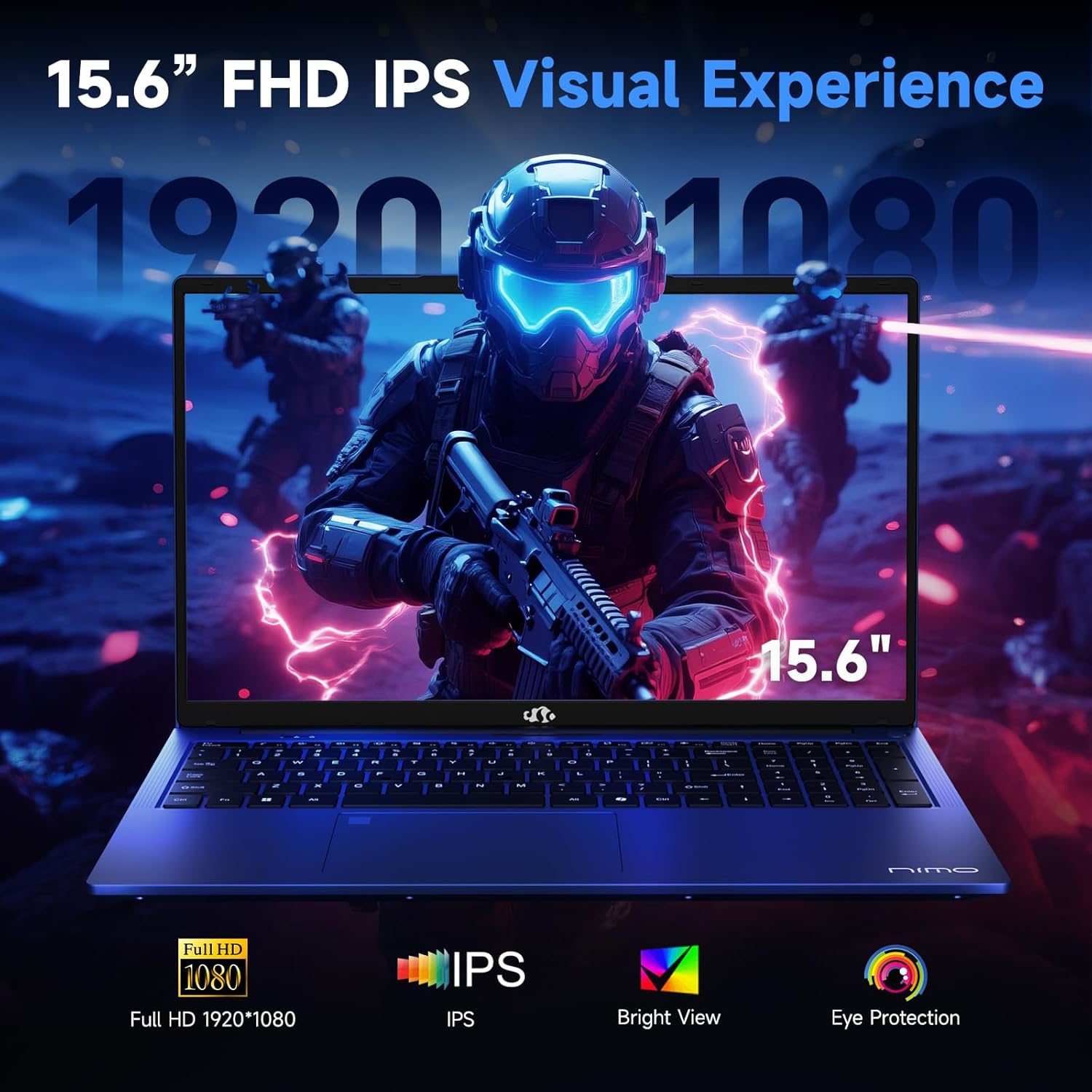
Figure 3.7: Visual representation of the 15.6-inch FHD IPS display quality.
The 15.6-inch Full HD (1920x1080) IPS Anti-Glare Display offers vibrant visuals and a wide viewing angle, suitable for various tasks from work to entertainment.
4. Тохиргоо
4.1 Анхдагч асаалттай
- Баглаа задлах: Зөөврийн компьютер болон бүх дагалдах хэрэгслийг сав баглаа боодолоос болгоомжтой авч хая.
- Эрчим хүчийг холбох: Plug the Type-C 100W PD Fast Charger into a power outlet and connect the Type-C connector to one of the multifunction Type-C ports on the laptop.
- Эхний ачаалах: Open the laptop lid and press the power button, typically located on the top-right of the keyboard or side.
- Windows тохиргоо: Хэл, бүс нутаг, сүлжээний холболт, хэрэглэгчийн бүртгэл үүсгэх зэрэг Windows 11 Home тохиргоог дуусгахын тулд дэлгэц дээрх зааврыг дагана уу.
4.2 Сүлжээнд холбогдох
- Wi-Fi: During Windows setup or later, select your Wi-Fi network from the available list and enter the password.
- Утастай (заавал биш): If an Ethernet adapter (not included) is used with a USB port, connect an Ethernet cable to the adapter and then to your router/modem.
5. Ашиглалтын заавар
5.1 Асаах/унтраах
- Асаах: Цахилгаан товчийг дар.
- Унтраах: Windows дээр Start товчийг дараад Power > Shut-ийг дарна уу.
- Унтах: Тагийг хаах эсвэл Эхлүүлэх товчийг дараад Асаах > Унтах горимыг сонгоно уу.
5.2 Гар ашиглах
- Арын гэрлийн хяналт: Press the designated function key (e.g., F9) to cycle through backlight brightness levels (off, low, medium, high).
- Функцийн товчлуурууд: Use the Fn key in combination with F1-F12 for various shortcuts (e.g., volume, brightness, Wi-Fi toggle).
5.3 Using the Touchpad and Fingerprint Sensor
- Мэдрэгч самбар: Навигацийн олон мэдрэгчтэй дохиог дэмждэг. Өөрчлөхийн тулд Windows тохиргооноос харна уу.
- Хурууны хээ тайлах: Enroll your fingerprint through Windows Hello settings for secure login. Place your registered finger on the sensor located on the touchpad to unlock the device.
5.4 Гадаад төхөөрөмжүүдийг холбох
Use the available USB-A, USB-C, and HDMI ports to connect peripherals such as external monitors, USB drives, mice, and keyboards. The Type-C Gen2 ports support multifunctionality, including data transfer and video output.
6. Засвар үйлчилгээ
6.1 Цэвэрлэгээ
- Дэлгэц: Зөөлөн, хөвөнгүй даавууг хөнгөн хэрэглээрэй dampус эсвэл дэлгэц цэвэрлэгчээр дүүргэнэ. Дэлгэц рүү шууд шингэн цацаж болохгүй.
- Гар болон явах эд анги: Зөөлөн, хуурай даавуу хэрэглээрэй. Зөрүүд шороонд бага зэрэг damp даавуу хэрэглэж болох бөгөөд ингэснээр шингэн нүхэнд орохгүй байх боломжтой.
- Портууд: Боомтуудын тоосыг зөөлөн цэвэрлэхийн тулд шахсан агаар ашиглана.
6.2 Батерейны арчилгаа
- Байнга зайгаа бүрэн цэнэглэхээс зайлсхий.
- Store the laptop in a cool, dry place if not used for extended periods, with the battery charged to around 50-60%.
- Use only the provided NIMO charger or a compatible 100W Type-C PD charger.
6.3 Програм хангамжийн шинэчлэлтүүд
Regularly check for and install Windows updates and driver updates to ensure optimal performance and security. These can typically be found in Windows Settings > Windows Update.
7. Алдаа засах
Энэ хэсэгт таны NIMO N159 зөөврийн компьютерт тулгарч болох нийтлэг асуудлуудыг авч үзэх болно.
| Асуудал | Боломжит шалтгаан | Шийдэл |
|---|---|---|
| Зөөврийн компьютер асахгүй байна. | Low battery, power adapter issue, or hardware fault. | Ensure the charger is properly connected and the outlet is working. Try charging for at least 30 minutes. If the issue persists, contact support. |
| Дэлгэц хоосон эсвэл хар байна. | Display settings, external monitor conflict, or driver issue. | Press Fn + F7 (or relevant display toggle key) to cycle display modes. Disconnect any external monitors. Restart the laptop. |
| Wi-Fi холболтын асуудал. | Incorrect password, router issue, or Wi-Fi adapter disabled. | Verify Wi-Fi password. Restart your router. Check Windows settings to ensure Wi-Fi is enabled. |
| Зөөврийн компьютер удаан ажиллаж байна. | Too many applications open, low storage, or outdated drivers. | Close unnecessary applications. Check available storage. Update Windows and drivers. Run a malware scan. |
| Хурууны хээ мэдрэгч ажиллахгүй байна. | Finger not clean, sensor dirty, or software issue. | Ensure your finger and the sensor are clean and dry. Re-enroll your fingerprint in Windows Hello settings. |
8. Техникийн үзүүлэлтүүд
NIMO N159 зөөврийн компьютерын дэлгэрэнгүй техникийн үзүүлэлтүүд:
| Онцлог | Дэлгэрэнгүй |
|---|---|
| Брэнд | NIMO |
| Загварын нэр | NIMO N159B |
| Дэлгэцийн хэмжээ | 15.6 инч |
| Дэлгэцийн нягтрал | 1920 x 1080 пиксел (FHD IPS) |
| Процессор | AMD Ryzen 7 7735HS (8 Cores, up to 4.75 GHz) |
| RAM | 32 ГБ DDR5 (4800 МГц) |
| Хатуу диск | 1024 ГБ SSD (PCIe 4.0) |
| График процессор | AMD Radeon 680M (Нэгдсэн) |
| Үйлдлийн систем | Windows 11 Нүүр хуудас |
| Утасгүй төрөл | 802.11a/b/g/n/ac |
| USB 2.0 портууд | 1 |
| USB 3.0 портууд | 4 |
| Type-C портууд | 2 (Gen2, Multifunction) |
| HDMI порт | 1 (HDMI 2.0) |
| Батерейны дундаж хугацаа | 5 цаг (54Вт.ц) |
| Зүйлийн жин | 3.8 фунт |
| Бүтээгдэхүүний хэмжээс | 14.07 x 8.98 x 0.76 инч |
| Өнгө | Цэнхэр |
| Онцлог шинж чанарууд | Арын гэрэлтүүлэгтэй гар, хурууны хээ уншигч, HD аудио, тоон товчлуур |
9. Баталгаат хугацаа ба дэмжлэг
NIMO is committed to providing quality products and customer satisfaction.
- Үйлдвэрлэгчийн баталгаа: Your NIMO N159 laptop is covered by a 2-Year Manufacturer's Warranty from Nimo Direct Inc. This warranty covers defects in materials and workmanship under normal use.
- Буцаах бодлого: A 90-Day Hassle-Free Return Policy is offered by Nimo Direct Inc. from the date of purchase.
9.1 Дэмжлэгтэй холбоо барина уу
For technical assistance, warranty claims, or product-related inquiries, please contact NIMO customer support:
- Имэйл: service@nimopc.com
- Онлайн: Албан ёсны NIMO-д зочлоорой website for further support options and FAQs.
Our dedicated support team is available to assist you with any issues or replacements.


