Танилцуулга
This manual provides essential information for setting up, operating, and maintaining your Gawfolk 28.2 Inch 4K+ UHD IPS Monitor. Please read these instructions carefully before using the product to ensure proper function and longevity.
Хайрцагт юу байна
Савлагаанд бүх бүрэлдэхүүн хэсгүүд байгаа эсэхийг шалгана уу:
- Gawfolk Monitor
- V-shaped Base + Bracket
- Цахилгаан хувиргагч (DC 12V 4A)
- Хэрэглэгчийн гарын авлага
- DP кабель
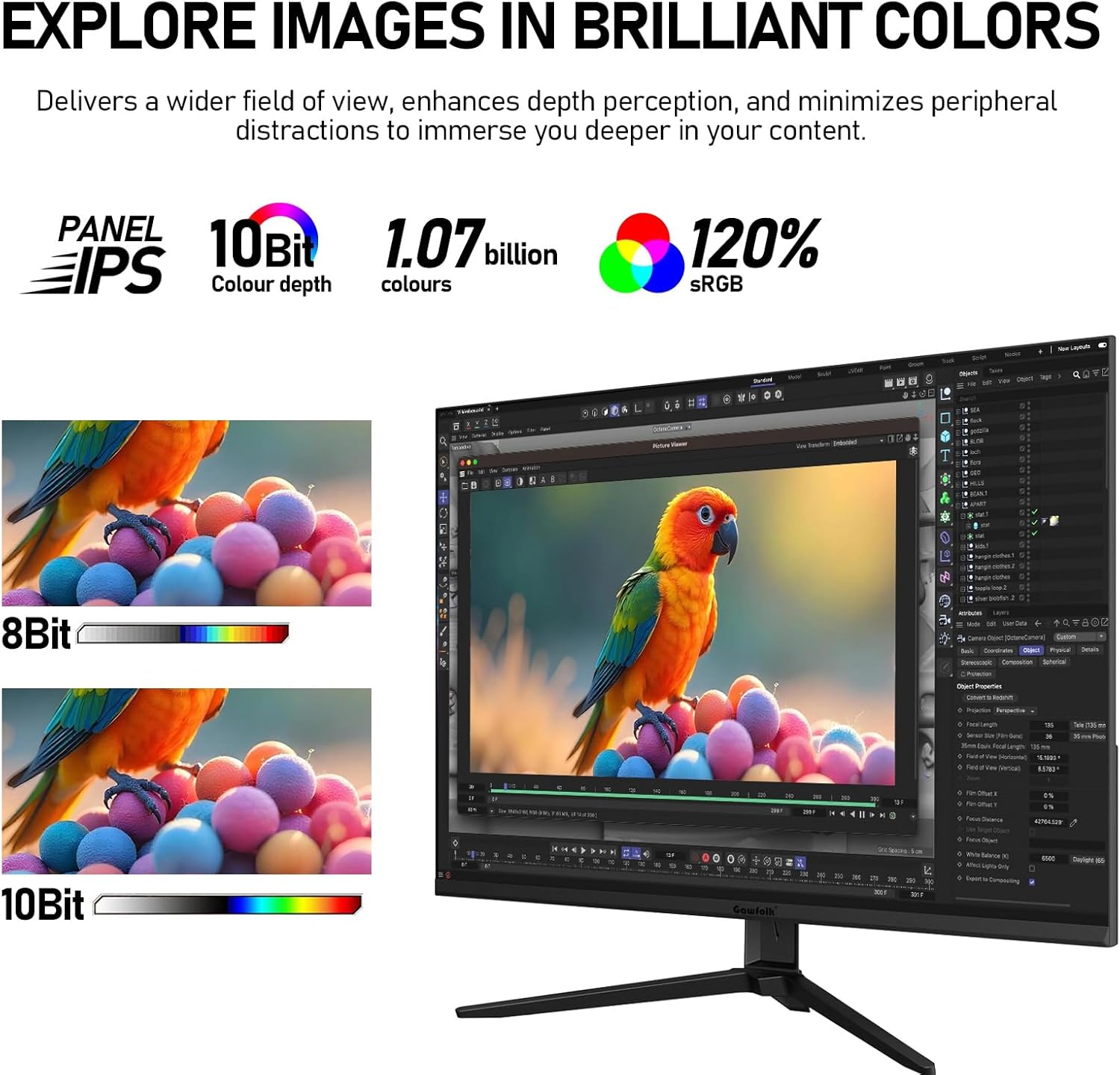
Image: The Gawfolk 28.2 Inch 4K+ UHD IPS Monitor with its stand and various cables, including the power adapter and DP cable, laid out as included accessories.
Тохируулах заавар
1. Стенд угсрах
- Мониторыг савлагаанаас нь болгоомжтой авч хаяна уу.
- Attach the V-shaped base to the bracket using the provided screw.
- Secure the assembled stand to the back of the monitor.
2. Мониторыг холбох
- Эрчим хүчний холболт: Цахилгаан адаптерийг мониторын тогтмол гүйдлийн оролтод, дараа нь тэжээлийн залгуурт холбоно.
- Видео холболт:
- For optimal 3840x2560 resolution at 60Hz, use the supplied DisplayPort (DP) cable to connect the monitor to your computer's graphics card.
- Alternatively, use an HDMI 2.0 cable to connect to an HDMI port. Note that HDMI may result in different output behavior to accommodate the screen's unique 3:2 aspect ratio.
- Аудио холболт (заавал биш): If using external speakers or headphones, connect them to the monitor's Audio Out port.

Зураг: Нарийвчилсан view of the monitor's rear panel, highlighting the DC power input, two HDMI 2.0 ports, two DisplayPort 1.4 ports, and an Audio Out port. Dimensions for VESA mounting (75x75mm) and tilt angle are also shown.
Ашиглалтын заавар
Асаах/унтраах
Locate the power button, typically on the back or bottom of the monitor. Press it to turn the monitor on or off. An indicator light will show the power status.
Дэлгэц дээрх дэлгэц (OSD) цэс
The OSD menu allows you to adjust various display settings. Use the buttons on the monitor (usually on the back or bottom right) to navigate the menu. Common settings include:
- Гэрэлтүүлэг/Ялгарал: Зургийн тод байдал, ялгах чадварыг тохируулна уу.
- Өнгөний тохиргоо: Өнгөний температур, гамма болон хувь хүний RGB түвшинг өөрчлөх.
- Оролтын сонголт: Manually switch between HDMI 1, HDMI 2, DP 1, and DP 2 inputs.
- Аудио тохиргоо: Суулгасан чанга яригч эсвэл холбогдсон аудио төхөөрөмжүүдийн дууны хэмжээг хянах.
- Зургийн горим: Select preset display modes (e.g., Standard, Game, Movie, Text).
- Бага цэнхэр гэрэл: Enable or disable the low blue light feature to reduce eye strain.
Дэлгэцийн онцлог
UHD 4K+ Resolution and IPS Panel
The monitor features a 28.2-inch IPS panel with a 3840x2560 UHD resolution. This provides a high pixel density for sharp images and text. The IPS technology ensures wide viewөнцгийн өнцгүүд болон тогтвортой өнгөний хуулбар.
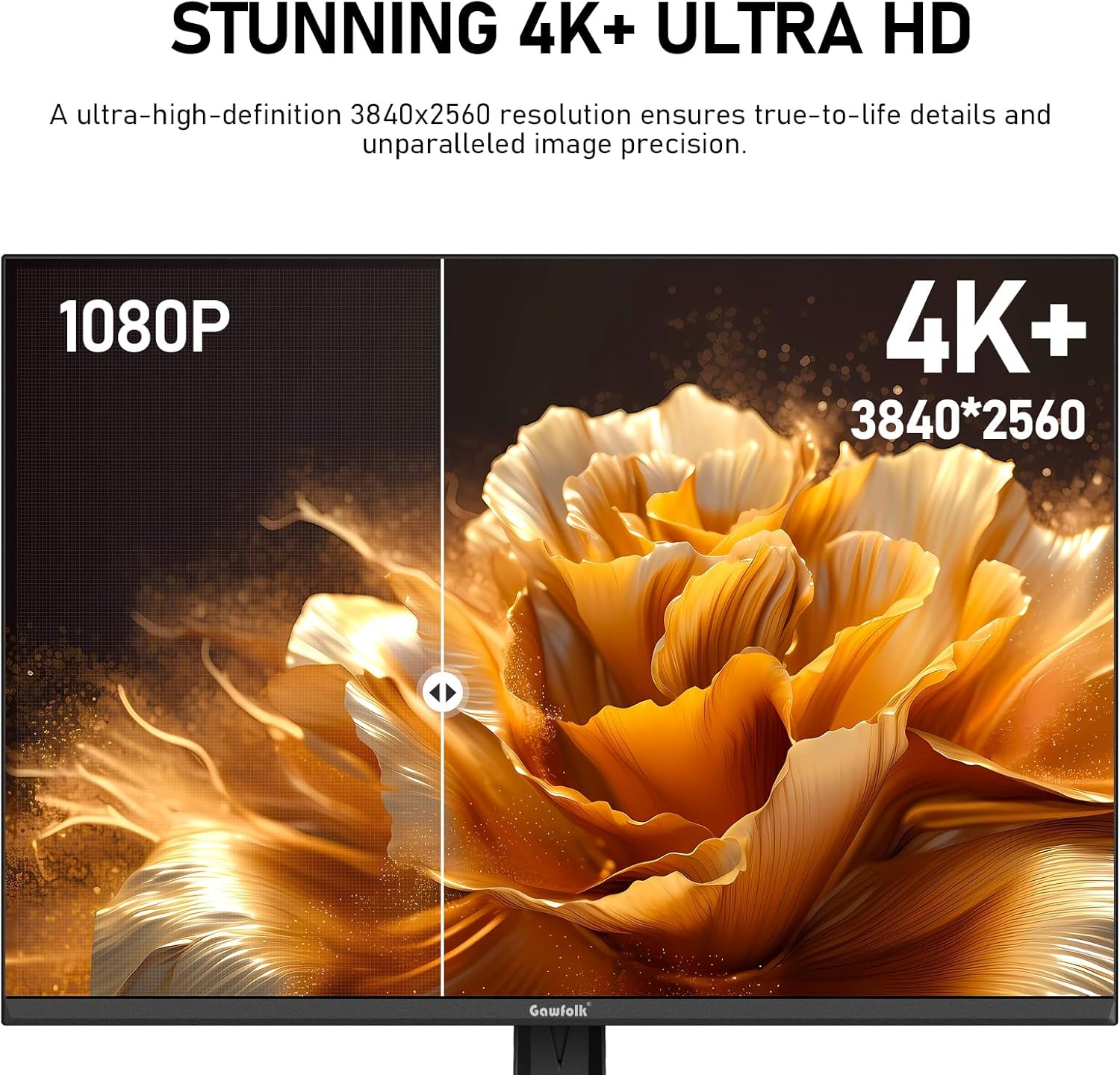
Image: A split-screen comparison demonstrating the clarity difference between 1080P and 4K+ (3840x2560) resolution on the monitor, showing significantly more detail in the 4K+ section.
Өнгөний нарийвчлал
With 10-bit color depth, the monitor displays 1.07 billion colors and covers 120% of the sRGB color gamut. This ensures vibrant and accurate color reproduction, suitable for photo editing, video post-production, and graphic design.
Image: A visual representation of the monitor's color capabilities, highlighting 10-bit color depth, 1.07 billion colors, and 120% sRGB coverage, with a comparison between 8-bit and 10-bit color gradients.
60Hz Refresh Rate and Adaptive Sync
The monitor operates at a stable 60Hz refresh rate, providing smooth performance for office tasks, video playback, and casual gaming. Adaptive Sync technology helps prevent screen tearing and stuttering by synchronizing the monitor's refresh rate with your graphics card.

Image: A side-by-side comparison illustrating the smoothness of a 60Hz refresh rate versus a conventional, lower refresh rate, showing reduced motion blur.
Eye Care Features (DC Dimming & Low Blue Light)
To minimize eye strain during extended use, the monitor incorporates DC dimming technology to reduce flicker and a low blue light panel. These features contribute to a more comfortable viewтуршлага.

Image: A visual comparison showing the difference between a screen with high blue light and flicker versus one with low blue light and DC dimming, indicating reduced eye strain.
Аудио
Баригдсан хос чанга яригч
The monitor includes integrated dual speakers, providing clear audio for video calls and media playback without the need for external speakers. This helps maintain a clutter-free workspace.
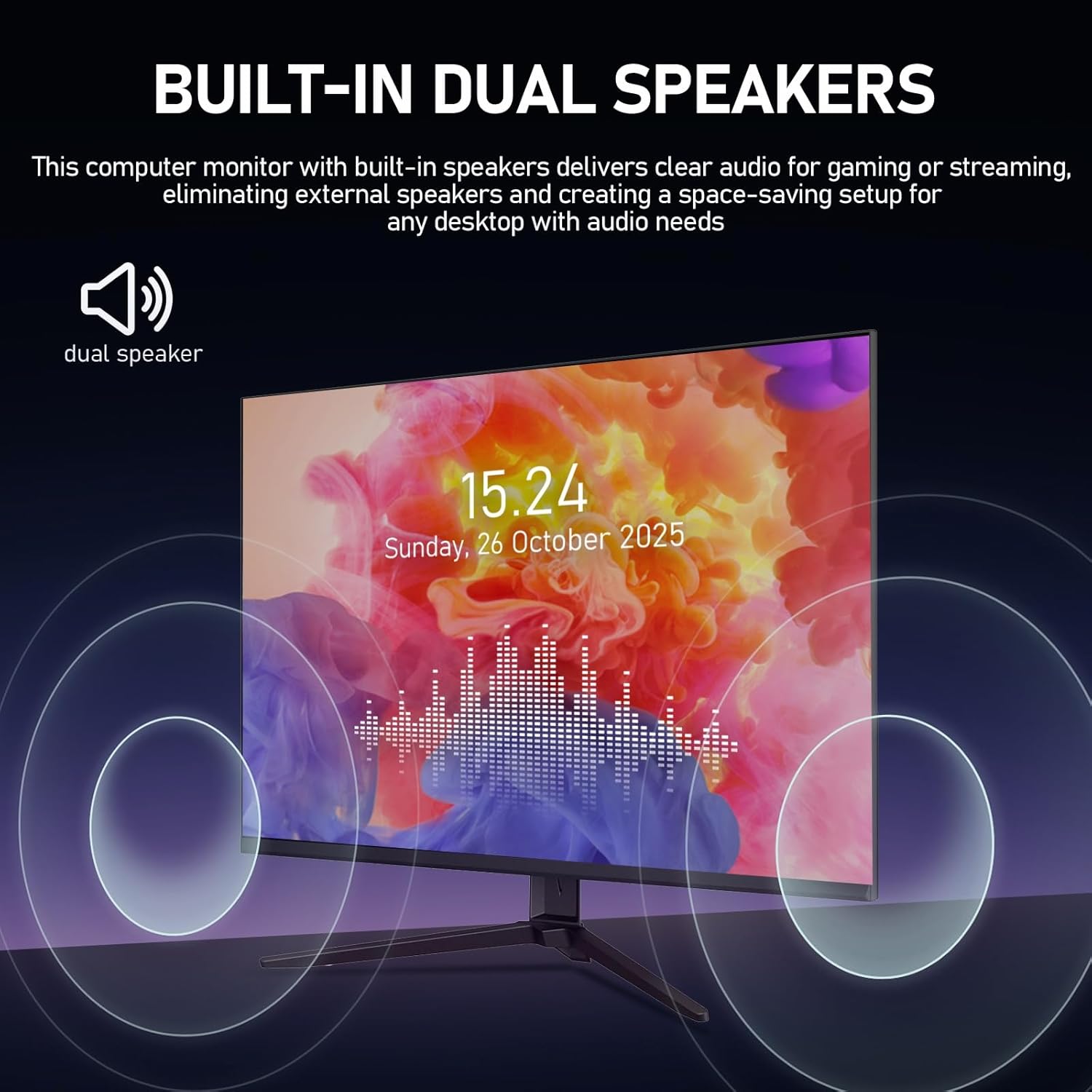
Image: An illustration of the Gawfolk monitor with sound waves emanating from its sides, indicating the presence and function of built-in dual speakers.
Суурилуулах сонголтууд
VESA бэхэлгээний нийцтэй байдал
The monitor is compatible with 75x75mm VESA mounts, allowing for flexible installation on a wall or a monitor arm. This feature helps save desk space and allows for customized ergonomic setups.
Зураг: Нарийвчилсан view of the monitor's rear panel, clearly indicating the 75x75mm VESA mounting holes for alternative installation methods.
Үзүүлэлтүүд
| Онцлог | Тодорхойлолт |
|---|---|
| Бүтээгдэхүүний хэмжээс | 1.85 x 24.09 x 19.96 инч |
| Зүйлийн жин | 7.48 фунт |
| Үйлдвэрлэгч | Гавфолк |
| ASIN | B0FPMBR5SL |
| Загварын дугаар | GF005 |
| Байнгын дэлгэцийн хэмжээ | 28.2 инч |
| Харьцаа | 3:2 |
| Шийдвэр | 3840 x 2560 |
| Зургийн тод байдал | Нэг метр квадрат тутамд 270 кандела |
| Брэнд | Гавфолк |
| Дэлгэцийн гадаргуугийн тодорхойлолт | Матт |
Алдааг олж засварлах
- Эрчим хүчгүй:
- Ensure the power adapter is securely connected to both the monitor and a working power outlet.
- Цахилгаан заагч гэрэл асаалттай байгаа эсэхийг шалгана уу.
- Сүлжээ алга:
- Verify that the video cable (DP or HDMI) is firmly connected to both the monitor and your computer.
- Дэлгэцийн OSD цэсэнд зөв оролтын эх үүсвэр сонгогдсон эсэхийг шалгаарай.
- Боломжтой бол өөр видео кабель эсвэл портыг туршаад үзээрэй.
- Image Flickering or Tearing:
- Таны график картны драйверууд шинэчлэгдсэн эсэхийг шалгаарай.
- Check if Adaptive Sync is enabled in your graphics card settings.
- Verify the refresh rate is set to 60Hz in your operating system's display settings.
- Black Bars with 16:9 Content:
- This is normal behavior for a 3:2 aspect ratio monitor when displaying standard 16:9 content. The monitor may also stretch the image to fit, depending on your settings.
- No Sound from Built-in Speakers:
- Check the volume settings in the monitor's OSD menu and your computer's sound settings.
- Ensure the monitor is selected as the audio output device on your computer.
Засвар үйлчилгээ
- Дэлгэц цэвэрлэх:
- Мониторыг унтрааж, цахилгааны утсыг салга.
- Зөөлөн, хөвөнгүй даавууг хөнгөн хэрэглээрэй dampусаар эсвэл тусгай дэлгэц цэвэрлэгчээр дүүргэнэ.
- Цэвэрлэгч бодисыг дэлгэц рүү шууд цацаж болохгүй.
- Дэлгэцийн гадаргууг гэмтээж болзошгүй зүлгүүрийн даавуу эсвэл химийн цэвэрлэгч хэрэглэхээс зайлсхий.
- Ерөнхий цэвэрлэгээ:
- Мониторыг арчих casing зөөлөн, хуурай даавуугаар.
- Агааржуулалтын нүхийг тоос шороо, хог хаягдлаас цэвэр байлга.
Баталгаат болон дэмжлэг
Gawfolk provides high-quality computer monitors and premium services. If you encounter any damage, malfunction, or missing accessories, please contact Gawfolk customer support. We are committed to assisting you with any issues.
For support, please refer to the contact information provided on the official Gawfolk webсайт эсвэл таны худалдан авалтын баримт бичиг.