1. Танилцуулга
Thank you for choosing the Pisichen 27-inch 4K UHD Touchscreen Monitor with Webcam. This manual provides essential information for the safe and efficient operation of your new monitor. Please read it thoroughly before use and retain it for future reference.
2. Аюулгүй байдлын мэдээлэл
- Эрчим хүчний эх үүсвэр: Use only the power adapter supplied with the monitor. Ensure the power outlet meets the voltage шаардлага.
- Агааржуулалт: Агааржуулалтын нүхийг хааж болохгүй. Агаарын урсгалыг хэвийн болгохын тулд дэлгэцийн эргэн тойронд хангалттай зай гарга.
- Шингэний нөлөөлөл: Мониторыг шингэн зүйлээс хол байлга. Бороо эсвэл чийгэнд бүү гарга.
- Цэвэрлэгээ: Disconnect the power cable before cleaning. Use a soft, dry cloth. Avoid abrasive cleaners.
- Байршил: Мониторыг унахаас сэргийлж тогтвортой, тэгш гадаргуу дээр байрлуул.
- Үйлчилгээ: Мониторыг өөрөө засварлах гэж бүү оролдоорой. Бүх үйлчилгээг мэргэшсэн боловсон хүчинд шилжүүлээрэй.
3. Багцын агуулга
Савлахдаа багцын агуулгыг шалгана уу. Хэрэв ямар нэг зүйл дутуу эсвэл гэмтсэн бол жижиглэн худалдаалагчтайгаа холбоо барина уу.
- Pisichen 27-inch 4K UHD Touchscreen Monitor
- Хяналтын тавиур (суурь ба гар)
- Эрчим хүчний адаптер
- HDMI кабель
- USB-B to USB-A Cable (for Touch Function)
- Хэрэглэгчийн гарын авлага
4. Бүтээгдэхүүн дууссанview
4.1 Гол онцлогууд
- Ultra HD 4K Touchscreen Display: 27-inch 4K Ultra HD screen with vibrant colors, sharp details, and wide viewing angles. Features a responsive 10-point touchscreen for intuitive control.
- Built-in High-Definition Webкамер: Нэгдсэн webcam for video calls, online meetings, and streaming, reducing desk clutter.
- Олон талт холболт: Multiple ports including HDMI, DisplayPort, and USB-C for easy connections to various devices. Supports both touch and traditional input.
- Optimized for Productivity and Creativity: Large 4K touch display for precise control and streamlined workflows, ideal for graphic designers, content creators, and multitasking.
- Sleek and Functional Design: Modern design with an adjustable stand for optimal viewing angles and comfort during extended use.
4.2 Мониторын портууд
The monitor features various ports for connecting to your devices. Refer to the image below for port identification.
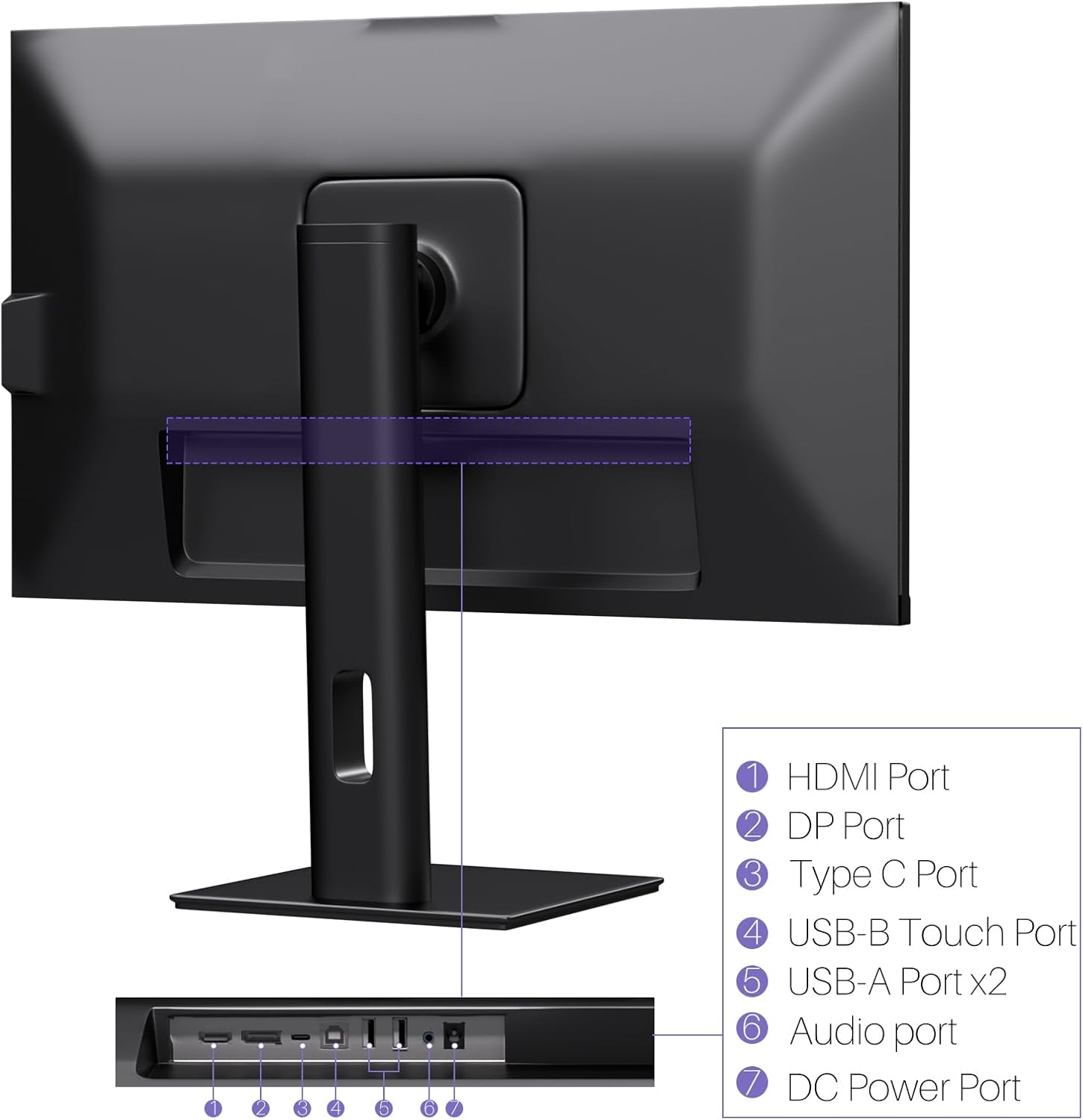
Зураг: Ар талд view of the monitor displaying the HDMI, DP, Type-C, USB-B Touch, USB-A, Audio, and DC Power ports.
- HDMI порт: Connects to devices via HDMI cable for video and audio input.
- DP порт: Connects to devices via DisplayPort cable for video and audio input.
- Төрөл-C порт: Connects to devices via USB-C cable for video, audio, and power delivery. (Requires USB-C port on signal device to support DisplayPort Alternate Mode for touch functionality).
- USB-B Touch Port: Connects to your computer via USB-B to USB-A cable to enable touchscreen functionality.
- USB-A порт (x2): USB дагалдах төхөөрөмжүүдийг холбоход зориулагдсан.
- Аудио порт: Гадаад аудио төхөөрөмжийг холбоход зориулагдсан.
- DC цахилгаан порт: Цахилгаан адаптерт холбогдоно.
5. Тохируулах заавар
5.1 Стенд угсрах
- Монитор болон тавиурын эд ангиудыг савлагаанаас болгоомжтой авч хая.
- Attach the stand arm to the monitor's VESA mounting points.
- Secure the stand base to the arm using the provided screws.
- Ensure all connections are tight and the monitor is stable.
5.2 Төхөөрөмжид холбогдох
The monitor supports various connection types. Choose the appropriate cable for your device.

Image: Connection diagrams illustrating how to connect the monitor as a secondary display (HDMI/DP + DC), a touchscreen monitor (HDMI/DP + USB-B + DC), or via USB-C (USB-C + DC).
- For Video and Audio (Non-Touch): Connect an HDMI or DisplayPort cable from your computer to the corresponding port on the monitor.
- For Video, Audio, and Touch (Windows PC): Connect an HDMI or DisplayPort cable for video/audio. Additionally, connect the USB-B to USB-A cable from the monitor's USB-B Touch Port to a USB-A port on your computer.
- For Video, Audio, and Touch (USB-C Compatible Device): Connect a USB-C cable from your device to the monitor's Type-C port. Ensure your device's USB-C port supports DisplayPort Alternate Mode for touch functionality.
5.3 Эрчим хүчний холболт
- Connect the power adapter to the monitor's DC Power Port.
- Цахилгаан адаптерийг ханын залгуурт холбоно уу.
6. Ашиглалтын заавар
6.1 Асаах/унтраах
Дэлгэц дээр байрлах цахилгаан товчийг дарж асаах эсвэл унтраана уу.
6.2 Дэлгэц дээрх дэлгэц (OSD) цэс
Use the control buttons (typically located on the back or bottom of the monitor) to navigate the OSD menu. This menu allows you to adjust settings such as brightness, contrast, color temperature, input source, and other display parameters.
6.3 Мэдрэгчтэй дэлгэцийн үйл ажиллагаа
The monitor features a 10-point multi-touch screen. Ensure the USB-B to USB-A cable (or USB-C cable for compatible devices) is connected to enable touch functionality.
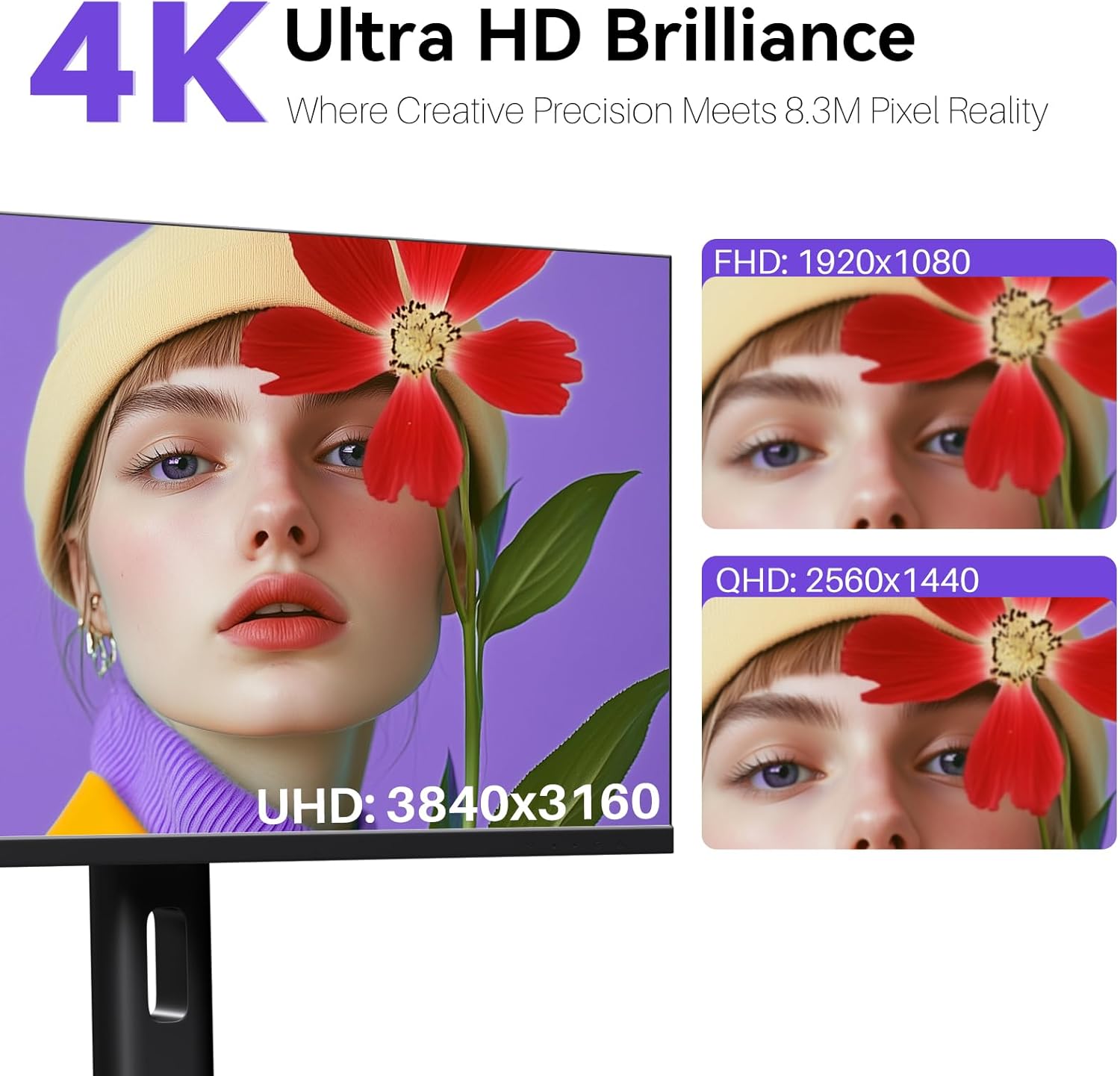
Image: A user's hand interacting with the monitor screen, highlighting the responsive 10-point touch experience.
- Үндсэн мэдрэгч: Tap to click, swipe to scroll.
- Олон мэдрэгчтэй дохио зангаа: Use two fingers to zoom in/out, rotate, or pan, depending on the application.
- Touch Calibration (Windows Only): If the cursor does not align with your touch, calibration may be required. Go to Control Panel > Hardware and Sound > Tablet PC Settings > Calibrate. Follow the on-screen prompts.
6.4 Using the Built-in Webкамер
нэгдсэн webcam is automatically detected by most operating systems and video conferencing applications. No additional drivers are typically required.

Image: The monitor displaying a video conference call, showcasing its integrated webcam for seamless communication.
- Open your preferred video conferencing software (e.g., Zoom, Microsoft Teams, Skype).
- Select the integrated webcam as your video input device in the application's settings.
6.5 Adjusting Display Resolution
To set the resolution of the monitor (Windows):
- Right-click on your desktop and select "Display Settings."
- Find your monitor (if multiple displays are connected).
- Under "Display resolution," select the recommended resolution of 3840 x 2160.
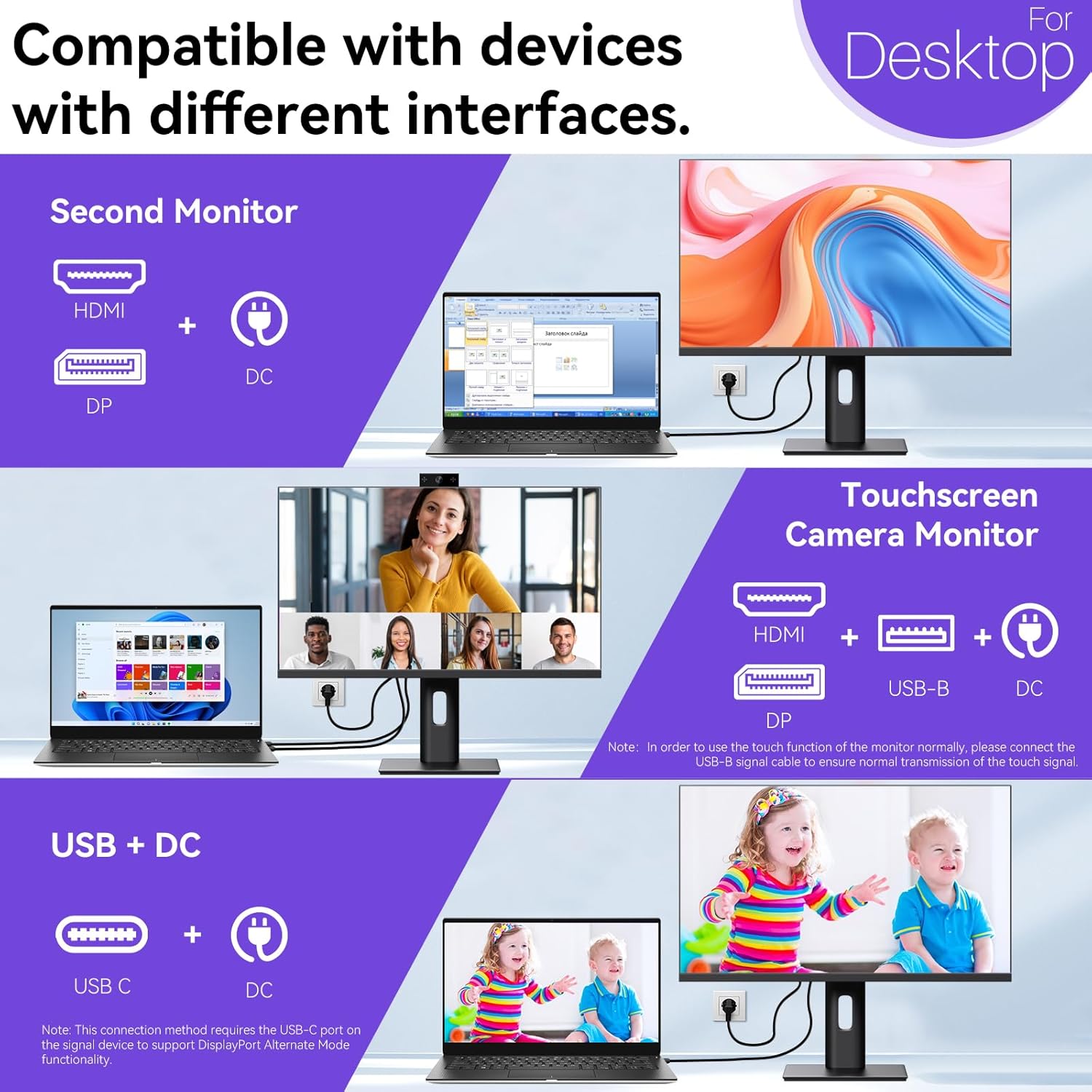
Image: A visual comparison demonstrating the superior clarity of 4K UHD (3840x2160) compared to FHD (1920x1080) and QHD (2560x1440) resolutions.
7. Засвар үйлчилгээ
- Дэлгэц цэвэрлэх: Зөөлөн, хөвөнгүй даавуугаар дэлгэцийг зөөлөн арчина. Зөрүүд тэмдгийн хувьд хөнгөнөөр dampдаавууг ус эсвэл дэлгэцийн тусгай уусмалаар арчина. Дэлгэц рүү шууд шингэн цацаж болохгүй.
- C цэвэрлэхasing: Мониторыг зөөлөн, хуурай даавуугаар цэвэрлэх casing.
- Хадгалах: Хэрэв дэлгэцийг удаан хугацаагаар хадгалах бол цахилгаан тэжээлээс салгаж, анхны савлагаанд нь хийж, сэрүүн, хуурай газар хадгална уу.
8. Алдаа засах
If you encounter issues with your monitor, refer to the following troubleshooting guide. For problems not listed, please contact customer support.
| Асуудал | Боломжит шалтгаан | Шийдэл |
|---|---|---|
| Дэлгэц дээр зураг алга | Цахилгаан кабель салгагдсан; Видео кабель салгагдсан; Буруу оролтын эх үүсвэр сонгосон. | Ensure power cable is securely connected. Check video cable (HDMI/DP/USB-C) connections. Select correct input source via OSD menu. |
| Мэдрэгчтэй дэлгэц хариу өгөхгүй байна | USB-B cable not connected; USB-C port not supporting DisplayPort Alternate Mode; Device incompatibility (e.g., iPhone). | Ensure the USB-B to USB-A cable is connected from the monitor to your computer. If using USB-C, verify your device's USB-C port supports DisplayPort Alternate Mode. Note: Touch function is not supported when connected to an iPhone due to iOS system restrictions. |
| Cursor moves incorrectly (Windows) | Touchscreen calibration required. | Perform touchscreen calibration: Go to Control Panel > Hardware and Sound > Tablet PC Settings > Calibrate. |
| Webкамер илрээгүй | USB connection issue; Software settings. | Ensure all necessary USB cables are connected. Check your application's settings to select the correct webкамер. |
9. Техникийн үзүүлэлтүүд
| Онцлог | Дэлгэрэнгүй |
|---|---|
| Брэнд | Писичен |
| Загварын дугаар | 27INTSCMR-4K |
| Дэлгэцийн хэмжээ | 27 инч |
| Шийдвэр | 3840 x 2160 пиксел (4K UHD 2160p) |
| Харьцаа | 16:9 |
| Зургийн тод байдал | 400 Кандела |
| Дэлгэцийн гадаргуугийн тодорхойлолт | Гялгар |
| Бүтээгдэхүүний хэмжээс | 14.37 x 24.21 x 16.54 инч |
| Зүйлийн жин | 16.59 фунт |
| Үйлдвэрлэгч | Shenzhen Konowa Electronics Co., LTD |
| Холболт | HDMI, DisplayPort, USB-C, USB-B (for touch), USB-A (x2), Audio Port |
10. Баталгаат хугацаа ба дэмжлэг
This product comes with a manufacturer's warranty. Please refer to the warranty card included in your package for specific terms and conditions. For technical support or inquiries, please contact Pisichen customer service at support_2308@163.com. When contacting support, please provide your model number and a detailed description of the issue, including any relevant pictures or videos.


