1. Танилцуулга
The Brother DCP-L2640DW is a compact, high-performance monochrome laser all-in-one printer designed for home offices and small workgroups. This manual provides essential information for setting up, operating, maintaining, and troubleshooting your printer to ensure optimal performance.
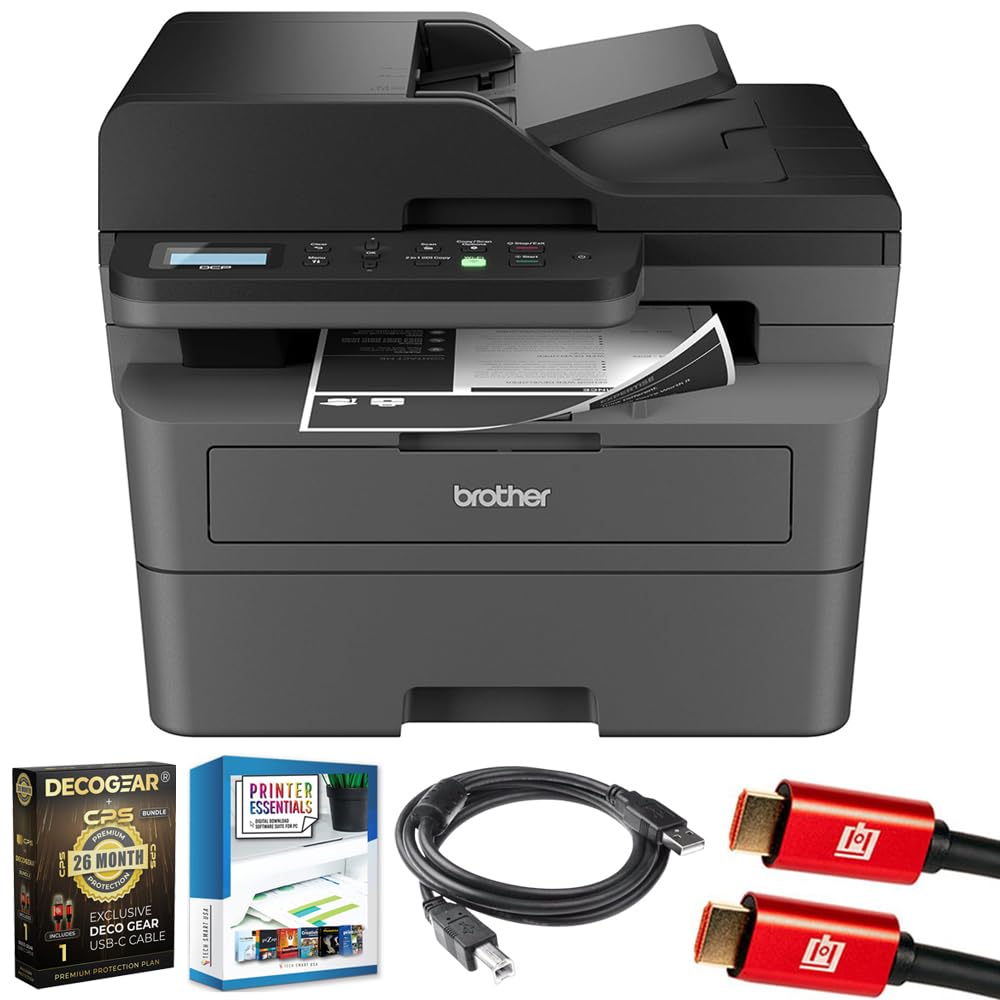
Image 1.1: Brother DCP-L2640DW Compact Monochrome Laser Printer
2. Үндсэн шинж чанарууд
- 3-ын-1 функциональ байдал: Print, copy, and scan capabilities in a compact design.
- Хурдан хэвлэх хурд: Delivers up to 36 pages per minute for efficient task completion.
- Автомат хоёр талт хэвлэх: Built-in two-sided printing to save time and paper.
- 50 хуудастай автомат баримт бичиг тэжээгч (ADF): Олон хуудастай сканнердах болон хуулбарлах ажлыг үр дүнтэй гүйцэтгэх зориулалттай.
- High-Capacity Paper Handling: 250-sheet paper tray plus a manual feed slot for diverse media types.
- Уян хатан холболтын сонголтууд: Dual-band Wi-Fi, Ethernet, USB, and mobile printing via Brother Mobile Connect, AirPrint, Mopria, and Wi-Fi Direct.
- Advanced Network Security: Features like TLS/SSL, SNMP v3, and IP filtering for secure operation.

Зураг 2.1: Дууслааview of the Brother DCP-L2640DW's key features including print speed, connectivity, and compact design.
3. Хайрцагт юу байна
- Brother DCP-L2640DW Monochrome Laser Printer
- Хар өнгийн эхлэлийн хорны хайрцаг (ойролцоогоор 700 хуудас)
- Brother DR830 Drum Unit (approx. 15,000 pages)
- Хувьсах гүйдлийн цахилгааны утас
- Documentation (Quick Setup Guide, Product Safety and Protection Information)
4. Тохиргоо
4.1. Савыг задлах
- Принтерийг сав баглаа боодолоос нь болгоомжтой авч хая.
- Принтерийн гадна болон дотор талын бүх хамгаалалтын тууз, баглаа боодлын материалыг зайлуул.
4.2. Toner Cartridge and Drum Unit Installation
- Принтерийн урд тагийг нээнэ үү.
- Remove the toner cartridge and drum unit assembly from the printer.
- Шинэ тонерын хайрцаг болон хүрдний хэсгийг задална уу.
- Тонерын картриджийг байрандаа түгжигдэх хүртэл нь хүрдний хэсэгт сайтар оруулна уу.
- Slide the green tab on the drum unit from left to right several times to clean the corona wire. Return the tab to the home position.
- Reinstall the toner cartridge and drum unit assembly into the printer.
- Урд талын тагийг хаа.
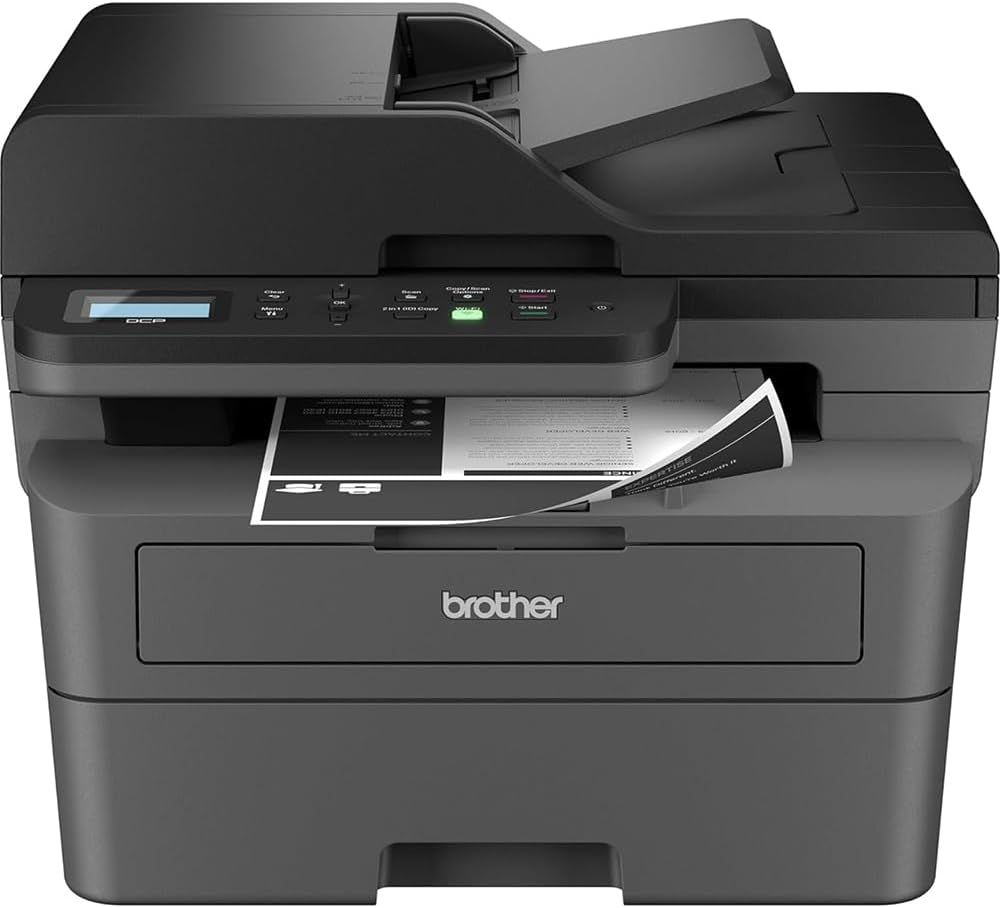
Image 4.1: The Brother DCP-L2640DW printer with the front cover open, showing the toner cartridge and drum unit assembly.
4.3. Эрчим хүчний холболт
- Хувьсах гүйдлийн тэжээлийн утсыг принтерийн тэжээлийн оролтод холбоно уу.
- Цахилгааны утасны нөгөө үзүүрийг газардуулсан цахилгааны залгуурт холбоно.
- Принтерийг асаахын тулд цахилгаан товчийг дарна уу.
4.4. Initial Setup & Connectivity
Follow the on-screen instructions on the printer's LCD display to complete the initial setup, including language selection and date/time settings.
- Утасгүй тохиргоо: Принтерийн хяналтын самбар дээрх сүлжээний тохиргоо руу очиж, Wi-Fi сүлжээгээ сонгоод нууц үгээ оруулна уу.
- Ethernet холболт: Чиглүүлэгч эсвэл сүлжээний төвөөсөө Ethernet кабелийг хэвлэгчийн Ethernet порт руу холбоно уу.
- USB холболт: Компьютерээсээ USB кабелийг хэвлэгчийн USB порт руу холбоно уу.
- Драйвер суурилуулах: Принтерийн драйверуудыг дагалдаж ирсэн CD-ROM-оос суулгах эсвэл албан ёсны Brother дэмжлэгээс татаж аваарай webсайт.
Видео 4.1: Бүтээгдэхүүн дууссанview video demonstrating the Brother DCP-L2640DW printer's features and ease of use.
5. Ашиглалтын заавар
5.1. Баримт бичгийг хэвлэх
- Load paper into the 250-sheet paper tray or the manual feed slot.
- Компьютер эсвэл гар утасны төхөөрөмжөөсөө хэвлэхийг хүссэн баримтаа нээнэ үү.
- Програмын цэснээс "Хэвлэх"-ийг сонгоно уу.
- Choose your Brother DCP-L2640DW printer.
- Adjust print settings (e.g., number of copies, duplex printing) as needed.
- "Хэвлэх" дээр дарна уу.
5.2. Баримт бичгийг хуулбарлах
- Баримтаа сканнерын шилэн дээр доош харуулан эсвэл Автомат баримт бичиг тэжээгч (ADF) дотор дээш харуулан байрлуулна уу.
- On the printer's control panel, press the 'Copy' button.
- Use the arrow keys to select the number of copies or adjust other settings.
- Хуулбарлаж эхлэхийн тулд 'Эхлүүлэх' товчийг дарна уу.

Image 5.1: The Brother DCP-L2640DW highlighting its Automatic Document Feeder for multi-page tasks.
5.3. Баримт бичгийг сканнердах
- Баримтаа сканнерын шилэн дээр доош харуулан эсвэл ADF дээр дээш харуулан байрлуулна уу.
- On the printer's control panel, press the 'Scan' button.
- Select your desired scan destination (e.g., PC, email, cloud).
- Adjust scan settings (e.g., resolution, color mode) as needed.
- Press 'Start' to begin scanning.
5.4. Зөөврийн хэвлэх
The Brother DCP-L2640DW supports various mobile printing solutions:
- Brother Mobile Connect апп: Download the app to manage your printer, print, and scan from your smartphone or tablet.
- Apple AirPrint: Print directly from your Apple iOS device without installing drivers.
- Mopria хэвлэх үйлчилгээ: Mopria-баталгаажсан Андройд төхөөрөмжүүдээс хэвлэх.
- Wi-Fi Шууд: Чиглүүлэгч ашиглахгүйгээр гар утасны төхөөрөмжөөсөө хэвлэгч рүү шууд хэвлэ.

Image 5.2: The Brother Mobile Connect App interface, showing options for document print, photo print, scan, copy, and toner monitoring.
6. Засвар үйлчилгээ
6.1. Тонер солих
When the toner is low or empty, the printer's display will indicate that the toner cartridge needs to be replaced. Always use genuine Brother toner cartridges for optimal performance and print quality.
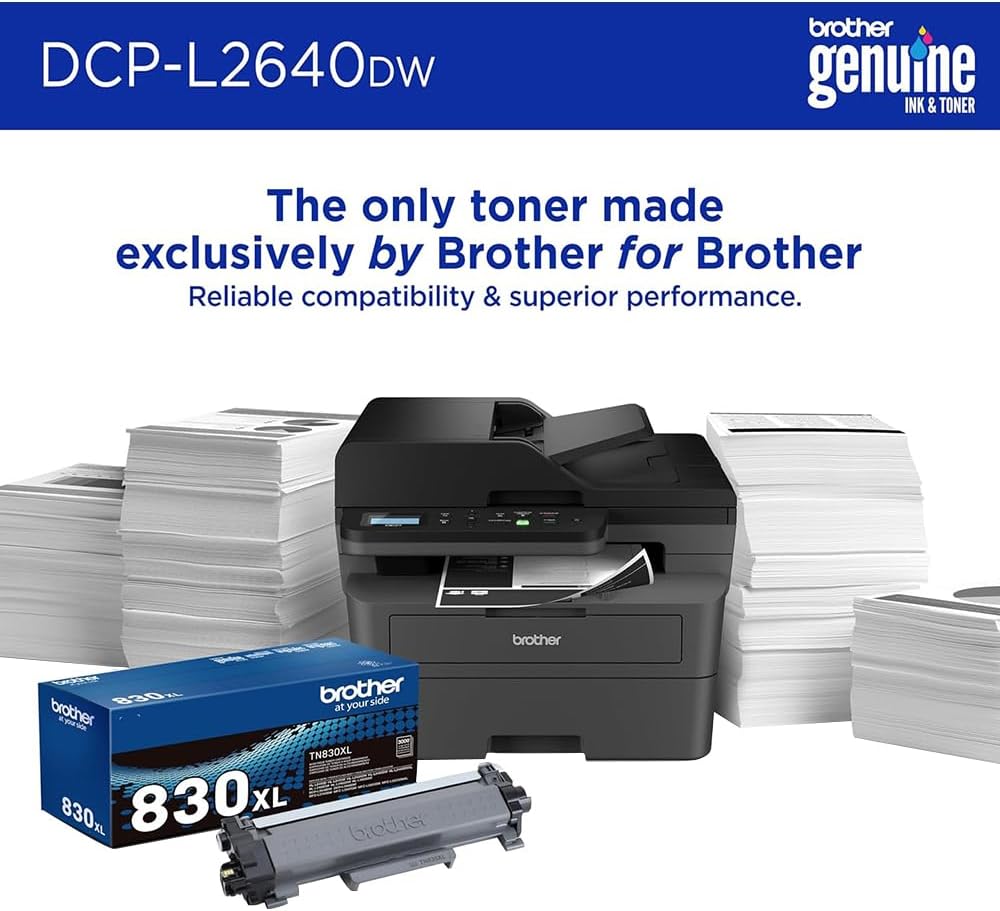
Image 6.1: Brother Genuine Ink & Toner packaging, emphasizing reliable compatibility and superior performance.
6.2. Drum Unit Replacement
The drum unit is a separate consumable that needs to be replaced periodically, typically after approximately 15,000 pages. The printer will notify you when it's time to replace the drum unit.
6.3. Цэвэрлэгээ
- Гадна: Принтерийн гадна талыг зөөлөн, хөвөнгүй даавуугаар арчина.
- Сканнерийн шил: Clean the scanner glass with a soft, lint-free cloth moistened with glass cleaner.
- Корона утас: Regularly clean the corona wire inside the drum unit by sliding the green tab.
7. Алдаа засах
- Цаасан саатал: Follow the on-screen instructions or refer to the printer's documentation to clear paper jams from various access points.
- Холболтын асуудал: Ensure the printer is connected to the correct network (Wi-Fi or Ethernet) or directly to the computer via USB. Restarting the printer and router can often resolve temporary connection problems.
- Хэвлэх чанар муу: Check toner levels, clean the corona wire, and ensure you are using appropriate paper for your print job.
- Алдааны мессежүүд: Refer to the printer's LCD display for specific error codes and consult the online manual or Brother support for solutions.
8. Техникийн үзүүлэлтүүд
| Онцлог | Дэлгэрэнгүй |
|---|---|
| Загварын дугаар | DCP-L2640DW |
| Хэвлэлийн технологи | Лазер |
| Принтерийн гаралт | Монохром |
| Хамгийн их хэвлэх хурд Monochrome | 36 ppm |
| Хар ба цагаан хэвлэх хамгийн дээд нягтрал | Инч тутамд 1200 x 1200 цэг |
| Автомат хоёр талт хэвлэх | Тиймээ |
| Сканнерийн төрөл | Хавтгай дэвсгэр |
| Хамгийн их оролтын хуудасны багтаамж | 250 хуудас |
| Автомат баримт бичиг тэжээгч (ADF)-ийн багтаамж | 50 хуудас |
| Холболтын технологи | USB, Ethernet, Dual-band Wi-Fi |
| Тохиромжтой хайрцаг | TN830, TN830XL |
| Бүтээгдэхүүний хэмжээс | 15.7"D x 16.1"W x 12.5"H |
| Жин | Not specified in provided data, typically around 20-30 lbs for similar models. |
9. Баталгаат хугацаа ба дэмжлэг
The Brother DCP-L2640DW Monochrome Laser Printer comes with a Limited Warranty. For specific warranty terms and conditions, please refer to the documentation included with your product or visit the official Brother support webсайт.
Техникийн дэмжлэг, драйвер татаж авах болон нэмэлт эх сурвалжуудын талаар мэдээлэл авахыг хүсвэл дараах хаягаар зочилно уу. Дэмжих ахаа Webсайт.


